Cybersecurity
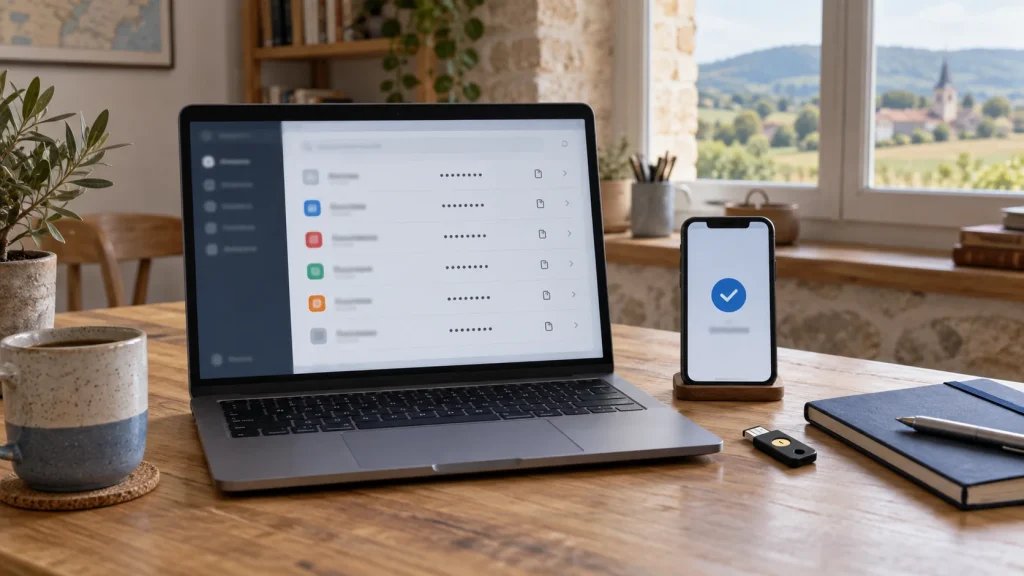
SMS, Authenticator App or Passkey: Which Sign-In Method Should You Choose?
SMS, authenticator app, passkey or physical key: compare phishing resistance, compatibility, recovery and lifecycle before rollout.

Cybersecurity / Practical guide
THE TERA24 JOURNALWorried about your Microsoft account? Do not change the password in the wrong order
I explain how to identify credible signs, secure the device and use official recovery without disclosing your secrets.
The Tera24 approach
Regain control, then check what may have been altered
The password is only one step: Outlook.com, OneDrive, forwarding rules and security information also need attention.
A single failed sign-in does not prove that your Microsoft account has been hacked. A typing error, an old password stored in a browser or a temporary problem can look similar. I therefore separate what is confirmed from what is merely possible: have you lost access, found a setting you did not choose, or discovered an unfamiliar forwarding rule, automatic reply or connected account?
Several consistent signs justify prompt action without inventing a story. Record when you first noticed the problem, which devices were involved and which changes you actually saw. Take screenshots that do not reveal a password or verification code. This short timeline helps distinguish an account change from a local browser or computer problem.
If the concern began after somebody remotely controlled the PC, also follow my response plan for a fake tech support remote-access incident. The account and computer then require two separate checks.
Never give a repairer your password, a verification code or a recovery phrase. Tera24 does not need any of those secrets to help you organise the diagnosis.
The wrong order can expose a new password immediately. Microsoft recommends running a full, up-to-date scan of the PC before changing the account password. If the suspect computer is your only device, avoid entering new credentials until that check is complete. If you have another device you control, use it for urgent account work.
Windows Security is built into Windows and provides malware protection. Update its protection, run a full scan and read the result rather than stopping at a completion message. Keeping the operating system, applications and browser updated also reduces risk. Obtain those updates through official channels instead of downloading a “cleaner” promoted by an alarming message.
A scan with no detection is reassuring, but it cannot reconstruct everything that may have happened. It addresses risk on the device; it does not by itself check mail rules, linked services or account security information. I keep the report and continue with the account checks rather than declaring the problem solved too early.
If the scan fails, protection cannot be updated or unusual behaviour continues, stop improvising. Have the device checked before entering a new secret on it.
Microsoft first directs users to its official sign-in helper so that the appropriate process can be selected. This is the right starting point whether you can still sign in or access has already been lost. Open the help from a Microsoft address you type yourself or from an official app already installed. Do not use a link in an unexpected message, even if it copies Microsoft’s colours and wording.
Answer the questions with information you genuinely know. Do not make repeated guesses and do not disclose the answers to someone claiming they can “validate” the request for you. Recovery belongs to Microsoft: an independent technician can explain the process or check the device, but cannot bypass the service’s decision or guarantee that access will be restored.
Keep the official references and messages produced during the process without publishing sensitive details. If evidence is missing or recovery is refused, record exactly what is blocking progress. Repeating the same action through random links mainly increases the chance of landing on a fake form.
Once the device has been checked, Microsoft’s process includes changing or resetting the password. Choose a new, long password used only for this account. A predictable variation of the old password is not enough. If the old one was reused elsewhere, secure those accounts separately from the trusted device, starting with any account that could be used to recover your Microsoft address.
Then review the verification methods and security information attached to the account. Keep only items you recognise and strengthen verification with the official options offered for your account. The goal is not to accumulate methods, but to confirm a sign-in without relying on a channel that somebody else may have changed.
A password change protects future sign-ins, but does not prove that every altered setting has disappeared. Mail and linked services still need to be reviewed. I treat this step as taking back the key; the next check is to inspect what that key can open.
Never read the new password to someone on the phone and never approve a code you did not request yourself. Legitimate assistance can guide you without seeing your secrets.
After an account compromise, Microsoft also says to review connected accounts, forwarding rules and automatic replies. These settings matter because an unfamiliar forwarding rule can continue sending messages elsewhere, while a changed automatic reply can mislead your contacts. Compare every entry with what you configured yourself; do not delete a legitimate family or business rule at random.
For each anomaly, preserve a non-sensitive record first, then remove or correct the setting through the official interface. Review connected accounts and security information as well, looking for anything that is not yours. Work methodically: setting name, observed state, action taken and time. This gives you a factual record of what was restored.
Contact people directly if messages were sent in your name, but do not forward the suspicious link. Ask them to delete the message and not to reply. Do not claim that no data was read; give the relevant period and confirmed facts. Useful transparency is based on evidence, not an impossible estimate of exposure.
A Microsoft account can be used with several services, but you should not assume that every service was accessed. For OneDrive, identify which folders and documents could have been available during the relevant period. Separate ordinary files from sensitive items, then record any sharing or change you do not recognise without inventing what is not visible.
Apply the same logic to other linked services that you actually use. A service that was never activated does not warrant the same investigation as daily email or storage containing personal documents. Review the settings and information available in official interfaces, then classify the exposure as confirmed, plausible or not observed.
Changing the password cannot retract information that was already copied. If a sensitive document was exposed, the response depends on its nature: monitoring an affected account, replacing a document or notifying the appropriate organisation may be necessary. I prefer to explain that limitation instead of promising that one action resets everything.
Do not share your OneDrive files with a helper to “prove” the compromise. A list of observed symptoms and settings is enough to prepare a diagnosis without exposing more data.
I regard the situation as better controlled once the device has been scanned and updated, the official process has restored access, the password and verification methods have been reviewed, and forwarding rules, automatic replies, connected accounts and security information have been checked. These are concrete checks, not a promise of perfect security.
Microsoft remains the decision-maker for account recovery. Tera24 can help examine the PC, organise the findings and explain the order of checks for English-speaking residents in Saint-Chamassy and across Dordogne, but must never ask for your password, a verification code or a recovery phrase. Keep entering those secrets yourself.
After restoring order, retain your timeline and watch for new signs in the services you actually use. If access remains impossible, settings return or the device continues behaving unusually, stop repeating the same actions and restart the diagnosis from the evidence. The aim is to rebuild trust step by step, not to declare everything fixed too early.
Written by
IT technician and founder of Tera24, I provide computer repair, troubleshooting, and optimization services throughout Dordogne, helping individuals and businesses keep their technology running smoothly.
About Tera24 ↗From guide to workshop
Further reading
Cybersecurity
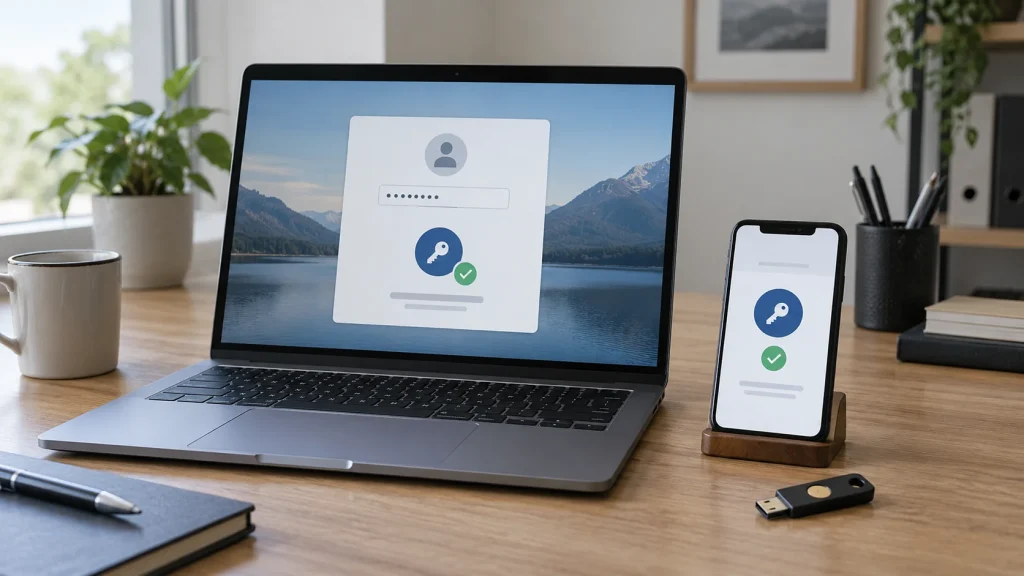
SMS, authenticator app, passkey or physical key: compare phishing resistance, compatibility, recovery and lifecycle before rollout.
Cybersecurity
Inventory accounts, protect the vault and migrate in batches to adopt a password manager without losing access.
Cybersecurity
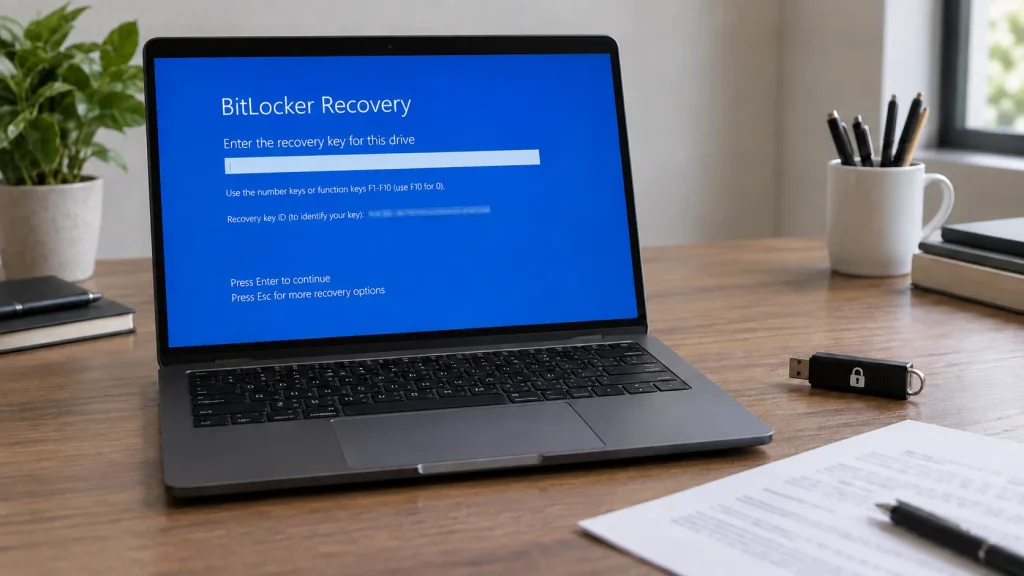
Find your BitLocker key through official routes, protect the data and understand the consequences before resetting the PC.