Software & Apps
Shared Contact Address: Set Up Microsoft 365 Without a Common Password
Named accounts, Full Access, Send As, shared replies and revocation: organise a Microsoft 365 address used by several people.

Software & Apps / Practical guide
THE TERA24 JOURNALSeeing files in OneDrive does not prove they are independently backed up
I explain the difference between sync, local availability, version history and genuine restoration ability.
The Tera24 approach
Count the real copies before trusting the icons
A sound plan combines OneDrive recovery features with separated storage and simple restore tests.
OneDrive is primarily a synchronisation system. Microsoft explains that files sync between a computer and the cloud so that they remain accessible from several devices and the OneDrive website. Adding, changing or deleting an item in the OneDrive folder changes it online, and the reverse is also true. This continuity is useful every day, but it does not automatically create an independent copy of every state of a file.
I therefore separate three ideas. Synchronisation keeps locations consistent. An independent copy remains available if an error spreads through the synchronised set. Version history can return a file to certain earlier states: Microsoft documents version history for OneDrive files and states a 30-day retention period. For a work or school account, however, the administrator can disable versioning. These functions complement each other, but they do not address exactly the same risk.
Before treating OneDrive as your backup, choose an important document and identify its real locations: cloud only, downloaded to the PC, or copied to separate storage that does not synchronise. Seeing two icons for the same file is not enough if one deletion or modification can reach both. A useful diagnosis starts with this actual map rather than the label displayed by Windows.
Saying that OneDrive is “never a backup” would be too absolute because it includes useful recovery features. Treating it as the only backup is equally misleading because sync, retention and independent copies cover different incidents.
Deletion is the clearest test of the difference between synchronisation and an independent backup. Microsoft states that deleting an online-only OneDrive file from a device also deletes it from OneDrive online and from other synchronised devices. That behaviour is consistent with the service’s purpose: the locations reflect the same library, including when an item disappears.
Recovery may still be possible from the OneDrive recycle bin. For a personal Microsoft account, Microsoft says that items are automatically deleted 30 days after entering that bin. A deleted online-only file does not appear in the computer’s local recycle bin; you need to examine the OneDrive recycle bin on the web. This window is not a promise: an item permanently removed from that bin cannot be recovered by the full OneDrive restore feature.
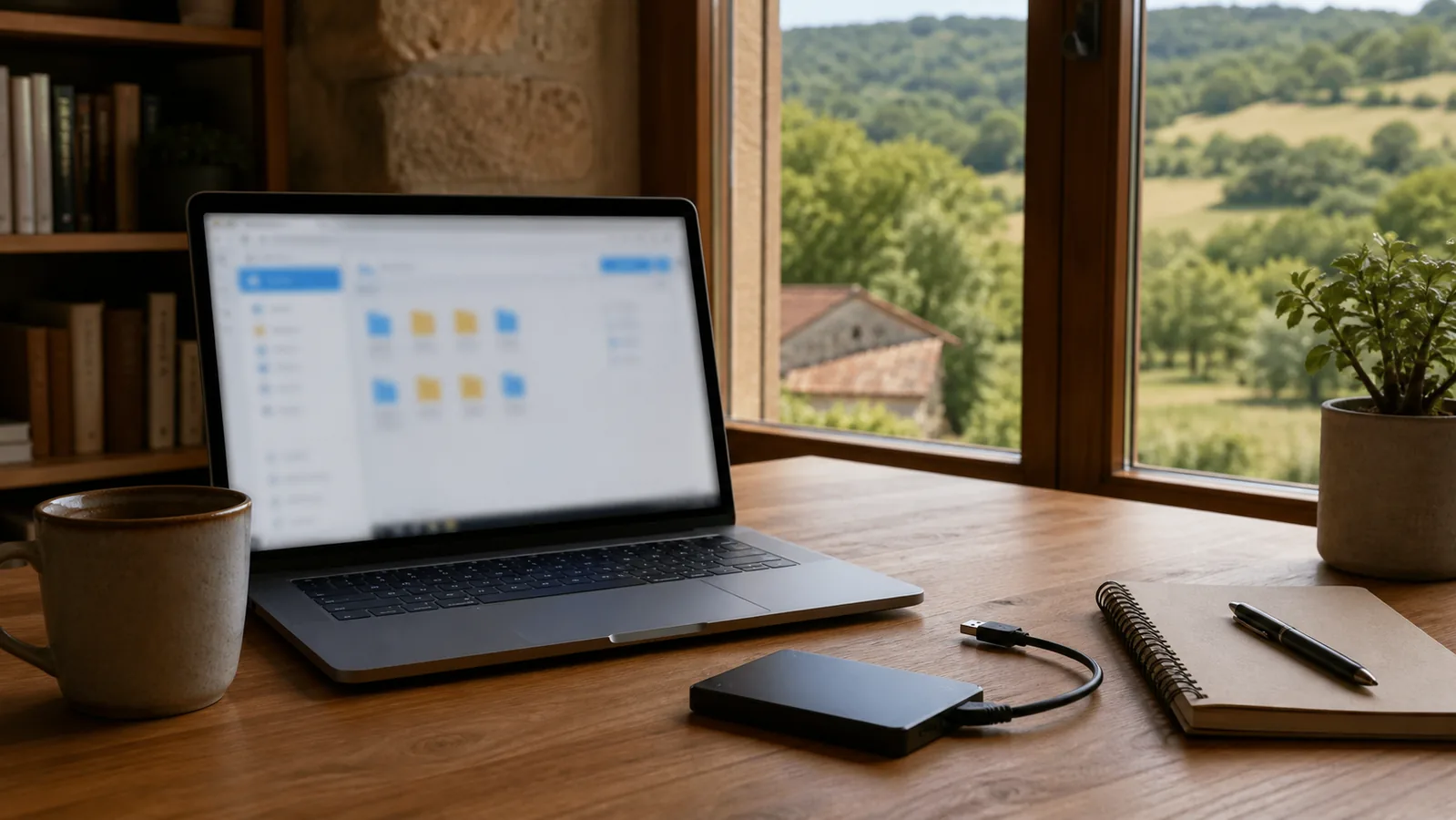
For important photographs and documents, I prefer a second copy that OneDrive cannot change automatically, such as external storage used through a clear routine and then disconnected. This separation provides better protection against a repeated human error or a change that synchronises before you notice it.
Files On-Demand makes copy counting less obvious. Microsoft says that an online-only file appears in File Explorer but does not occupy local storage and cannot be opened without an Internet connection. Its visible presence in a folder is therefore not proof that a complete copy exists on the internal drive.
By contrast, a file marked to remain available on the device is downloaded, takes up space and can be opened offline. That improves local availability, but the local item remains part of the synchronised set, so deletion can still propagate. “Available offline” and “independently backed up” are not the same claim.
Review the folders that genuinely matter rather than relying on OneDrive’s overall state. Family archives, administrative documents and working files do not necessarily need the same treatment. Decide whether each group can remain online only, must be available on the computer, or also needs a separate copy. This decision should reflect Internet reliability, including in rural parts of Dordogne, and how long you can reasonably wait to retrieve a file.
Do not free local disk space until you have confirmed that synchronisation has finished and that important files are readable from their intended location. An icon alone does not prove that a file opens.
An offline check should be simple and low risk. Choose a non-critical file whose contents you know, mark it to remain available on the device, and wait for the download to finish. Open it once while the connection works and record its location.
Do not perform this test on the only original of an important document.
Then disconnect the network temporarily and open the same copy. If it opens correctly, you have confirmed its local availability at that moment. If it does not, reconnect and inspect its state instead of repeatedly moving or deleting items. Test a few representative formats when the collection contains documents, photographs and archives.
This check proves neither independence nor future recovery. It answers one question only: can this specific file be read from this device without the Internet? Testing a backup also means restoring a file from the other storage into a temporary folder, opening it and comparing it with the expected result. I keep those checks separate to avoid false confidence.
CISA summarises the 3-2-1 rule as three copies of important files, on two types of media, with one copy offsite. OneDrive can contribute to the remote copy, but it does not automatically replace the other two locations. The plan must remain understandable to the person who will restore the data, even months after it was set up.
For a home user, one possible arrangement keeps working files on the PC, synchronises them to OneDrive, and periodically copies them to an external drive that is disconnected afterwards. This is only an example: volume, number of computers and sharing needs affect the right choice. My guide to the 3-2-1 backup rule for photographs and documents develops a practical plan without multiplying devices unnecessarily.
If several computers need protection or files are constantly shared, compare the role of external storage with network storage. The guide to choosing a NAS or external hard drive for backup explains the trade-off according to real use. In every case, avoid letting one account, synchronisation or handling error reach every copy.
An external drive that remains connected and participates in the same actions does not provide the same separation as storage connected for a controlled copy and then put away.
A useful backup must be restorable. Prepare a disposable test file, create several versions, then check version history, the OneDrive recycle bin and your independent copy separately. Microsoft documents the restoration of earlier versions of OneDrive files. The recycle bin for a personal account has a time limit, so perform the test promptly and never use an important original.
Microsoft also offers a full OneDrive restore to an earlier state for Microsoft 365 subscribers, undoing actions on files and folders from the previous 30 days. It cannot recover an item permanently deleted from the recycle bin. Do not run a full restore as a casual experiment: it affects many items and requires careful review of the period and changes involved.
Record the test result: source, destination, date, file opened and any limit encountered. Repeat after a major change of computer, account or folder organisation. No recycle bin, history or storage device guarantees every recovery. The purpose is to discover a weakness with a test file and correct it before an irreplaceable photograph or document disappears.
I prefer to end with one practical question: if OneDrive and your PC reflected the same deletion tomorrow, which copy could you restore without depending on that synchronised set? If the answer is unclear, add an independent copy and test it. That restoration ability, not the number of green icons, turns convenient storage into a credible backup plan.
Written by
IT technician and founder of Tera24, I provide computer repair, troubleshooting, and optimization services throughout Dordogne, helping individuals and businesses keep their technology running smoothly.
About Tera24 ↗From guide to workshop
Further reading
Software & Apps
Named accounts, Full Access, Send As, shared replies and revocation: organise a Microsoft 365 address used by several people.
Software & Apps
Prepare mailboxes, DNS, MX, SPF, DKIM and DMARC to move business email on your domain without missing senders or disrupting the website.