Cybersecurity
SMS, Authenticator App or Passkey: Which Sign-In Method Should You Choose?
SMS, authenticator app, passkey or physical key: compare phishing resistance, compatibility, recovery and lifecycle before rollout.

Cybersecurity / Practical guide
THE TERA24 JOURNALThree copies, two storage types, one isolated copy
Losing a computer can also mean losing years of photographs, administrative records or files needed for work. The 3-2-1 backup rule prevents one incident from taking both the originals and their only copy.
The Tera24 approach
Protect your photos and documents without unnecessary complexity
An external drive, NAS or cloud storage account is not necessarily a complete strategy. This guide explains how to back up photos and documents realistically, without insisting on a NAS or business-grade infrastructure.
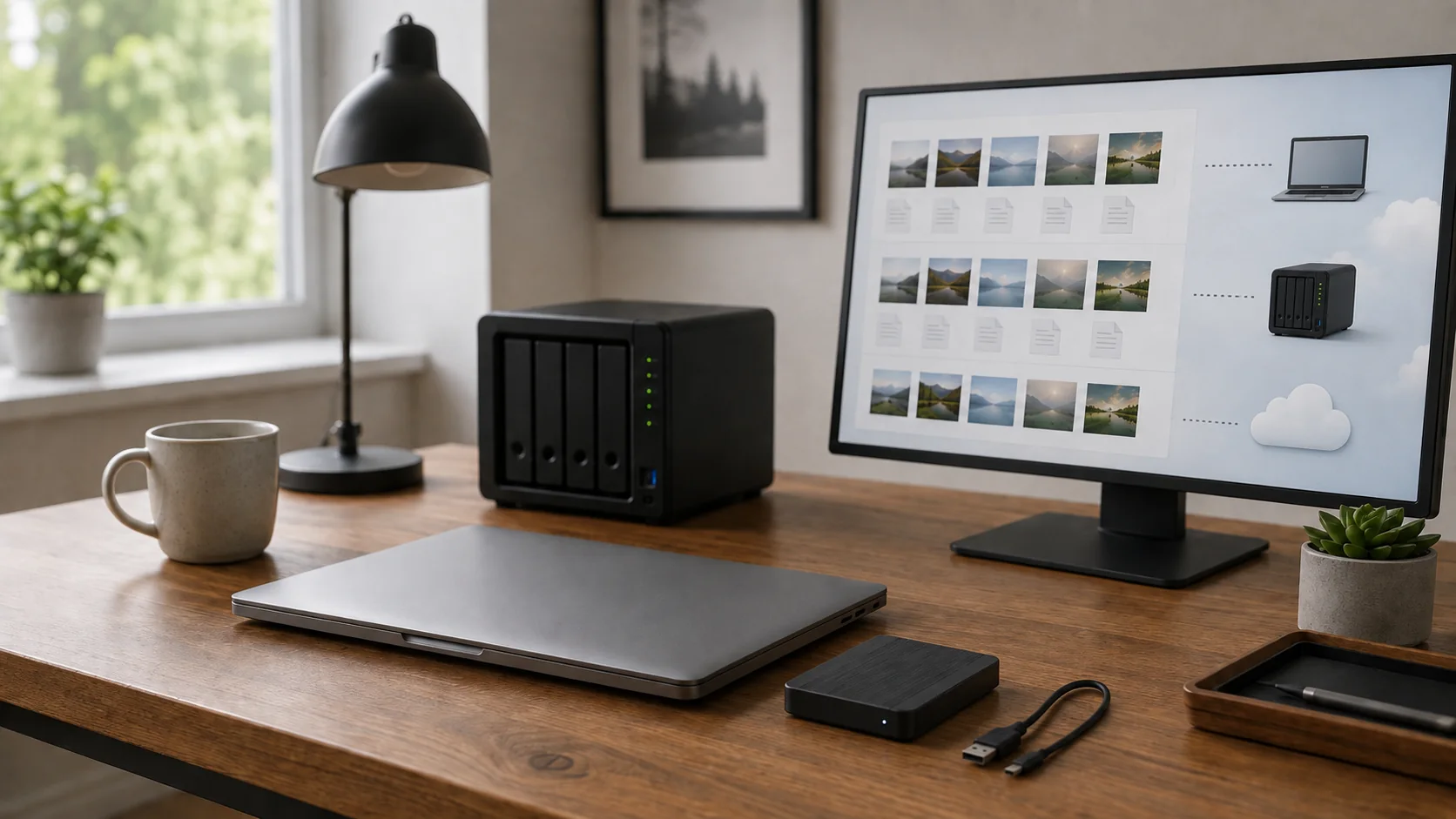
The original and both backups must be independent enough not to be destroyed by the same incident. An offline copy is inaccessible to the computer and network when not in use. An off-site copy is stored in another physical location. A sensible plan aims for both forms of separation where practical.
The French data-protection authority CNIL explicitly presents the 3-2-1 rule as three copies stored on two separate media, with one kept offline. Cybermalveillance.gouv.fr also recommends multiple copies, separate media, a copy kept elsewhere, disconnected storage and regular tests. Your working file already counts as the first copy.
A home user may therefore combine files on the PC, an automatic backup and an isolated backup. Three folders on one drive do not count: one hardware failure could remove them together.
Separate unique data—personal photographs, administrative documents, creative work and business files—from software or media that can be downloaded again. This reduces the amount to protect and makes failures easier to spot. One well-organised master folder is easier to back up than files scattered across Desktop, Downloads, USB sticks and old phones.
Organise photographs by year and event, documents by subject, and work by activity or case. Check whether important applications store data outside your usual folders. The aim is not to duplicate everything blindly; it is to recover what matters after losing the computer.
Synchronisation keeps folders aligned across devices or with remote storage. It is convenient, but deletion, unwanted edits or malicious encryption may propagate depending on the configuration. Version history and remote recycle bins add recovery options, but retention periods and conditions vary by service.
A system image captures Windows, applications and settings at one point in time. It may speed up rebuilding a PC, but it does not replace frequent protection of personal files. A genuine backup keeps a recoverable copy separate from its source and preferably retains several points in time.
| Mechanism | Useful for | Main limitation |
|---|---|---|
| Sync | Using the same files everywhere | May propagate an error |
| Version history | Returning to an earlier state | Tool-dependent retention |
| System image | Rebuilding a complete environment | Becomes outdated |
| Separate backup | Recovering after an incident | Must be monitored and tested |
Tera24 can help identify the data to protect, the storage already available and the risks worth covering, without imposing unnecessary complexity.
A permanently attached drive makes automation easy, but Windows and applications can also reach it. Accidental deletion, ransomware or an operating mistake may therefore affect both source and copy. Cybermalveillance.gouv.fr advises disconnecting backup media after use to reduce this risk.
You may keep one connected automatic copy for quick recovery, provided another copy is genuinely isolated. Eject removable storage correctly, wait for writes to finish, and protect it from impact, moisture and extreme temperatures. Surge protection does not cover every event and does not replace separation.
Windows Backup synchronises selected user folders with OneDrive. It can also remember Windows settings, Wi-Fi information, and the list or shortcuts of some applications. It does not create a complete image of every program and all its data. Following a reinstall, some applications will still need to be downloaded and configured again.
The folders remain subject to synchronisation, available capacity, the Microsoft account and the service’s retention rules. Windows Backup folder protection therefore relies largely on OneDrive synchronisation. It can form part of a 3-2-1 plan, but it is not a complete 3-2-1 strategy by itself.
File History can automatically copy personal files to an external drive or network location, retain several versions, and restore a deleted or changed file. Check which folders are included, free space, the latest successful backup and whether restoration works. It can provide the second copy, but it is not a universal solution on its own.
RAID 1 in a NAS may keep data accessible after one drive fails. It mainly protects availability against that drive failure. It does not protect against folder deletion, ransomware, theft of the NAS, fire, enclosure failure or configuration mistakes.
A NAS can be a backup destination and retain versions, but important NAS data still needs another copy on separate media or at a remote location. Two mirrored drives inside one appliance do not automatically count as two independent backups.
There is no universal timetable. Ask how much recent work or how many new memories you could accept losing. Daily automatic backup may suit files changed every day. Archives changed rarely may need a new copy after each significant addition. The isolated copy can be updated less often, but it must remain recent enough to be useful.
Configure failure notifications and periodically inspect the last successful run. Automation silently stuck for months creates false confidence. After importing many photographs, completing important work or reorganising folders, run or verify the backup instead of waiting for an arbitrary date.
Portable or remote copies may be lost or stolen. Encryption protects confidentiality when paired with a strong password and a recovery key held separately and securely. Without the key, an intact backup may be unusable; keeping the key in the same bag as the drive weakens the protection.
Use multifactor authentication for cloud accounts and protect the recovery email address. Record who can access copies in a family, charity or small business. Test the process before an emergency: knowing that a backup is encrypted is not enough if nobody can unlock it.
A migration is the right time to verify your copies before cloning, reinstalling Windows or moving files to a new computer.
A successful software log is encouraging, but the decisive check is restoring several files into a different folder. Select a recent photograph, an older document, a large file and something from a rarely used subfolder. Open them and confirm that their dates or versions match what you expected.
A drive visible in File Explorer does not prove that backups are complete, current and restorable.
Unusual noises, disconnects, extreme slowness or read errors may indicate failure. Review the signs of a failing hard drive before running repeated scans or copies. Stressing physically failing media can make the situation worse.
If files are already missing, avoid writing new data to the device and do not install recovery software on it. Data recovery in Dordogne depends on the fault; some cases require a specialist laboratory. A 3-2-1 backup is intended to prevent recovery becoming the only option.
Treat these as adaptable starting points, not universal requirements. The guide to choosing a NAS or external hard drive for backup can help with the second copy.
| Profile | Working copy | Second copy | Third copy | Suggested routine |
|---|---|---|---|---|
| One family computer | Files on the PC | Automatic external-drive backup | A second disconnected drive stored elsewhere, or protected remote copy | Check after major imports and update the isolated copy regularly |
| Several computers or a family | Files on each device | Centralised, versioned backup to a NAS | Encrypted offline or remote copy | Enable alerts and periodically restore a small sample |
| Small business, non-profit or holiday rental | Computers or business applications | Centralised automatic backup with history | Isolated encrypted copy recoverable without the premises or main account | Assign responsibility, check alerts and document the procedure |
OneDrive provides synchronisation, a recycle bin and version history under the service’s rules. It can be one copy within the plan, but an independent copy is still needed in case an account problem or synchronised change prevents recovery.
No. Both drives are in the same system and share many risks. RAID mainly improves availability when one drive fails.
Yes, if one receives the automatic backup and the other remains isolated, ideally in another location. The computer is then the working copy.
Test periodically and after any significant change of software, drive or folder organisation. The interval should reflect how quickly the data changes and how much loss would be acceptable.
A useful backup must be separate, recent and restorable. Hardware alone is not enough: a simple, monitored and tested method is better than complex infrastructure that nobody checks. Before changing a drive, also consider cloning versus a clean installation: cloning can simplify migration, but it does not replace independent backups.
A backup is only complete when you know where it is, when it last succeeded and how to restore the files.
Written by
IT technician and founder of Tera24, I provide computer repair, troubleshooting, and optimization services throughout Dordogne, helping individuals and businesses keep their technology running smoothly.
About Tera24 ↗From guide to workshop
Further reading
Cybersecurity
SMS, authenticator app, passkey or physical key: compare phishing resistance, compatibility, recovery and lifecycle before rollout.
Cybersecurity
Inventory accounts, protect the vault and migrate in batches to adopt a password manager without losing access.
Cybersecurity
Find your BitLocker key through official routes, protect the data and understand the consequences before resetting the PC.