PCs & Computers
Moving to a New Windows PC: A Checklist for Files, Apps and Access
Files, software, licences, email and peripherals: a checklist for verifying a new Windows PC before erasing the old one.

PCs & Computers / Practical guide
THE TERA24 JOURNALWhen 400 GB of memories and important documents depend on a single drive
Sometimes it only takes a computer that refuses to start or an external drive that is no longer recognised to reveal that no proper backup had ever been put in place. During one job, I helped a client who needed to protect around 300 to 400 GB of documents and personal data. A two-drive NAS appeared to be the most complete option. However, a simple external drive combined with a properly configured Windows backup could also cover much of the actual requirement. The challenge was not to find the most impressive hardware. It was to identify the solution that would genuinely be used, monitored and remain reliable over time.
The Tera24 approach
The right choice depends less on capacity than on how your data is used
Backing up 300 to 500 GB does not automatically require a NAS. For a single computer, an external hard drive can provide a simple and affordable solution. When several computers need access to the same files, permanent sharing is required or backups need to be centralised, a NAS becomes more relevant. In this article, I compare these solutions according to their actual use, explain what RAID 1 really protects against, show why a NAS must also be backed up and suggest several sensible strategies, from the simplest to the most complete. The aim is not to make you buy more equipment. It is to avoid two common mistakes: installing an unnecessarily complex system that nobody monitors, or believing that one copy is enough to protect important data.
A collection of 300 to 500 GB can contain years of photographs, administrative documents, professional files or records that are essential to a small organisation. Capacity alone, however, is not enough to determine the most suitable backup solution.
An external hard drive may be more than enough to protect a single computer. A NAS becomes more relevant when several computers need to be backed up, several people need access to the same documents or the files must remain permanently available on the network.
In this type of situation, I start by looking at five criteria:
The essential point: a simple, automated and regularly checked solution is often more reliable than a sophisticated system that nobody monitors.
During one job, a client needed to protect around 300 to 400 GB of documents and personal data. We considered several options: a two-bay Synology NAS, two drives designed for NAS use, an external hard drive using Windows File History, and a cloud service such as KDrive for sharing selected documents.
These solutions did not address exactly the same need.
The NAS was the most scalable solution, but not necessarily the only sensible one. Before choosing it, I needed to establish whether the client genuinely needed permanently available storage, user accounts, sharing between several computers and remote access.
This real-world case shows that the same amount of data can be protected in several ways. During a client job, I choose the solution according to the number of computers, sharing needs, budget and the required level of protection.
For a private user or self-employed professional whose important data is mainly stored on one computer, I do not automatically recommend buying a NAS. A properly configured external hard drive can provide a simple, affordable and sufficiently reliable backup for this use.
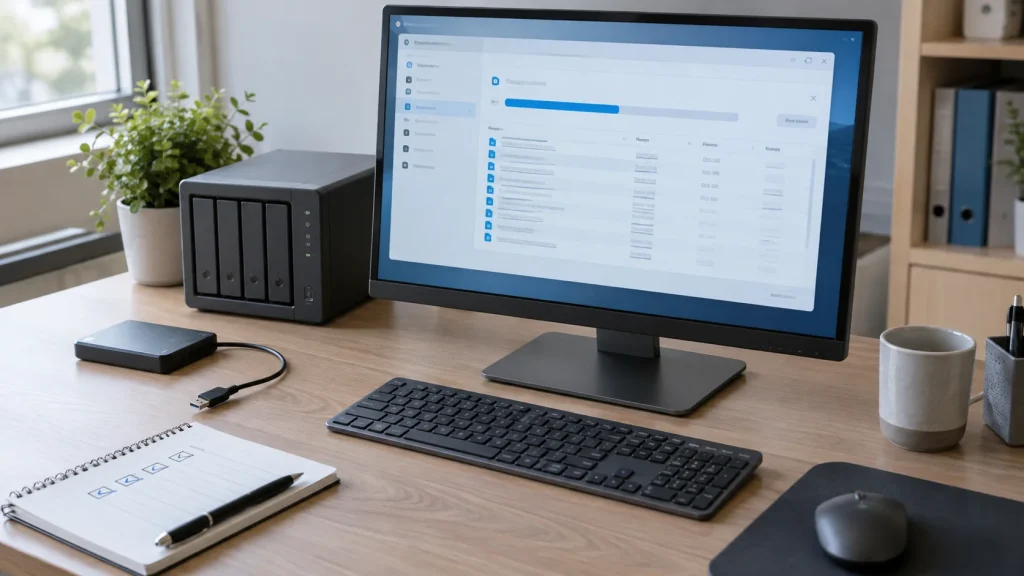
In Windows, File History can automatically save different versions of selected folders. This can help you recover a document that was changed or deleted by mistake, provided the backup drive is available and the backup task is actually working.
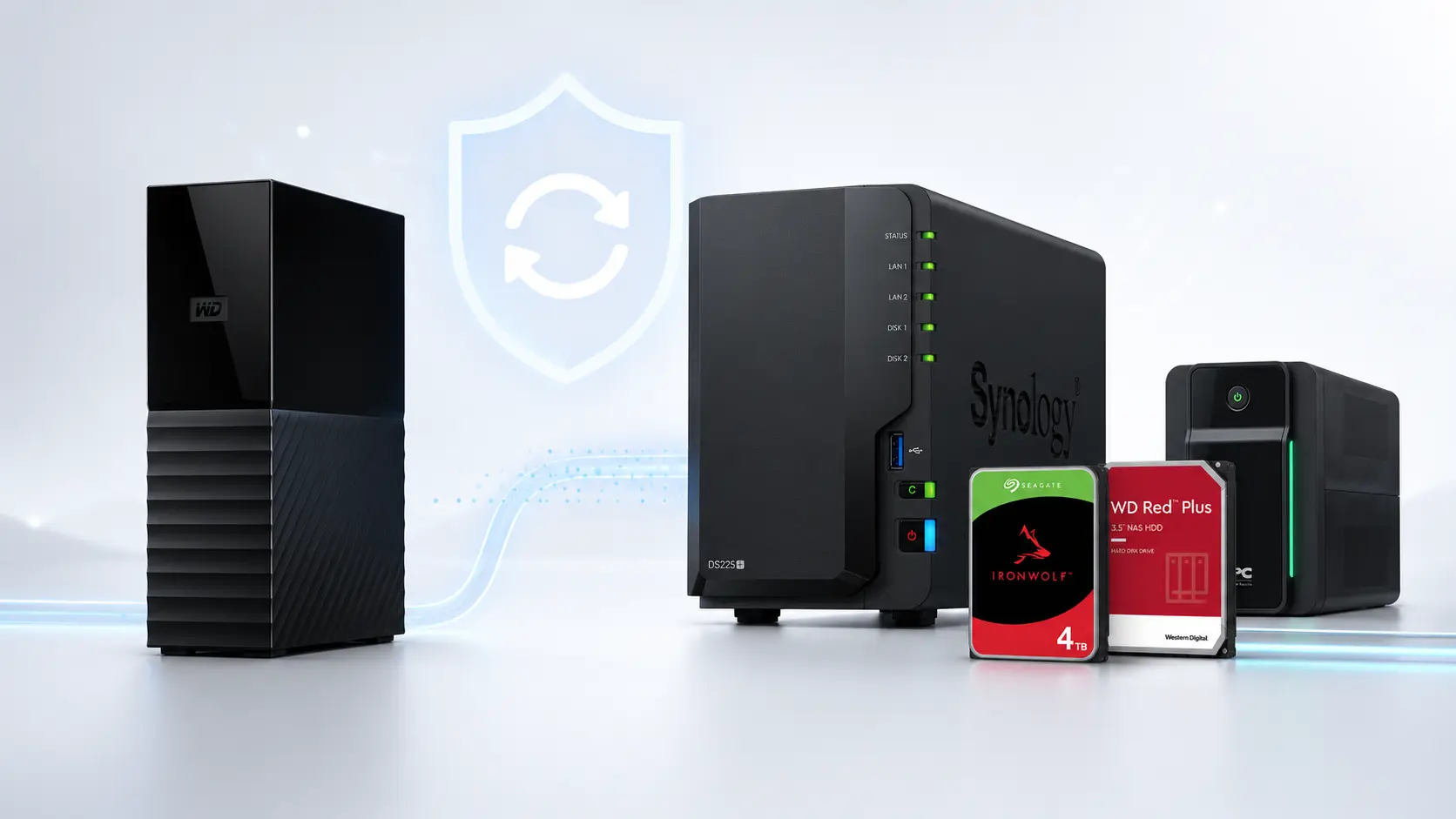
For this article, I selected the 8 TB WD My Book Desktop. An 8 TB capacity is far greater than the initial requirement of 300 to 500 GB. I am not recommending it because that capacity is necessary, but because this version can sometimes cost less than certain 4 TB models.
In this particular case, it makes sense to compare actual prices rather than automatically choosing the capacity closest to your current needs. Eight terabytes leaves considerable room for retaining several versions, backing up other devices or accommodating future growth.
The WD My Book is a mains-powered desktop drive. It is therefore best suited to a fixed installation near the computer or NAS. It is less convenient to carry than a small portable drive, but this matters little when it is used as a backup device at home or in an office.
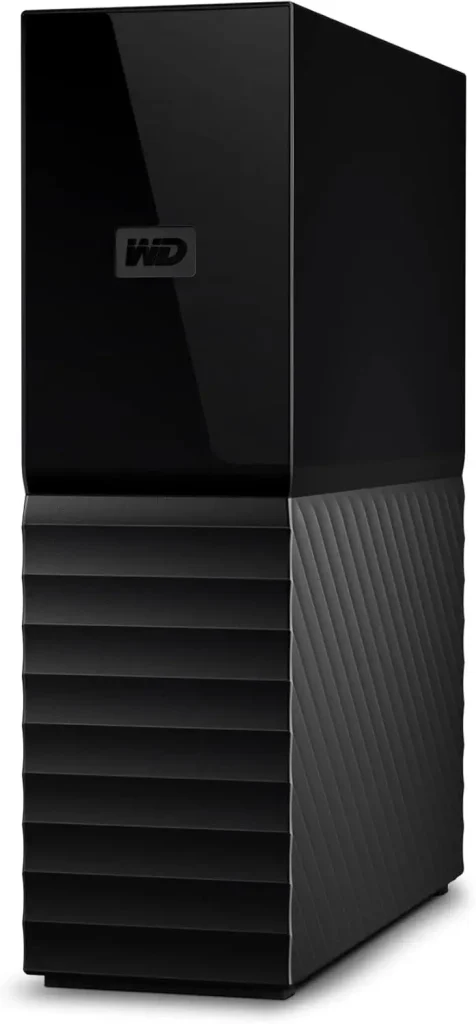
More capacity does not provide more protection: having 8 TB of space does not protect your data better if it exists only on this drive. Irreplaceable files should always have another independent copy.
The same WD My Book can also be used to back up the contents of a NAS. In that role, it provides a genuinely separate copy from the NAS’s two internal drives, particularly if it is disconnected once the backup has finished.
A NAS is a storage device connected to the network. Unlike a USB drive attached to one computer, it can receive backups from several computers and make selected folders available to different users.
For a self-employed professional, an association, a gîte or a bed and breakfast using several computers, this centralisation can genuinely simplify organisation. Administrative documents, letter templates, photographs and shared files are no longer scattered across several machines.
A NAS is not simply a large hard drive: its accounts, updates, alerts, backups and access permissions all need to be managed. This administration is part of the real cost of the solution.
The Synology DS223j is a two-bay desktop NAS. It is a sensible option for a household with several computers, a small association, a self-employed professional or tourist accommodation that wants to centralise documents without moving straight to a more expensive business model.
It can store shared folders, receive backups from several computers and make selected files available on the local network. Synology’s software also makes it easier to manage users and backup tasks, provided the device is configured carefully.
The DS223j is sold without drives. You must therefore add the cost of two NAS-compatible hard drives to the price of the enclosure.
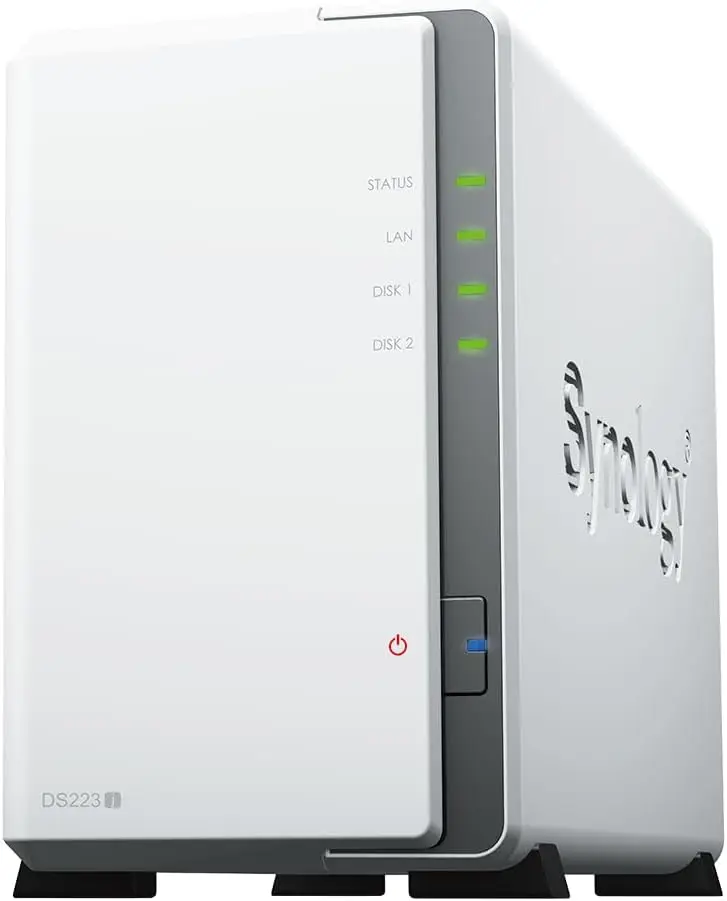
For backing up just one computer, the DS223j remains more expensive and more complex than an external drive. It makes sense when centralisation and access from several devices provide a real benefit.
The Synology DS225+ addresses a different need. It is still a two-bay NAS, but it is better suited to heavier use, several users or an organisation that wants room to grow.
Its 2.5 GbE network port can speed up some transfers, but only when the rest of the network is compatible. A router, switch or computer limited to Gigabit Ethernet will prevent you from making full use of the faster connection.
For a gîte, bed and breakfast, small business or association regularly using several computers, the extra cost may be justified by better performance and greater scope for future applications.
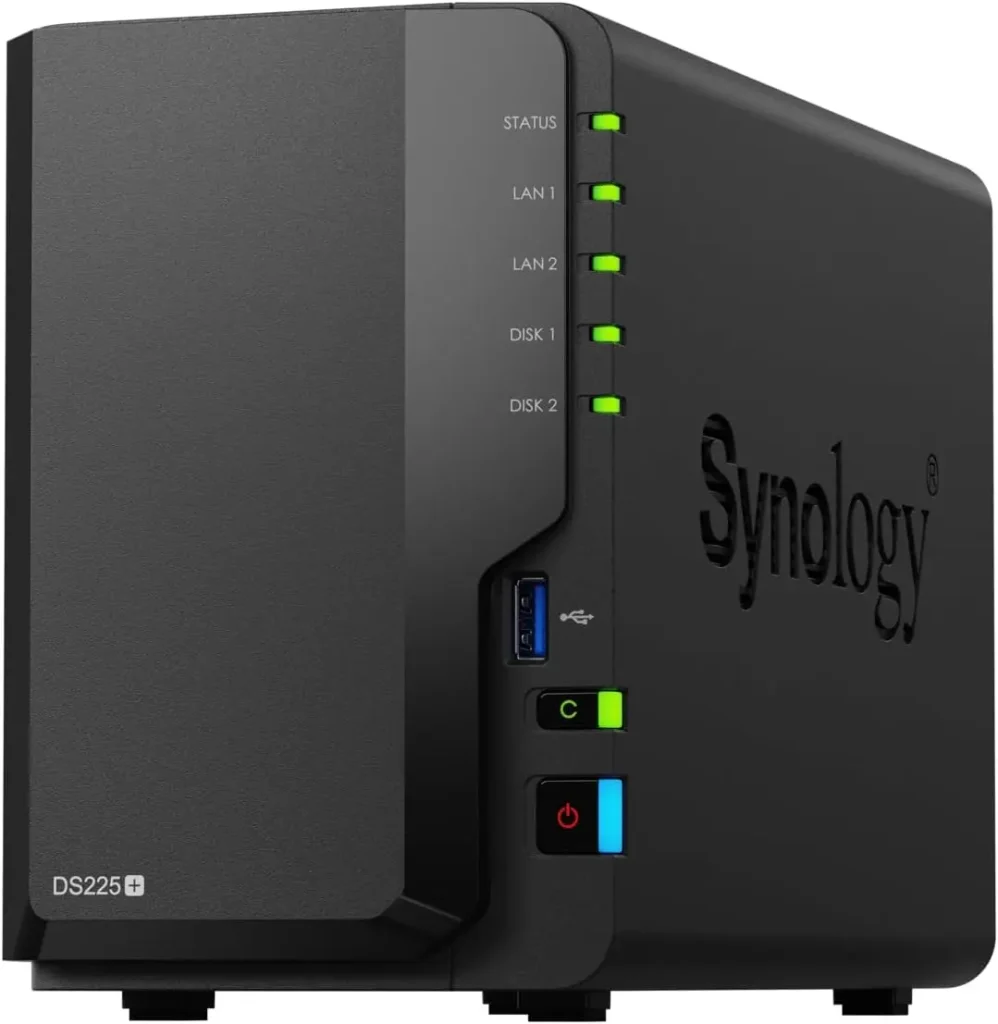
For backing up a few computers, storing photographs and sharing office documents, the DS223j may be entirely sufficient. The DS225+ should not be chosen simply because it is more powerful. Its value depends on the number of users, the frequency of transfers and the expected growth of the installation.
A 2.5 GbE port is not automatically useful: before paying more for this feature, check the speed of the other network equipment and whether you genuinely need to transfer large amounts of data quickly.
The Synology enclosure does not include any drives. To create a RAID 1 volume, you need two hard drives of the same capacity, ideally designed for use in a NAS.
The WD Red Plus and Seagate IronWolf ranges are intended for this type of use. They are designed for prolonged operation in an enclosure containing several drives, with the vibration and workloads associated with network storage.
A pair of 4 TB WD Red Plus drives is a sensible configuration for the DS223j or DS225+. Starting with around 300 to 500 GB of data, this capacity leaves considerable room for file versions, backups from several computers and future growth.
You need to buy two of the drive shown below to create the RAID 1 setup described in this article.
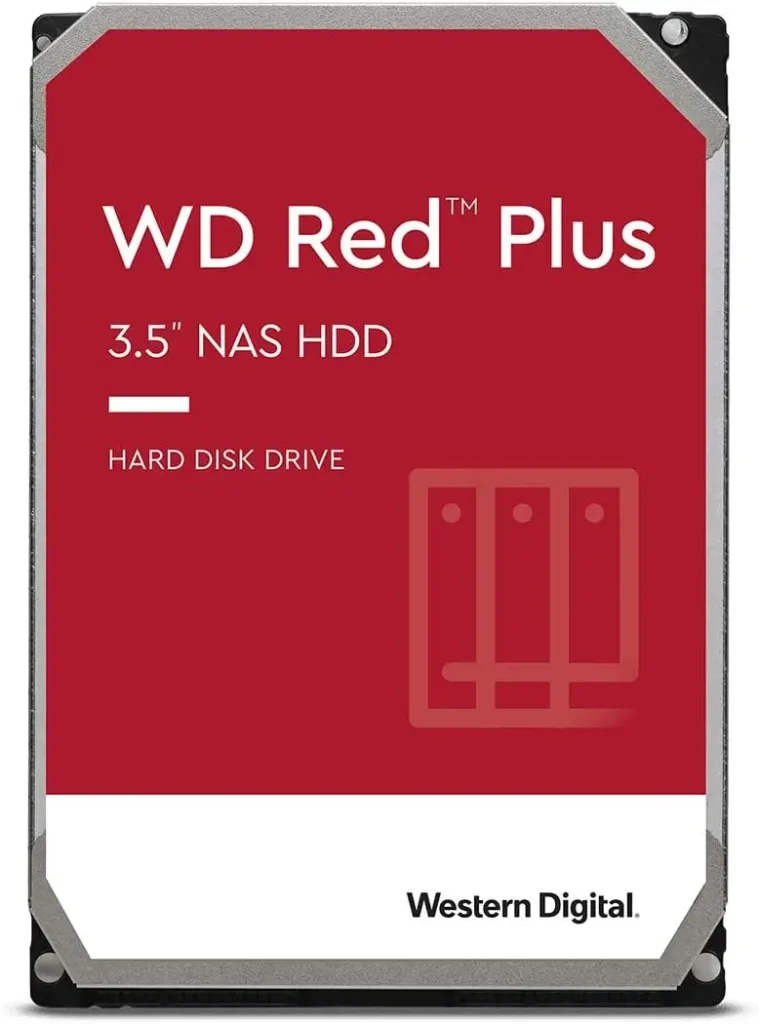
The WD Red Plus is suitable for documents, photographs and backups. It does not make the NAS silent, and it can fail like any mechanical drive. Its main advantage is that it is intended for prolonged operation in a NAS environment.
The 4 TB Seagate IronWolf is a direct alternative to the WD Red Plus. The selected model uses CMR recording technology and is intended for NAS and RAID systems.
I do not automatically consider the WD drive superior to the Seagate. The right choice may depend on the price at the time of purchase, availability, warranty and services associated with the exact model.
Here again, you need to buy two units to install a pair of drives in RAID 1.
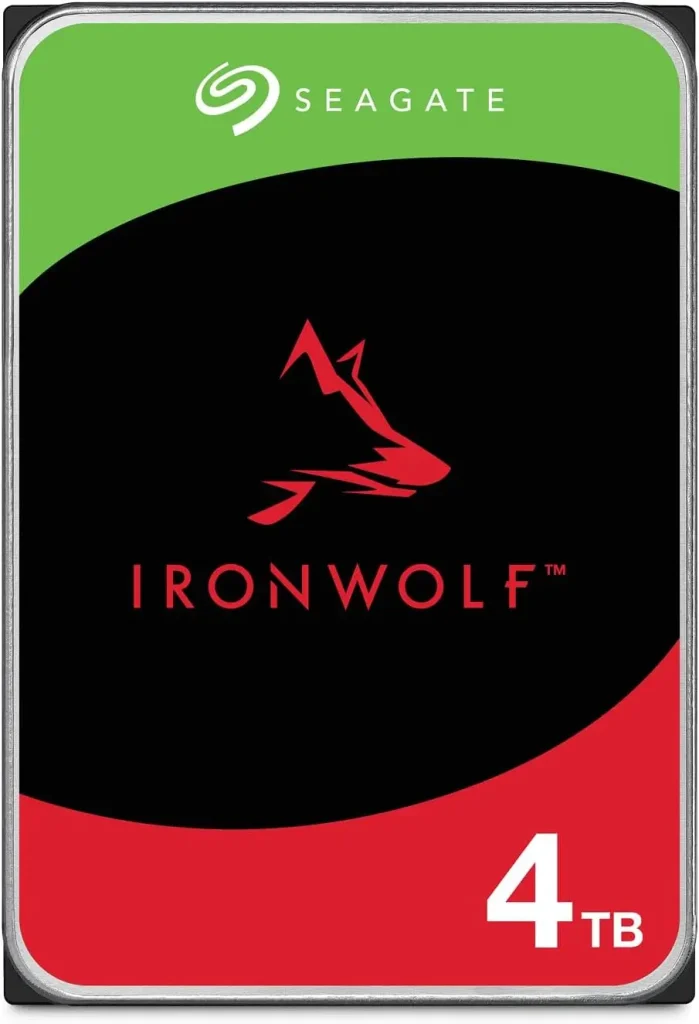
Two 4 TB drives do not provide 8 TB in RAID 1: because the data is duplicated across both drives, usable capacity remains close to that of a single drive, around 4 TB before formatting and system reserves.
Before buying, check the exact model number, recording technology, warranty and stated compatibility with the NAS. Similar product names do not always mean identical specifications.
In a two-bay NAS configured as RAID 1, the same data is written to both drives. If one drive fails, the second may allow the system to continue operating while the failed drive is replaced and the volume is rebuilt.
This redundancy mainly protects against the failure of one drive. It does not create two independent backups.
When a file is deleted, changed or encrypted, the same operation may be reproduced on both drives. RAID 1 therefore does not automatically protect against:
Key point: RAID 1 improves data availability if one drive fails. It does not replace a separate backup of the NAS.
Network recycle bins, file versioning and snapshots can provide additional protection against some mistakes. They are still stored on the same device and do not cover every scenario.
A sensible configuration can use the NAS as the main backup destination and then create a second copy of its contents on an external drive. The 8 TB WD My Book discussed earlier can serve this purpose.
Ideally, this external backup should be disconnected once the copy has completed, or used as part of a rotation between several devices. This reduces its exposure to deletion, ransomware and problems affecting the NAS at the same time.
Another option is to send the most important data to a remote destination or cloud service. It is not always necessary to transfer complete system backups. Administrative documents, irreplaceable photographs and essential professional records can be prioritised.
A good strategy separates risks: the NAS protects and centralises data locally, while the external drive or cloud service provides an independent copy.
A service such as KDrive can be useful for sharing selected documents and keeping a copy away from the home or business premises. This geographical separation helps protect against theft, fire or water damage affecting the computer, external drive and NAS at the same time.
Cloud storage nevertheless has several constraints:
I therefore always distinguish syncing from backing up. A synchronised folder makes it easier to work across several devices, but a mistake can also spread. Before treating cloud storage as a genuine part of the backup strategy, check version retention, recycle-bin behaviour and the restoration procedure.
In rural areas: in Dordogne, limited upload speeds can make the initial transfer of several hundred gigabytes particularly slow. This should be checked before building a strategy that relies mainly on cloud storage.
A NAS often runs continuously. A sudden power cut can interrupt a write operation, an update or a RAID rebuild. A UPS can temporarily maintain power and, when correctly recognised, trigger a safe shutdown of the NAS.
The APC Back-UPS BX750MI-FR has a stated maximum output of 410 W and three French sockets backed by the battery. This should normally be more than sufficient for a two-bay NAS, an internet router and possibly a small network device.
Automatic Voltage Regulation, or AVR, can also correct certain voltage fluctuations without immediately using the battery.
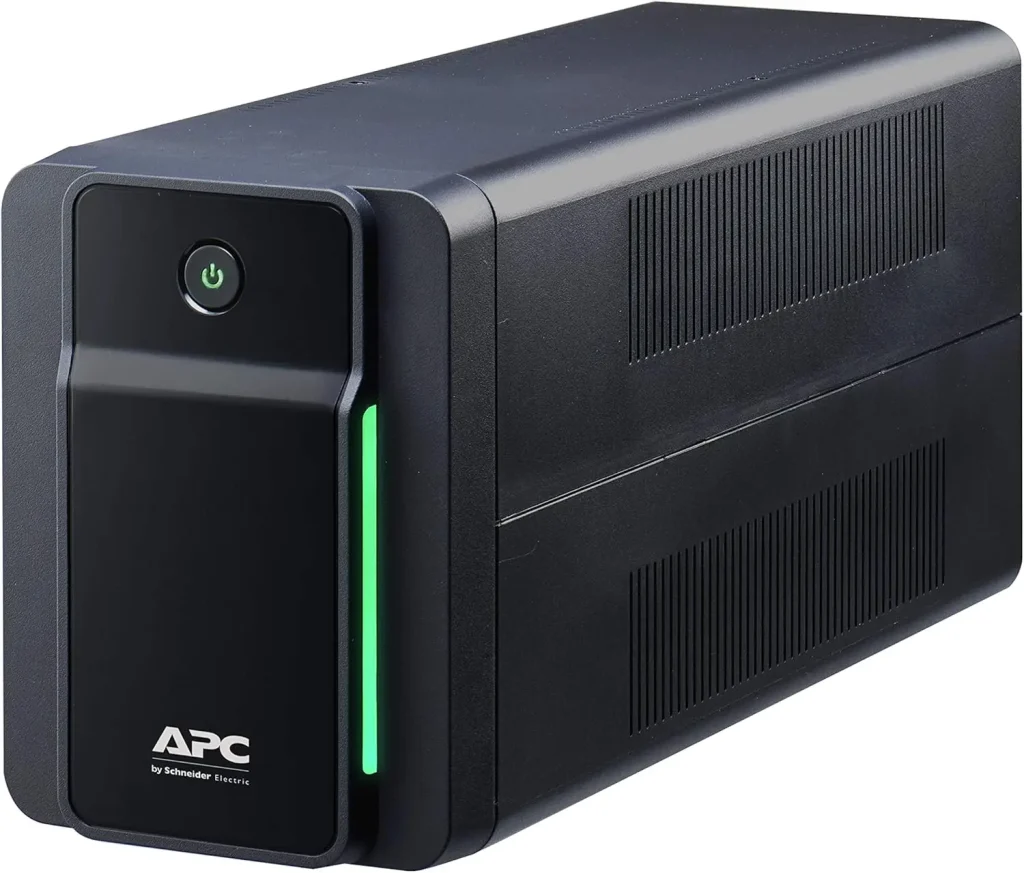
A UPS is not intended to keep you working for hours: its main role is to power the equipment long enough to ride through a short outage or perform a safe shutdown.
Ideally, a NAS should be connected to the router or main network by Ethernet cable. Computers can then access it over Ethernet or Wi-Fi, depending on the required performance and network quality.
For an initial backup of 300 to 500 GB, Ethernet is often preferable. Wi-Fi can work, but the transfer may be slower or less stable, especially when the signal passes through several walls.
You do not automatically need to buy a network switch. It becomes useful only when the router no longer has enough Ethernet ports or several devices need to be connected in the same location.
Before adding more hardware: check the available router ports, the NAS location, Wi-Fi quality and whether an Ethernet cable can be installed. Sometimes a single cable is all that is needed.
This remains the simplest and least expensive solution. It suits many private users and self-employed professionals who mainly use one computer.
This is a sensible configuration for a household with several computers, a small association or a self-employed professional who needs to centralise files.
This configuration requires a larger budget and more maintenance. It becomes relevant for a gîte, bed and breakfast, association or small business using several computers and shared documents.
Whether it is stored on an external drive, a NAS or in the cloud, a backup must be checked. A message saying that the task completed does not guarantee that every expected folder is present or that the data can be restored.
I recommend checking regularly:
If there are signs of failure: if the source drive makes unusual noises, disconnects or becomes extremely slow, avoid repeated copying attempts. You can read my guide to the signs that a hard drive may be failing.
If the files are already inaccessible, the priority is no longer to configure a new backup but to avoid making the situation worse. The available options then depend on the condition of the storage device. I explain this distinction in my article about data recovery and the situations that require a specialist laboratory.
A backup becomes particularly important before replacing a drive, migrating to an SSD or reinstalling Windows. These operations can be carried out safely, but errors, failure of the original drive or selection of the wrong disk can still cause data loss.
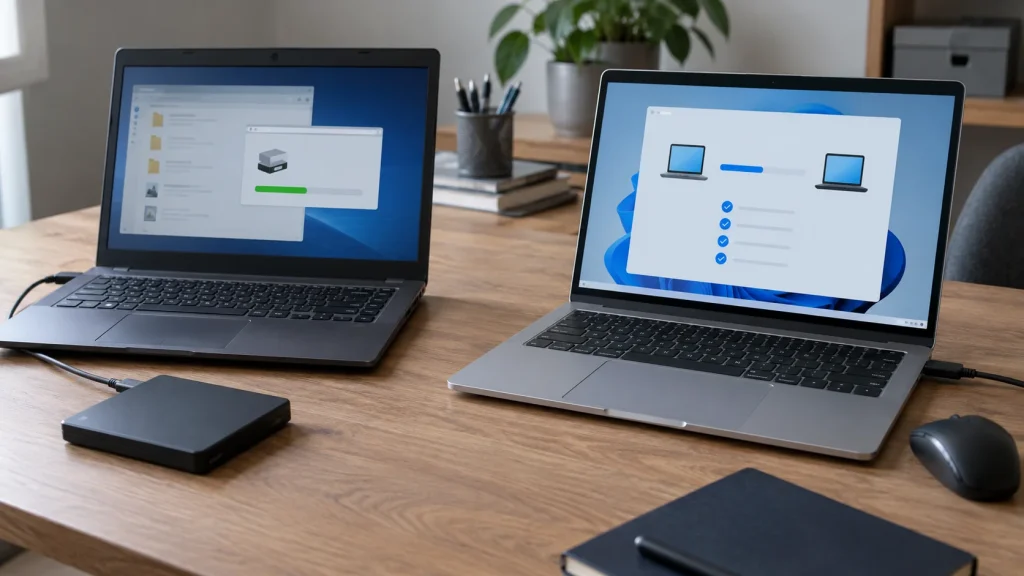
When the existing drive is still healthy, it may be possible to transfer the system by cloning it. In other cases, a clean installation is more sensible. I explain the criteria I use when choosing between disk cloning and a clean Windows installation.
If the aim is also to improve the performance of a computer still using a mechanical hard drive, replacement can make a real difference. However, the drive used to run Windows must be distinguished from the device used to back up the data. My guide to upgrading from an HDD to an SSD explains this upgrade.
Do not confuse migration with backup: cloning reproduces the state of one drive on another at a specific point in time. It can make replacement easier, but it is not necessarily a regular and independent backup strategy.
For a single computer containing 300 to 500 GB of data, I would generally start with a sufficiently large external drive, automatic backups, regular checks and a second copy of irreplaceable files.
I am more likely to recommend a NAS when several computers need to be backed up, shared folders must remain available or a small organisation needs to centralise its documents.
The Synology DS223j suits straightforward, reasonable requirements. The DS225+ offers more performance and scalability, but its additional cost is justified only when there is a genuine need.
In both cases, WD Red Plus and Seagate IronWolf drives are sensible options for internal storage. RAID 1 improves continuity if one drive fails, but the NAS still needs to be backed up to an external drive or remote destination.
The aim is not to buy as much equipment as possible. It is to build a solution that matches the number of computers, the rate at which data changes, the need for sharing and the ability to monitor backups over time.
A 2 TB device can already provide comfortable headroom for 500 GB of data. A larger capacity may be worthwhile when it is attractively priced, several versions need to be retained or the amount of data is expected to grow considerably.
An 8 TB capacity is not necessary for only 500 GB of data. It may nevertheless be worthwhile when the 8 TB drive costs less than a 4 TB model. The decision should then take account of the actual price, warranty and intended use.
No, not when it is configured as RAID 1. The same data is duplicated across both drives so that the system can tolerate the failure of one of them. A deletion or encryption can also be reproduced on both drives.
This makes automatic backups easier, but increases exposure to errors, power surges and some ransomware. Disconnecting the drive after the backup or rotating between two devices provides additional protection.
It can be an important part of the strategy, particularly because it provides a remote copy. You must nevertheless check upload and restoration times, recurring cost, version retention and the difference between syncing and backing up.
A UPS protects against some outages and voltage fluctuations and, above all, allows the NAS to shut down safely. It does not guarantee absolute protection against lightning or a major surge.
The frequency depends on the importance of the data and how often it changes. A small organisation producing documents every day should carry out checks more often than a private user who only occasionally adds photographs. At a minimum, perform a test restoration after installation and repeat it regularly.
Certains liens présents dans cet article sont des liens d’affiliation Amazon. En passant par ces liens, je peux toucher une commission, sans coût supplémentaire pour vous. Cela aide à financer le site Tera24.
Written by
IT technician and founder of Tera24, I provide computer repair, troubleshooting, and optimization services throughout Dordogne, helping individuals and businesses keep their technology running smoothly.
About Tera24 ↗From guide to workshop
Further reading
PCs & Computers
Files, software, licences, email and peripherals: a checklist for verifying a new Windows PC before erasing the old one.
PCs & Computers
A non-destructive test to restore files, inspect their contents, record errors and fix your backup before a real incident.
Tech Buying Guides
Video, power, cables and graphics limits: verify the whole chain before buying a USB-C dock for two monitors.