What “printer offline” actually means
The “offline” status first means that Windows cannot communicate with the printer when it checks it. It does not prove that the printer is defective or that its driver must be removed. A printer that is powered off, in deep sleep, connected to another network, held by a stuck queue or associated with an old installation can produce a similar symptom.
I therefore begin by establishing what still works. Does the printer power up normally? Does its display report a paper jam, open cover, missing paper or supply error? Is it missing from Windows, visible but offline, or available while documents remain in the queue? Those three situations require different tests.
Do not immediately remove the printer from Windows. This can hide the original symptom and complicate comparison, especially before you have the correct driver and network details.
Confirm the physical state and connection type
Check power, the display and status lights before changing Windows. Shut the printer down properly, then power it back on once shutdown is complete, following its documentation. Check paper, covers and local messages as well. If the device cannot complete startup or displays a hardware error, the offline status on the PC is only a consequence.
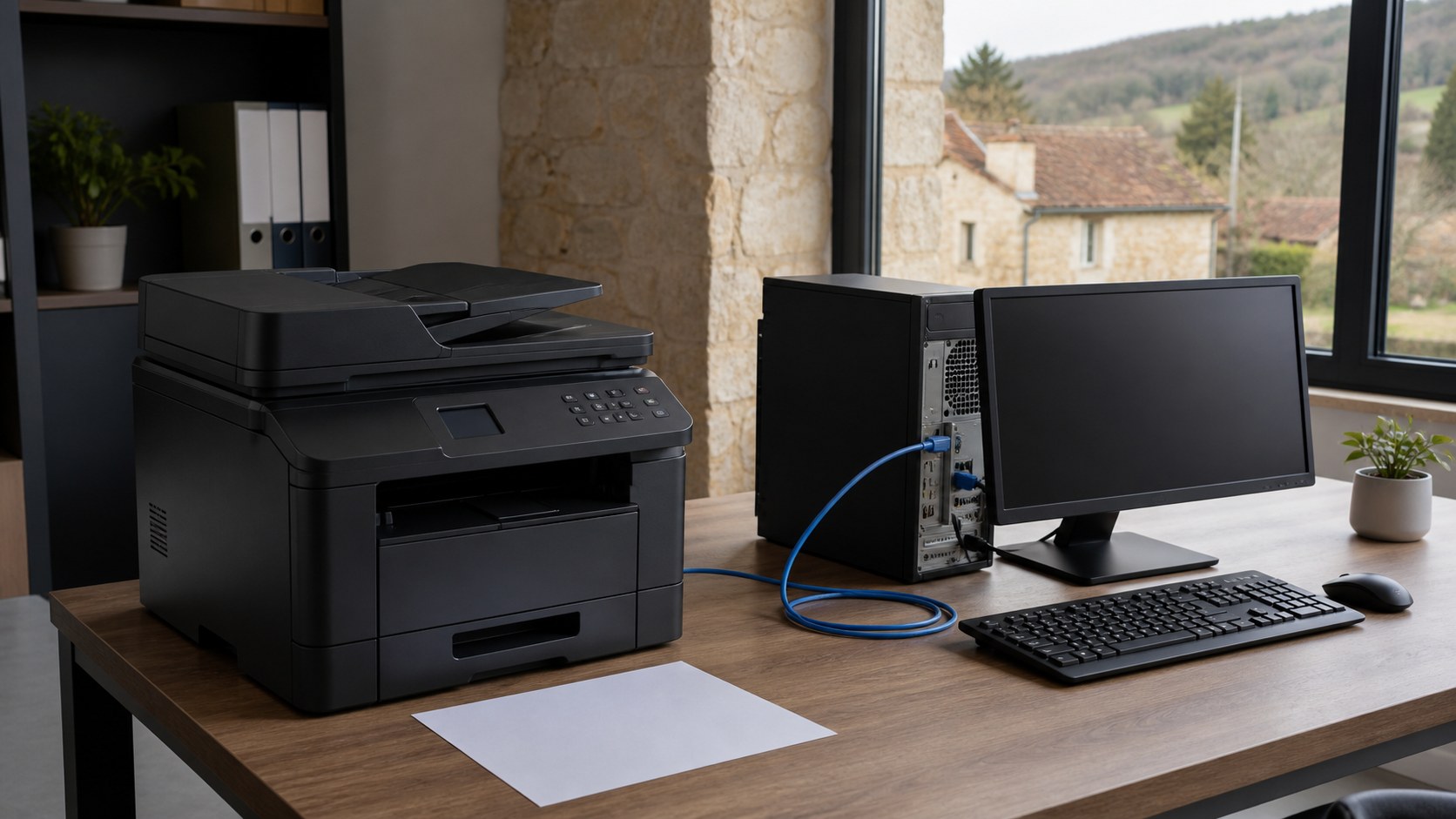
Next identify the real connection. A USB printer needs a reliable cable and a direct PC port. An Ethernet printer must retain its link to the router or switch. A Wi-Fi printer depends on its own wireless connection, not just the PC’s. A printer shared by another computer also depends on that host, which must be powered on, connected and configured correctly.
- USB: try another direct port without a hub before blaming the driver.
- Ethernet: check the cable and link indicators at both ends.
- Wi-Fi: use the printer’s network status or built-in connection test.
- Windows sharing: test the computer physically hosting the printer first.
Verify that the PC and printer use the same network
For a Wi-Fi printer, an illuminated wireless symbol is not enough. The PC and printer need to be on a network that allows them to communicate. A remembered old network name, an isolated guest network, a separately configured extender or a recent router change can leave the printer connected but unreachable from the computer.
Compare the network name shown by the printer with the PC’s connection, then run the printer’s built-in wireless test when available. Try printing from a second device on the same network. If every device fails, focus on the printer or network. If one PC alone fails, its Windows setup is more likely. My guide to slow or unstable Wi-Fi develops that comparison without assuming that another extender is required.
Avoid a factory reset of the printer or router as a first step. It removes useful settings and can create a second problem without explaining the first one.
Distinguish not found, offline and a stuck print queue
A printer that is not found does not appear when a device is added: Windows cannot discover it or recognize its connection. An offline printer is already installed but cannot currently be reached. A stuck queue describes a printer that may still be reachable while one or more jobs remain pending or show an error. Labels vary, but the distinction keeps the diagnosis at the correct level.
Open Printers & scanners, select the device and view its queue. Record the first failed job, its time and behaviour before deleting anything. If the printer’s own interface, display or another device still works, the fault probably sits between this Windows installation and its queue. If no device can reach the printer, return to power and network checks.
- Missing everywhere: investigate power, cable, Wi-Fi or a local error.
- Visible but offline: check communication and the installation Windows is using.
- Reachable with stuck jobs: examine the queue and spooler first.
Check the default printer and print a test page
Several installations of the same model can remain after a router change, a move from USB to Wi-Fi or a reinstallation. An application may then send the document to an old queue. In Printers & scanners, verify the exact selected name and, when appropriate, set the installation matching the current connection as the default printer.
Print a test page from the printer properties. If it succeeds, the hardware, connection and driver used by that queue work at least for this test; investigate the application or document next. If the test page remains stuck, the issue is broader. This result directs the diagnosis, but it does not guarantee that every scanning feature or manufacturer utility is working.
Before each test, make sure you know which queue you are using. Sending the same document repeatedly to several installations makes the evidence harder to interpret.
Restart the spooler or clear the queue only when justified
The Windows print spooler manages jobs sent to printers. A damaged document or a queue left in an inconsistent state can prevent later jobs from moving. First cancel the blocked job from the queue and allow the cancellation to finish. Restart the PC and printer if the queue does not clear; this simple step can restore the exchange without deleting the installation.
When jobs remain frozen, Microsoft documents a deeper reset: stop the Print Spooler service, remove the files held in the spool folder and start the service again. This deletes pending jobs for all printers managed by that PC. I reserve it for a confirmed queue problem, never as an automatic response to a printer that is powered off or missing from the network.
Record a job’s name and time before clearing the queue when that evidence matters. A spooler reset cannot repair a damaged cable, paper jam or lost Wi-Fi connection.
Update or reinstall the driver without starting there
An outdated or incompatible driver can prevent detection or printing, but it does not cause every offline status. After physical, network and queue checks, look first for updates through Windows Update. Microsoft recommends this route for printer drivers. If the model is unavailable there or needs specific features, use only the manufacturer’s official support site and verify the exact model and Windows version.
Download the appropriate driver locally before uninstalling anything. Record the connection type and the queue name that previously worked. Remove and add the printer again only when the earlier tests point to a damaged or obsolete installation. Reinstallation may correct a software problem; it cannot repair unstable power, a failed printer network interface or a mechanical fault.
- Use Windows Update first for the driver offered by Windows.
- Use the official manufacturer site when the exact model or functions require it.
- Avoid generic driver sites and downloads without clear provenance.
Adapt the test to USB, Wi-Fi, Ethernet or sharing
For USB, the useful comparison is another direct port and, where possible, a known-good cable. If Windows reacts on no port while another USB device works, the printer, cable or interface still needs investigation. For Ethernet, a link light and a test from another computer help separate the network from the Windows installation. For Wi-Fi, compare devices from the same network and location.
For a printer shared by a PC, print locally on the host first. If that computer works but clients do not, confirm that they share the same local network, printer sharing is still enabled and the share name has not changed. Sharing adds a dependency on the host computer and the local-network configuration. Do not broadly open sharing or firewall settings without understanding the exposure.
Change one variable at a time. If you replace the cable, driver, port and network together, you will not know what corrected—or worsened—the fault.
Know when to stop troubleshooting
Stop software tests when the printer cannot complete startup, smells hot, makes an unusual noise, shows a persistent hardware error or trips its power supply. Do not force an inaccessible paper jam either: pulling in the wrong direction can damage sensors or the mechanism. Consult the manufacturer’s instructions for the exact model before opening a service area.
An on-site diagnosis becomes useful when several layers overlap: an old share, a new router, duplicate queues, a guest network or several small-business computers. I then repeat the comparisons in order without promising that a driver or purchase will be enough. The objective is to decide whether the fault belongs to the PC, connection, printer or configuration before discussing replacement.
If the printer works from another computer but not yours, keep that result because it narrows the scope. If no device can reach it despite confirmed power and connection, record the displayed messages and exact model. Those facts are more useful than a series of undocumented reinstallations.