Networking & Wi-Fi
Access Your NAS Remotely Without Exposing File Sharing to the Internet
Choose remote NAS access without exposing SMB: compare a VPN, vendor service and HTTPS sharing, then limit permissions and test revocation.

Networking & Wi-Fi / Practical guide
THE TERA24 JOURNALSlow or dropping Wi-Fi: locate the fault first
A poor connection does not always come from the router: the device, room, radio band or provider line may be responsible.
The Tera24 approach
Router, distance, interference or network adapter?
This guide uses simple comparisons before any reset, purchase or equipment replacement.
A slow-loading page, a frozen video call and a computer showing “connected, no Internet” may feel similar, but they do not necessarily have the same cause. Wi-Fi connects your device to the router or access point. The router then connects the local network to the Internet service provider. A device can therefore remain connected to Wi-Fi while Internet access is unavailable.
I begin by defining the symptom and when it appears: consistently low throughput, a delay before pages open, brief dropouts, complete loss of the network or a fault limited to one service. This prevents replacing a router because one network adapter is faulty, or buying an extender when the Internet line itself is the problem.
One speed test is not a diagnosis. Compare the same task in nearby locations, on more than one device and, where possible, within a short period.
The first useful comparison needs no specialist tool: try the same website or service on another phone or computer in the same location. If every device slows down or disconnects together, the router, wireless network or provider connection becomes more likely. If only one device is affected, I first examine its settings, driver, antenna and software using the network.
A download, cloud backup, update or VPN can consume capacity without the Wi-Fi itself being defective. If the entire PC is unresponsive, the delay may come from storage or software load; my guide to the common causes of a slow PC helps separate computer performance from network performance.
To locate the fault, I compare three situations. A computer connected directly to the router by Ethernet tests Internet access without relying on Wi-Fi radio. The same computer tested wirelessly close to the router shows what Wi-Fi can provide in favourable conditions. A final test in the room where the problem occurs reveals the effect of distance and the building.
If Ethernet is stable but Wi-Fi is poor even beside the router, examine the radio settings, router or device. If Wi-Fi works close to the router but deteriorates elsewhere, coverage is the main lead. If Ethernet is also slow, an extender will fix nothing: check the service, cables and router, and contact the provider if required.
Do not begin with a factory reset. It may erase the network name, password and useful settings without addressing the cause.
Tera24 provides on-site support across Dordogne to diagnose Wi-Fi coverage, router, extender, mesh-network and wireless-adapter problems before recommending replacement equipment.
The 2.4 GHz band usually travels through obstacles more effectively, but it is often busier and offers less radio capacity. The 5 GHz band provides more capacity in good conditions, with performance that declines sooner as distance and walls increase. The 6 GHz band used by compatible Wi-Fi 6E and later equipment opens additional spectrum, but it requires a compatible router and device; it does not overcome physical limits.
I therefore avoid calling one band universally better. A few metres from the router, 5 or 6 GHz may be appropriate. Across an old stone house, 2.4 GHz may remain more stable despite lower throughput. Routers using one network name may select the band automatically. Separating names temporarily can help diagnosis, but it is not mandatory as a permanent setup.
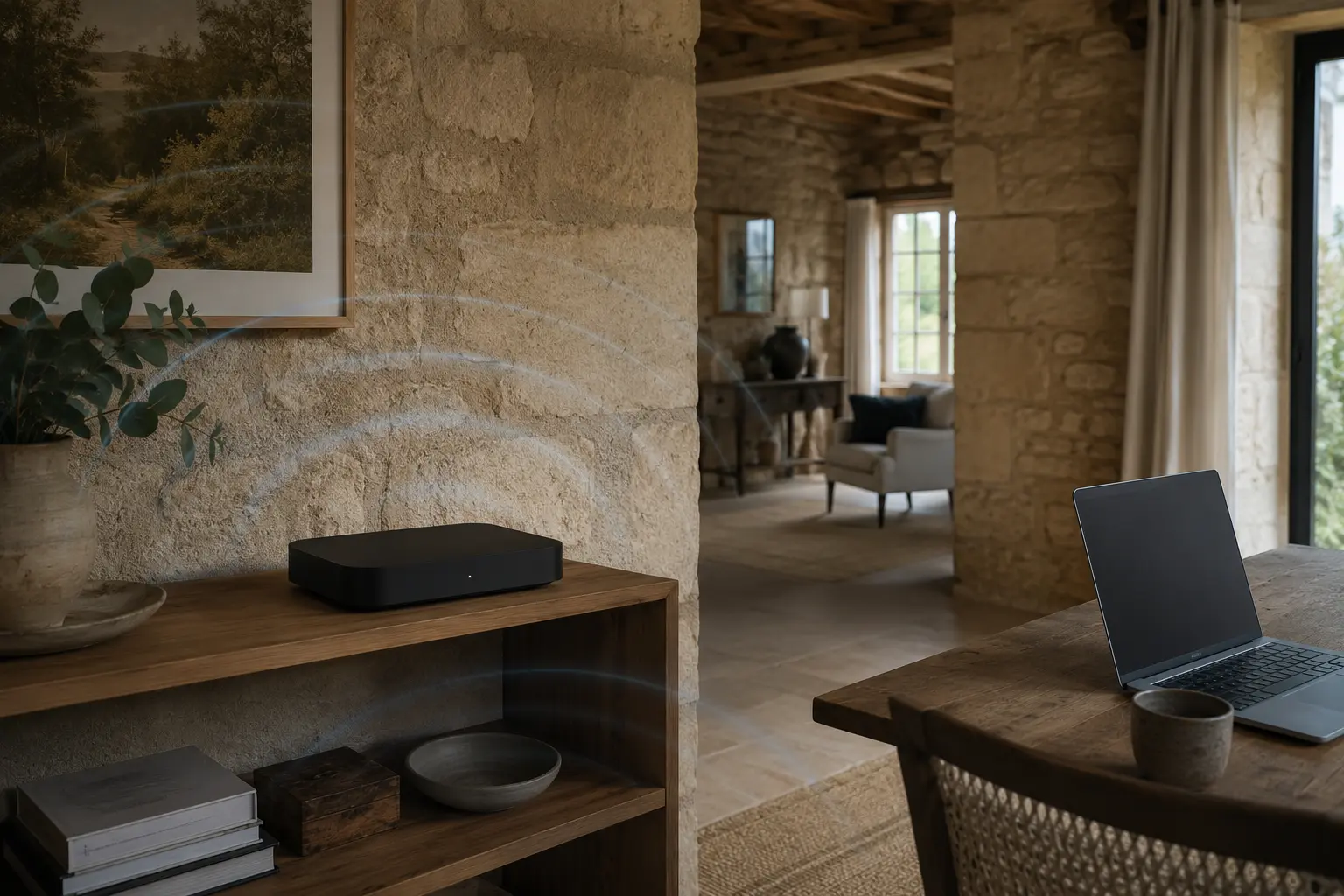
Radio does not travel through every property in the same way. Thick stone, reinforced concrete, floors, metal surfaces, certain glazing and large furniture can attenuate it. In a traditional Dordogne stone house, moving the router from a cupboard to an open, more central position may achieve more than changing the Internet package.
Interference does not come only from neighbouring networks. Radio or electrical equipment and a high density of devices can disturb some bands. I look for a repeatable relationship: a fault limited to one room, time or operating appliance. Random channel changes may only move the problem; the router’s automatic selection is often a sensible starting point.
Do not hide the router behind a television, in a closed cabinet or on the floor when an open central position is available. Keep its ventilation clear and avoid straining its cables.
A controlled router restart can recover a stalled connection, but restarting it every day is not a normal solution. Check its status lights, provider outage notices, cabling and updates offered through the official interface or app. If the router becomes abnormally hot, restarts or also loses wired connections, Wi-Fi radio may not be the only issue.
An extender must itself receive a usable signal. Placed inside the existing dead zone, it repeats a poor link. A mesh system coordinates several points under one network, but each point still needs a good connection to the router or another point. Adding relays without a plan can increase roaming, interference and complexity without improving service.
If only one PC is affected, confirm airplane mode is off, forget and reconnect to the network, restart the computer and install suitable updates. Microsoft also recommends trying another band and another device. Prefer a driver supplied by the PC or adapter manufacturer, particularly if the fault began after an update or clean installation.
An old adapter may not support the band being broadcast, while an internal antenna disturbed during a repair can produce unusually weak reception. Power-saving behaviour can cause dropouts on some PCs. I reserve Windows network reset for the end because it removes adapters and settings and may require VPNs or other network software to be configured again. If the desktop PC's adapter is the real limitation, I then compare a USB Wi-Fi adapter or PCIe card according to the installation and intended use.
Before uninstalling a driver, download the correct replacement and keep it on a USB drive. Recovering it after the connection disappears can be unnecessarily difficult.
Throughput is the amount of data transferred. Latency is the response delay. A connection can show adequate throughput but still perform poorly in a video call when delay varies or packets are lost. Dropouts are interruptions, while coverage describes where the radio link remains available and usable around the property.
For a simple diagnosis, record the time, location, device, band and type of disruption. Repeat the same action beside the router and in the affected room. In Windows, pinging the default gateway tests the local link to the router. A failed local test means something different from unavailable Internet access when the gateway continues to answer.
An extender may be enough for a modest area if its position still receives the router properly. It depends on a shared wireless link and cannot guarantee the performance available beside the router. For a fixed office, television, NAS used for backups or difficult floor, Ethernet and a wired access point often provide a more predictable foundation when cable installation is practical.
Mesh becomes useful for several coverage areas and smoother movement between points, including large homes and tourist accommodation. It does not create additional Internet capacity, and its points still need to communicate well. I prefer measuring the zones and constraints before choosing: expensive equipment cannot correct poor placement or a defective line.
Do not buy equipment before locating the fault. Moving the router, replacing a cable or correcting a driver may make new hardware unnecessary.
Contact the provider when the wired connection is also unavailable, status lights indicate loss of service, several devices fail beside the router or an outage is declared. Keep the times of dropouts and your comparisons: they provide better evidence than simply saying that Wi-Fi does not work. Do not handle fibre connectors, optical equipment or sealed provider hardware.
An on-site diagnosis is appropriate when the fault depends on the building, several access points, old cabling or business equipment. This is common in thick-walled homes, holiday accommodation and small organisations in Dordogne. I can then separate coverage, configuration, congestion and hardware faults before recommending relocation, cabling or additional equipment.
Printers are a special case: they may remain visible but reject jobs because of addressing, sleep behaviour or a changed configuration. Before replacing one, see the guide to choosing a printer for its real use and separate network trouble from printing technology or running cost.
Written by
IT technician and founder of Tera24, I provide computer repair, troubleshooting, and optimization services throughout Dordogne, helping individuals and businesses keep their technology running smoothly.
About Tera24 ↗From guide to workshop
Further reading
Networking & Wi-Fi
Choose remote NAS access without exposing SMB: compare a VPN, vendor service and HTTPS sharing, then limit permissions and test revocation.
Networking & Wi-Fi
Map the property, separate guests from private equipment, check client isolation, then measure coverage and throughput before choosing hardware.
Networking & Wi-Fi
Six USB and PCIe Wi-Fi adapters compared by compatibility, installation, antennas and real use.