Cybersecurity
SMS, Authenticator App or Passkey: Which Sign-In Method Should You Choose?
SMS, authenticator app, passkey or physical key: compare phishing resistance, compatibility, recovery and lifecycle before rollout.

Cybersecurity / Practical guide
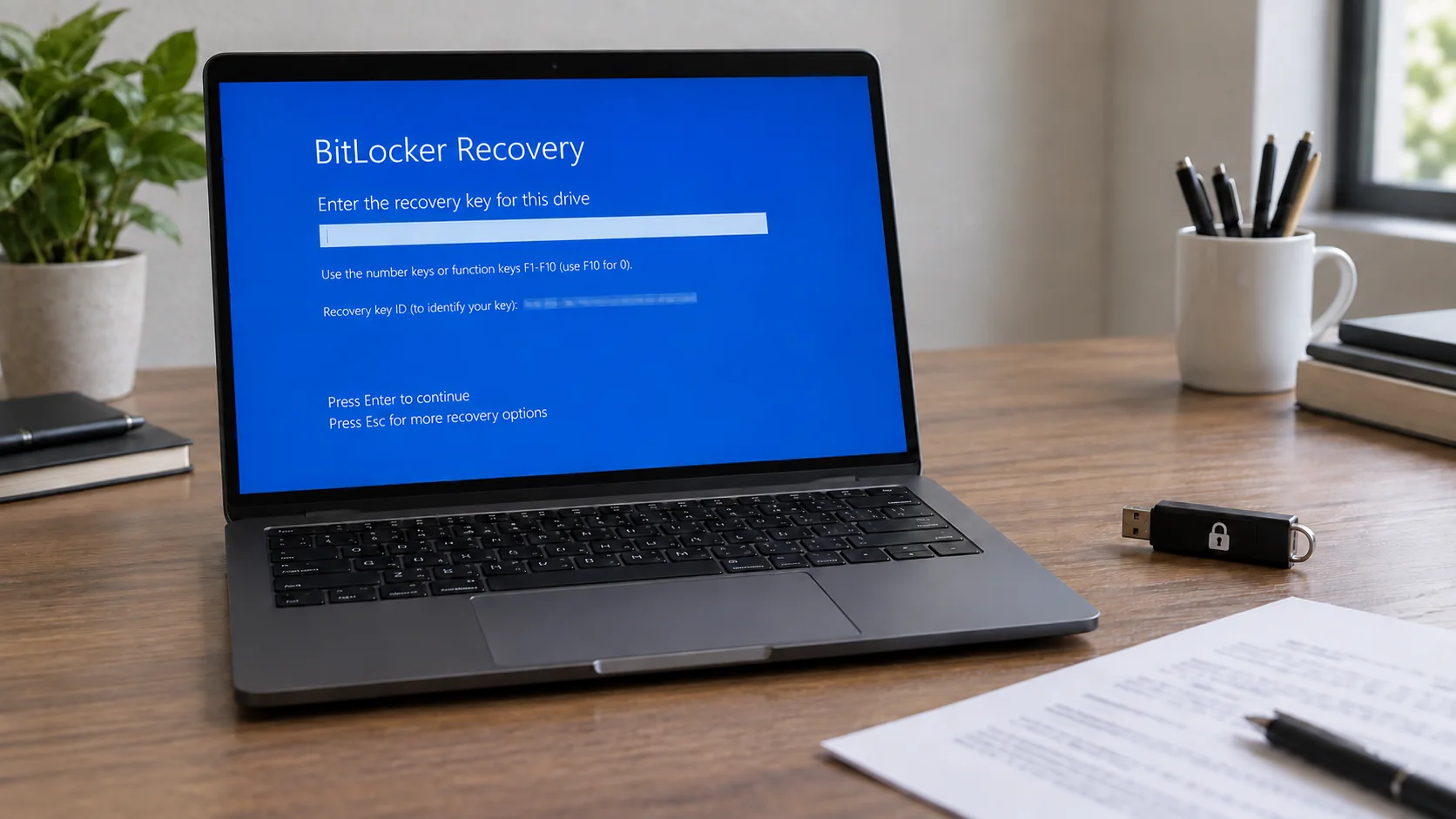
THE TERA24 JOURNALA BitLocker screen first requires the correct recovery key
I guide you through the official locations without exposing the key or putting the data at risk.
The Tera24 approach
Protect the files before making an irreversible decision
A reset may return the PC to service, but it removes encrypted data when the key cannot be found.
A BitLocker recovery screen at startup does not automatically mean that the drive has failed, Windows is destroyed or an attacker controls the computer. BitLocker encrypts the drive so that its data remains unreadable without the appropriate key. Windows may request that key when it detects a potentially unauthorised access attempt, but the prompt can also follow certain hardware, firmware or software changes. The context matters more than the alarming appearance of the screen.
The recovery key is a unique 48-digit numerical code. It unlocks the drive when the normal protection cannot confirm that startup is trusted. I begin by separating that key from the identifier shown on screen: the identifier helps you locate the correct key, but it cannot decrypt anything by itself. Understanding the distinction prevents you from searching for the wrong item or needlessly exposing sensitive information.
Security point: never send the complete recovery key in a message, support form or third-party tool. Someone helping you may need the key ID, not the secret 48-digit code.
Before changing firmware settings, resetting the PC or starting recovery, note the computer model and the first eight digits of the key ID displayed on the BitLocker screen. Microsoft explains that these eight digits let you select the correct key when an account contains several of them. They are not the same as the 48 digits required to unlock the drive.
Next, establish who actually owns the device and which account was used to set it up. A personal PC may be linked to the Microsoft account used during setup. A work or school computer may be linked to the organisation that manages it. A second-hand device, a machine prepared by a relative or equipment supplied by an employer may therefore be associated with a different account from the one you first expect.
That identity check matters before any sign-in attempt. If you also suspect unauthorised access to the account, use another trusted device and follow a controlled process for regaining control of a hacked Microsoft account without exposing the new password. The objective is to retrieve the legitimate key, never to bypass encryption.
Keep a simple record of the accounts you have checked and the identifier associated with each one. This prevents repeated searches and reduces the risk of selecting a recovery key that belongs to another computer. It also lets you explain the situation clearly to the IT department when a device is managed, without sending the key itself or publishing a complete photograph of the recovery screen.
The storage location depends on how BitLocker was enabled. According to Microsoft, the key may have been saved to a Microsoft account, a work or school account, a printout or a USB flash drive. Keep the search limited to your own accounts and media, or to the authorised organisation that manages the PC.
If another person configured the device, the key may be in that person’s account. Work through them with their permission, or through the organisation that owns the computer. Microsoft Support cannot retrieve, provide or recreate a lost BitLocker recovery key. A website or caller promising otherwise is not an official recovery route.
The recovery screen can appear after a hardware, firmware or software change that Windows treats as unusual. Without guessing at a cause, review what happened immediately before it appeared: work on the computer, a change to a startup setting, an update or another identifiable modification. This timeline cannot replace the key, but it may explain why the usual startup checks were no longer sufficient.
Avoid making a series of random changes. Each new setting complicates diagnosis and can move the machine further from its previous state. If a specific reversible change has just been made, the qualified person who carried it out can assess whether the earlier configuration can be restored safely. That does not guarantee the prompt will disappear, and it must never replace a proper search for the key.
Write down the timeline without turning it into a certainty: when the screen first appeared, the last known action and who made any recent change. This remains useful even when no obvious cause emerges. Above all, it protects against a rushed decision, because the lack of an immediate explanation does not mean the encrypted files should be erased.
Do not: follow a random encryption-bypass procedure or disable protections without understanding the state of the machine. Encryption is specifically intended to prevent access without an authorised key.
Without the decryption key, data on the drive remains unreadable to unauthorised users. Most Windows recovery options opened from the recovery environment also require the BitLocker key when encryption is active. Automatic repair, System Restore or another option displayed on screen must therefore not be presented as a guaranteed solution.
If the key cannot be found and the change that triggered the prompt cannot be undone, Microsoft states that resetting the device removes its files. A reset may return the computer to service, but it does not recover the encrypted data. Before accepting that loss, complete the search through the relevant accounts, printouts, files, USB media and the organisation responsible for the device.
I therefore separate two objectives: regaining access to the data and making the computer usable again. If the files are irreplaceable, stop before any destructive action and have the situation assessed. A specialist cannot invent a missing BitLocker key, but can help you verify the context and avoid premature erasure. My guide to data recovery in Dordogne and its practical limits explains when it is wiser to stop rather than keep experimenting.
Once access is restored, do not consider the incident closed until you have verified an accessible backup of the key. Microsoft allows several copies: in a Microsoft account, on a separate USB device, in a file stored away from the encrypted drive, or on paper. Choose locations you can reach even if the computer no longer starts.
Do not keep the printout or USB device containing the key with the computer. If both were stolen together, that proximity would weaken the protection provided by encryption. Do not place the key in a support ticket, public screenshot, shared report or improvised password note either. A useful copy must be available to its legitimate owner while remaining protected from unauthorised people.
Use the restored access to verify file backups before the next system recovery operation. Microsoft recommends backing up important files and knowing the BitLocker key before beginning Windows recovery. A 3-2-1 backup plan for photographs and documents complements this precaution: the key makes the encrypted drive accessible, while separate copies protect the files against other incidents.
Finally, check that the chosen copy remains readable and understandable to its legitimate owner. A backup forgotten inside an inaccessible account or stored on an unidentified device cannot serve its purpose. You may keep several official copies, but each one should remain separate from the PC, clearly identifiable and protected against unauthorised access.
In short: record the identifier, search only legitimate key locations, avoid destructive changes, and reset only when you understand that the encrypted files will be removed.
Written by
IT technician and founder of Tera24, I provide computer repair, troubleshooting, and optimization services throughout Dordogne, helping individuals and businesses keep their technology running smoothly.
About Tera24 ↗From guide to workshop
Further reading
Cybersecurity
SMS, authenticator app, passkey or physical key: compare phishing resistance, compatibility, recovery and lifecycle before rollout.
Cybersecurity
Inventory accounts, protect the vault and migrate in batches to adopt a password manager without losing access.
Cybersecurity
Isolate the PC, protect clean backups and preserve evidence before reinstalling Windows or attempting recovery.