Tech Buying Guides
UPS for a Router, NAS and PC: How to Choose Without Oversizing
Watts, VA, runtime, outlets and controlled shutdown: choose a UPS for genuinely essential devices without oversizing it.

Tech Buying Guides / Practical guide
THE TERA24 JOURNALA USB-C connector does not guarantee every function
I verify the PC port, video and power before comparing docking stations.
The Tera24 approach
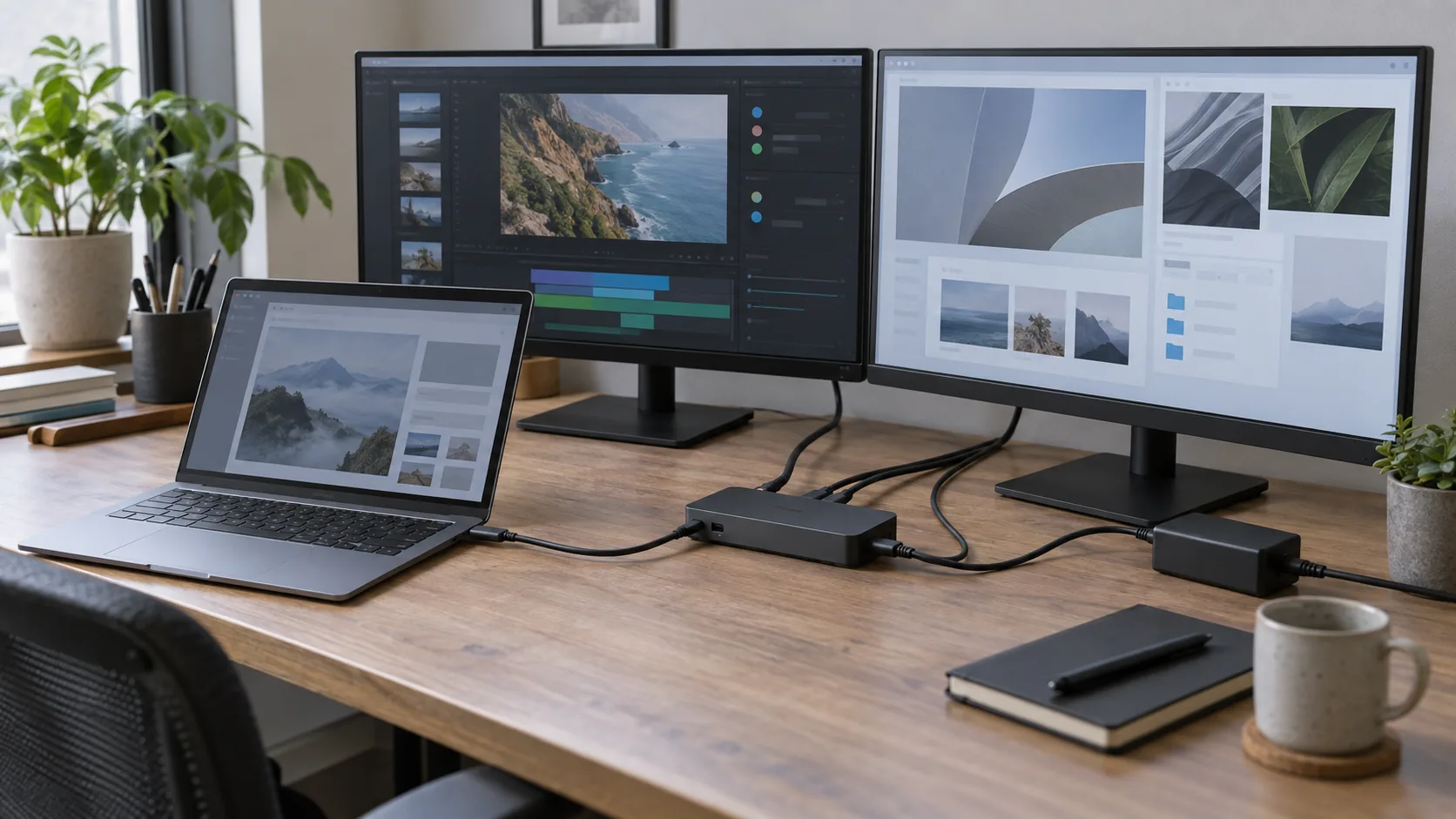
Two monitors require a fully compatible chain
The PC, dock, cables, charger and displays must all match the intended scenario.
Two USB-C ports can have the same shape without providing the same functions. The connector does not guarantee that the selected port supports DisplayPort. I therefore start by recording the exact PC model and consulting its documentation instead of assuming that every USB-C socket can output a picture.
DisplayPort Alternate Mode and USB Power Delivery are separate functions. They must be checked separately because the connector shape guarantees neither one. I also do not infer fast charging, Thunderbolt or USB4 from the port alone. Every capability should appear in the manufacturer’s documentation for the relevant model and port.
A USB-C dock can combine USB data, displays, power and networking over one cable when both the system and dock implement the necessary functions. “When” matters. If the PC does not provide the required video function, a dock with HDMI or DisplayPort sockets does not universally create it on its own.
First check: USB-C primarily describes a connector. Before buying, confirm the functions actually exposed by the PC’s specific port.
“Two monitors” can describe two very different outcomes. Mirroring shows the same signal on several displays. An extended desktop provides independent work areas. A display splitter duplicates the same signal instead of creating two independent extended desktops, so it does not meet the need of a user who wants different windows on each monitor.
I always ask about the intended result before comparing sockets. Do you want to repeat a presentation, or use two separate working areas? That answer determines what must be confirmed in the PC and dock graphics capabilities. The number of visible connectors does not by itself indicate how many independent displays are actually supported.
A USB-C docking station or adapter can provide an additional video output only when the computer and equipment support it. I therefore verify that the documentation describes the required mode rather than treating a marketing photograph of the dock as technical evidence.
The supported number of external displays depends in part on graphics-adapter capabilities and must be checked with the manufacturer. I therefore record the exact PC model, its graphics processor when documented and the display limits published for that configuration.
I perform the same check for the dock. Compatibility recommendations concern both the capabilities of the computer port and those of the docking station. A dock that handles one scenario with a particular computer does not become compatible with every other PC that has a connector of the same shape.
I do not invent a resolution, refresh rate or monitor count. Those values must be confirmed for the whole chain: PC, port, dock, link type and displays. If documentation describes several cases, I retain only the one that genuinely matches the hardware and intended display mode.
Limit: two video outputs on a dock do not prove that your PC can use both simultaneously as an extended desktop. The system’s graphics capability remains a condition of the result.
Docks, adapters, cables and other accessories can contribute to an external-monitor connection problem. I record every reference instead of immediately blaming the dock: docking-station model, charger, USB-C cable between PC and dock, video cables and monitor models.
The cable between computer and docking station is part of the functional chain. An ordinary USB hub does not necessarily carry a DisplayPort connection between its ports. Similarly, a cable suitable for one use should not be presented as universal without documentation confirming the required function.
Power must be checked separately from video. USB Power Delivery and DisplayPort Alternate Mode are different functions. I verify the charger intended for the dock, how the PC is meant to receive power and whether each monitor has its own supply, without assuming that one cable necessarily provides everything.
This method resembles the choice of another USB peripheral: connector shape alone does not define function. My guide comparing a USB Wi-Fi adapter and a PCIe card also illustrates why requirements and compatibility should come before the most visible connection.
When one monitor remains black or disconnects, I simplify the installation before buying a replacement. Trying another cable, another port or the display with another computer helps isolate the cause. I change only one component at a time so that the observation remains useful.
I start by checking the monitor and its cable through a direct connection when the equipment permits that test. I then add the dock, followed by the second monitor. If the issue appears only after a specific step, I check the documentation and compatibility of the added component before deciding that it is defective.
A successful direct connection does not automatically prove that the dock must handle both displays; it only removes certain possible causes. Conversely, a failed test does not necessarily identify the monitor when the tested cable or port lacks the required function. Every result must be interpreted within the verified chain.
Diagnostic rule: change one element, record the result, then move to the next. Replacing the dock, cable and charger together prevents you from finding the cause.
Once the PC functions and display scenario are confirmed, I compare only the connections that are genuinely useful: link to the PC, outputs required for two monitors, USB data, networking and power when those functions belong to the requirement. A dock can combine them over one cable only when the system and dock implement them.
Manufacturer documentation must confirm video support for the system, dock or adapter. I keep the exact references used for that check. A general statement such as “USB-C compatible” is not enough to validate video, charging or an extended desktop across two monitors.
I therefore do not present any dock as universal. The right choice matches a documented chain and a defined requirement. When one point remains uncertain, preserve that uncertainty and ask the manufacturer for confirmation rather than turning a connector shape into a technical guarantee. Documented uncertainty is preferable to an unnecessary or poorly targeted purchase.
Written by
IT technician and founder of Tera24, I provide computer repair, troubleshooting, and optimization services throughout Dordogne, helping individuals and businesses keep their technology running smoothly.
About Tera24 ↗From guide to workshop
Further reading
Tech Buying Guides
Watts, VA, runtime, outlets and controlled shutdown: choose a UPS for genuinely essential devices without oversizing it.
Tech Buying Guides
Workload, condition, battery, warranties and repairability: practical checks before buying a refurbished computer.
Tech Buying Guides
Six SATA and NVMe SSDs compared by compatibility, capacity and real PC use.