Tech Buying Guides
USB-C Dock and Dual Monitors: Check Compatibility Before You Buy
Video, power, cables and graphics limits: verify the whole chain before buying a USB-C dock for two monitors.

Tech Buying Guides / Practical guide
THE TERA24 JOURNALA fast SSD is useless if it does not suit your computer
Replacing a mechanical hard drive with an SSD can transform how a computer feels. Yet SATA, M.2, NVMe, 1TB and 2TB describe different needs, and an over-specified drive may add complexity without a visible benefit.
The Tera24 approach
Choose the SSD your computer can actually use
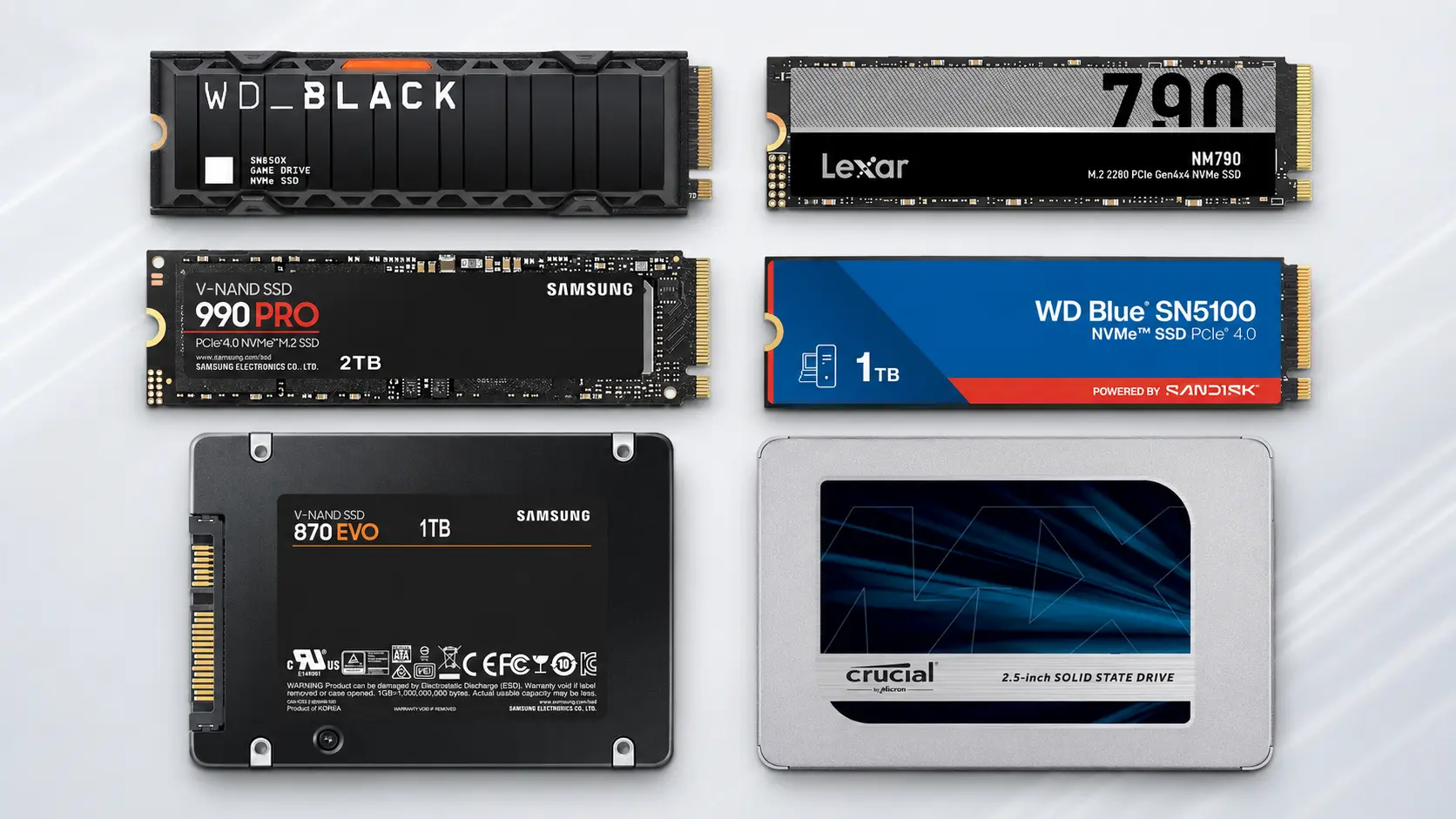
I compare the six briefed models by suitable use, limitations and genuine compatibility. The aim is to size capacity sensibly and separate useful improvement from performance that may remain theoretical.
The choice does not begin with the largest number on a specification sheet. I first check whether the PC expects a 2.5-inch SATA drive or an M.2 module, and whether that M.2 slot actually supports NVMe. Theoretical performance cannot make an incompatible drive work.
In my work around Saint-Chamassy, the most dramatic improvement still often comes from replacing a mechanical hard drive with an SSD, even a SATA model. If your PC already has a sound SSD, moving to a very fast NVMe drive can shorten some transfers without making every click noticeably quicker.
Before any migration: back up important files to a separate device. If the original drive shows errors, unusual slowness or mechanical noises, first review the signs that a hard drive may be failing and avoid repeated restarts.
A 1TB SSD is often enough for Windows, everyday applications, documents and a moderate photo library. You should still leave free space for updates, temporary files and normal SSD operation. Usable capacity after formatting is lower than the figure printed on the label.
Two terabytes makes sense when you keep large games, video, virtual machines or several local projects. Capacity alone does not make the processor or memory faster. It mainly delays space management and can simplify migration from an already well-filled drive.
| Model | Format | Capacity | Sensible use |
|---|---|---|---|
| Crucial MX500 1to | 2.5-inch SATA | 1TB | Older PC, office work, HDD replacement |
| Samsung 870 EVO 1to | 2.5-inch SATA | 1TB | Straightforward SATA alternative |
| WD Blue SN5100 1to | PCIe 4.0 NVMe M.2 | 1TB | Modern general-purpose PC |
| Samsung 990 PRO 2 To | PCIe 4.0 NVMe M.2 | 2TB | Creative work and sustained transfers |
| Lexar NM790 2to | PCIe 4.0 NVMe M.2 | 2TB | Games and large projects |
| WD Black SN850X 2to | PCIe 4.0 NVMe M.2 | 2TB | Gaming and demanding workloads |
This table is a guide, not an absolute ranking. The two SATA models solve a different compatibility problem from the four NVMe drives. Within the NVMe group, the sensible choice depends on the available slot, cooling and the PC’s actual workload.
If the main aim is to make a hard-drive-based computer feel responsive again, my guide to an upgrade from HDD to SSD explains why the perceived difference is often greater than the gap between two modern SSDs.
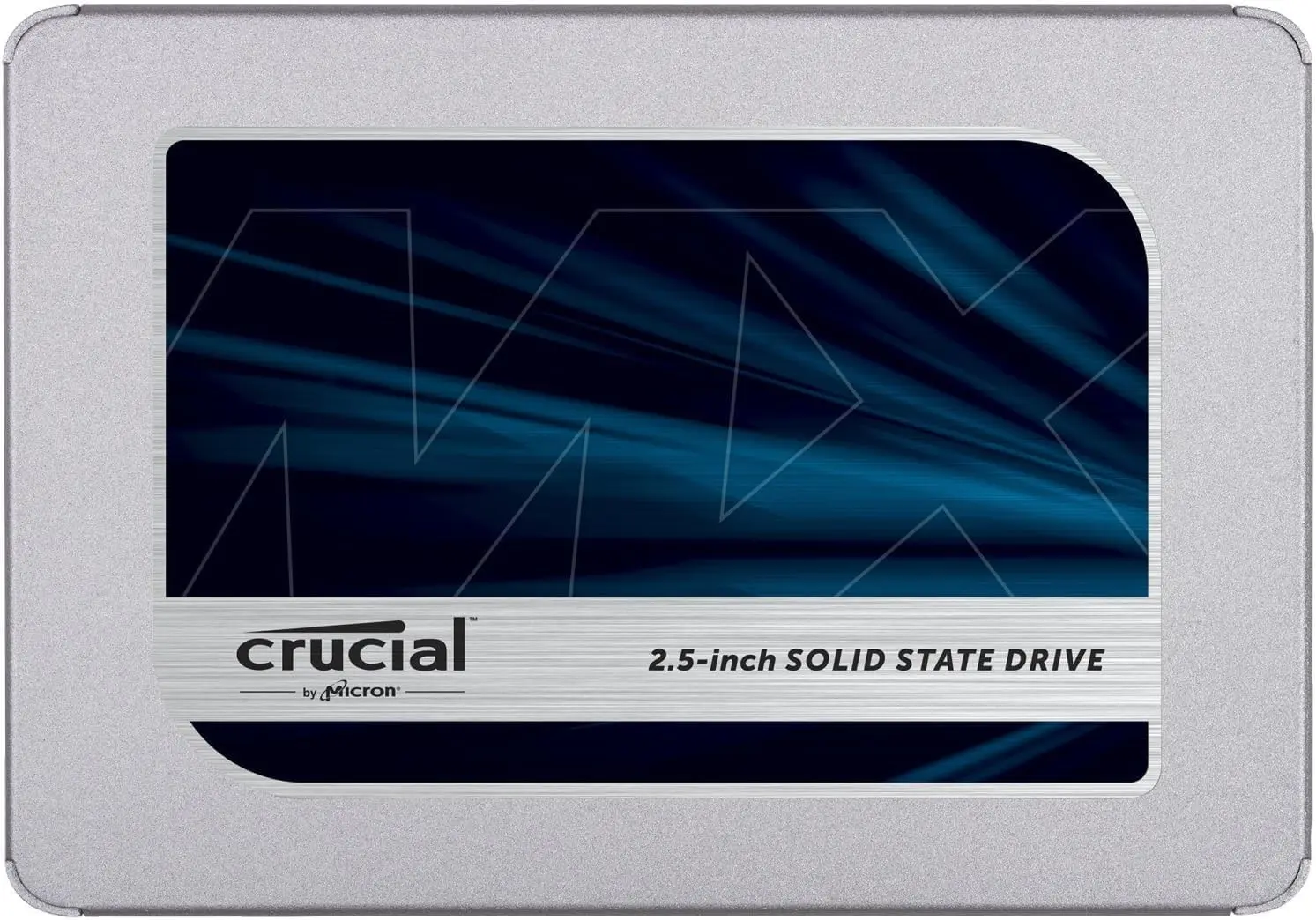
Main choice for a sensible SATA upgrade
The 1TB MX500 is a 7mm, 2.5-inch SATA 6Gb/s SSD. Crucial lists sequential performance of up to 560MB/s read and 510MB/s write; these are maximum figures and the computer still matters.
My experience: I use it personally. My day-to-day experience guides this recommendation; the manufacturer’s figures are used only to put its maximum performance into context.
Compatibility: Before ordering, check the physical format, interface type and available clearance. M.2 describes a form factor; by itself, it does not guarantee NVMe compatibility.
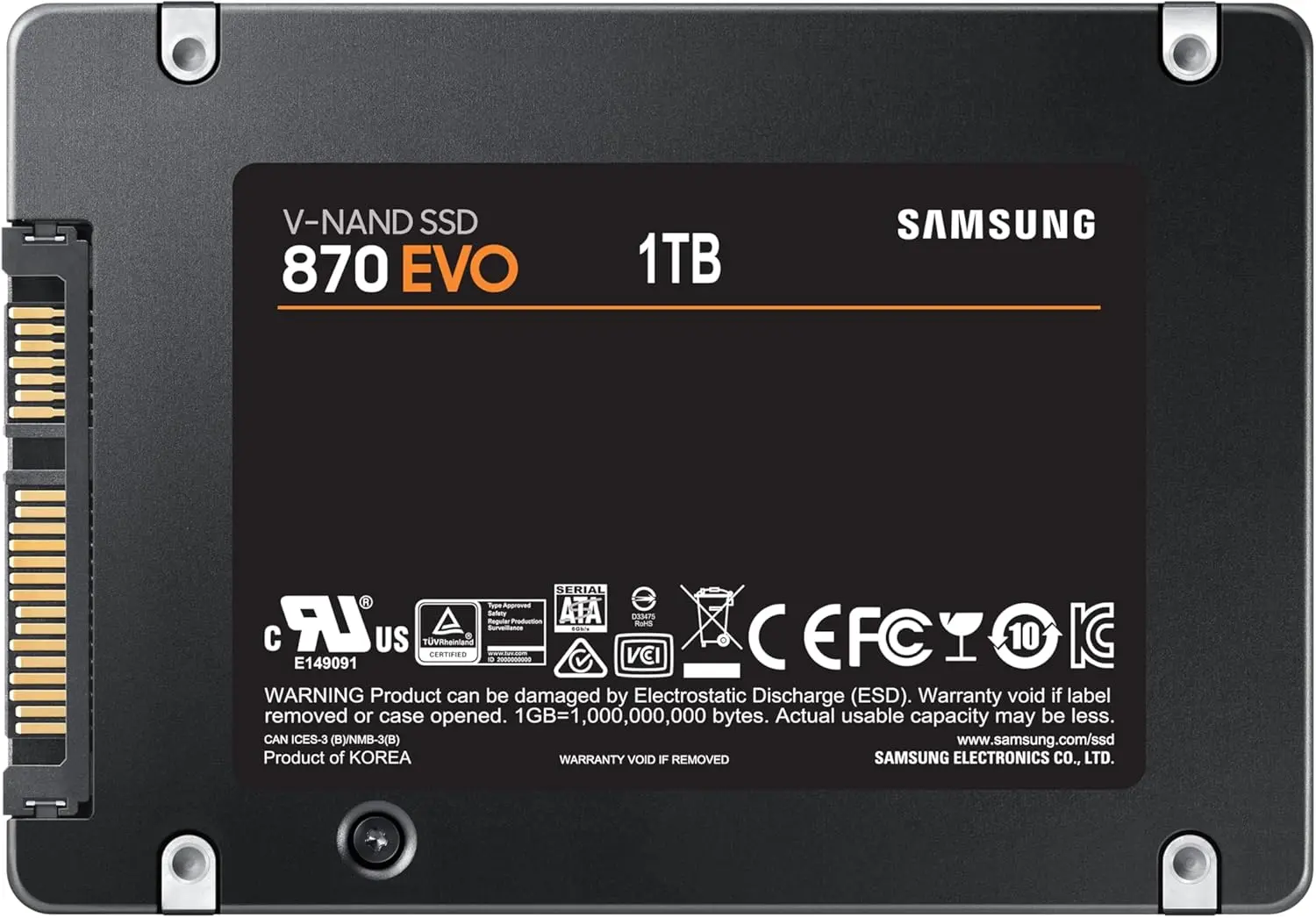
SATA alternative for PCs that cannot take an NVMe drive
Samsung specifies a 2.5-inch SATA 6Gb/s drive with sequential speeds of up to 560/530MB/s read/write. The 1TB version includes 1GB of LPDDR4 cache memory.
My experience: I have installed it for clients. What I observe in real installations guides this recommendation; the manufacturer’s figures are used only to put its maximum performance into context.
Compatibility: Before ordering, check the physical format, interface type and available clearance. M.2 describes a form factor; by itself, it does not guarantee NVMe compatibility.
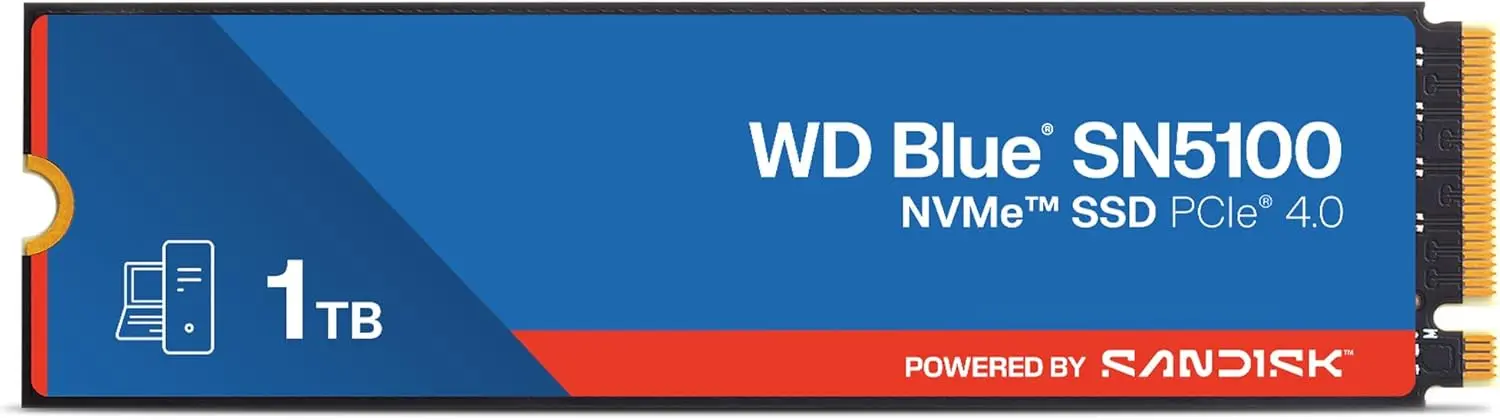
General-purpose NVMe choice for a recent computer
The 1TB SN5100 is an M.2 2280 PCIe 4.0 NVMe SSD. SanDisk lists up to 7,100MB/s read and 6,700MB/s write for the 1TB and 2TB models, based on its own testing.
My experience: I have installed it for clients. What I observe in real installations guides this recommendation; the manufacturer’s figures are used only to put its maximum performance into context.
Compatibility: Before ordering, check the physical format, interface type and available clearance. M.2 describes a form factor; by itself, it does not guarantee NVMe compatibility.
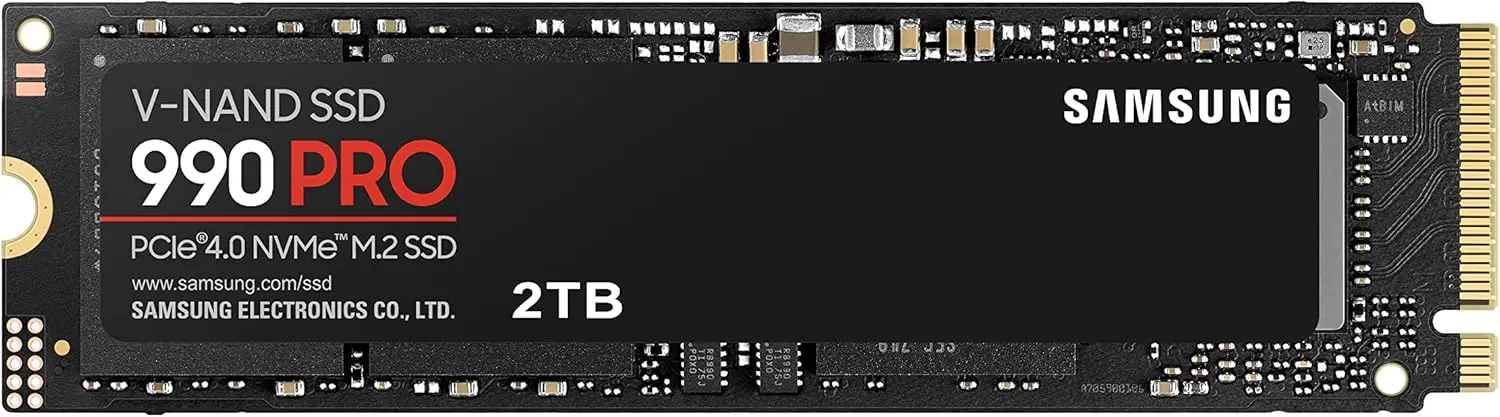
High-performance option for sustained workloads
The 2TB 990 PRO is an M.2 2280 PCIe 4.0 x4 NVMe SSD with 2GB of LPDDR4 cache. Samsung lists up to 7,450MB/s read and 6,900MB/s write, with results depending on the hardware and configuration.
My experience: I have installed it for clients. What I observe in real installations guides this recommendation; the manufacturer’s figures are used only to put its maximum performance into context.
Compatibility: Before ordering, check the physical format, interface type and available clearance. M.2 describes a form factor; by itself, it does not guarantee NVMe compatibility.
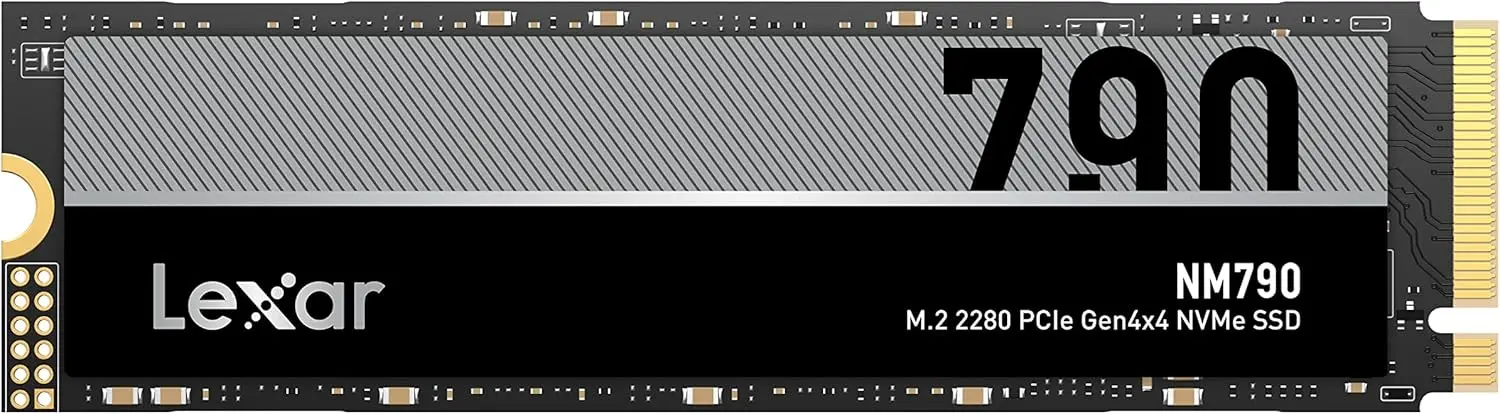
Fast, compact 2TB NVMe option
The 2TB NM790 is an M.2 2280 PCIe 4.0 x4 NVMe SSD. Lexar lists up to 7,400MB/s read and 6,500MB/s write and states that actual performance may vary.
My experience: I have installed it for clients. What I observe in real installations guides this recommendation; the manufacturer’s figures are used only to put its maximum performance into context.
Compatibility: Before ordering, check the physical format, interface type and available clearance. M.2 describes a form factor; by itself, it does not guarantee NVMe compatibility.
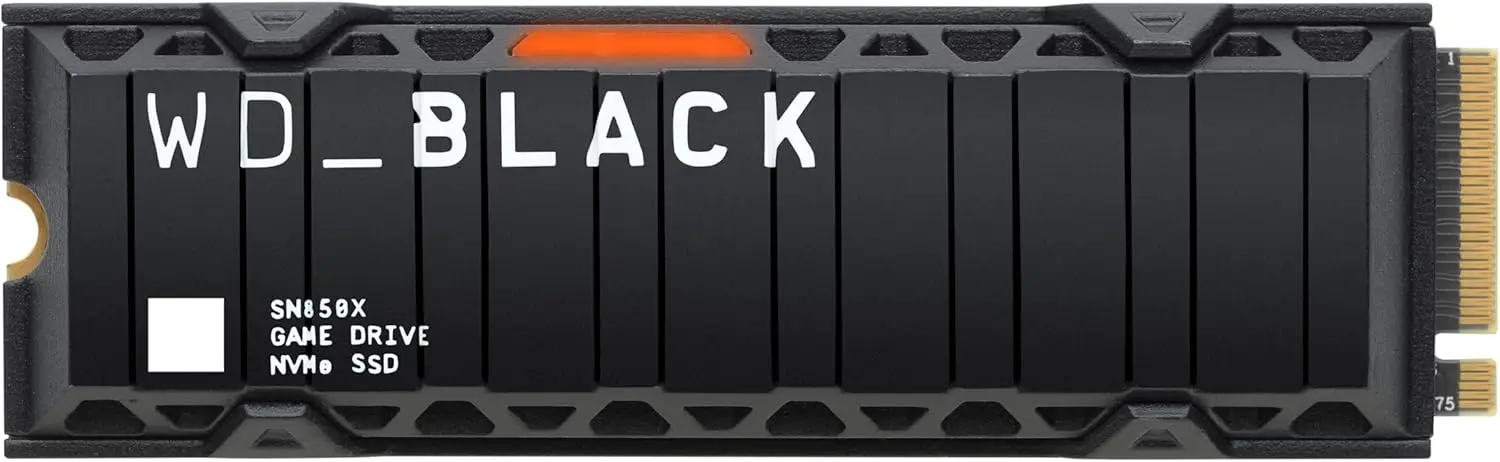
Gaming-oriented choice for sustained workloads
The 2TB SN850X is an M.2 2280 PCIe 4.0 x4 NVMe SSD. SanDisk lists up to 7,300MB/s read and 6,600MB/s write for this capacity, offered with or without a heatsink depending on the part number.
My experience: I use it personally. My day-to-day experience guides this recommendation; the manufacturer’s figures are used only to put its maximum performance into context.
Compatibility: Before ordering, check the physical format, interface type and available clearance. M.2 describes a form factor; by itself, it does not guarantee NVMe compatibility.
Cloning keeps applications, accounts and settings. It is convenient when the current installation is healthy and the new SSD has sufficient capacity. It can also reproduce software faults, redundant partitions and existing problems.
A clean installation takes more preparation but starts from a clearer base. I choose between the two only after checking the source drive and Windows. My guide to disk cloning versus a clean installation explains the decision.
Precaution: do not treat a clone as your only backup. Keep an independent copy of important files and make sure you have the accounts, keys and installation resources you need.
For an older SATA computer used mainly for office work, I generally favour the Crucial MX500 or Samsung 870 EVO. Their throughput ceiling does not remove the major improvement over an HDD. In a recent machine, the WD Blue SN5100 is a general-purpose NVMe option when the documentation confirms compatibility.
The Samsung 990 PRO, Lexar NM790 and WD Black SN850X address more demanding workloads. I would not recommend the SN850X for a PC whose processor, memory or interface is already the bottleneck. The right SSD solves the real limitation without diverting resources towards performance the machine cannot use.
Conclusion: check the format and interface, back up the data, choose capacity with sensible headroom, then match performance to the rest of the computer.
Its interface can deliver much higher throughput than SATA, but the perceived difference depends on the task. Office work and browsing benefit mainly from moving from an HDD to any SSD; large transfers and sustained workloads make better use of a fast NVMe drive.
No. You need to check the form factor, accepted length, key type, SATA or NVMe protocol and PCIe generation. The motherboard or laptop documentation is the reference.
It depends on the SSD, workload, airflow and available clearance. A heatsink can help under sustained load, but it may prevent a laptop from closing or conflict with a motherboard cover.
Written by
IT technician and founder of Tera24, I provide computer repair, troubleshooting, and optimization services throughout Dordogne, helping individuals and businesses keep their technology running smoothly.
About Tera24 ↗From guide to workshop
Further reading
Tech Buying Guides
Video, power, cables and graphics limits: verify the whole chain before buying a USB-C dock for two monitors.
Tech Buying Guides
Watts, VA, runtime, outlets and controlled shutdown: choose a UPS for genuinely essential devices without oversizing it.
Tech Buying Guides
Workload, condition, battery, warranties and repairability: practical checks before buying a refurbished computer.