PCs & Computers
Moving to a New Windows PC: A Checklist for Files, Apps and Access
Files, software, licences, email and peripherals: a checklist for verifying a new Windows PC before erasing the old one.

PCs & Computers / Practical guide
THE TERA24 JOURNALClone Your SSD or Start Fresh? The Real Question Behind a Slow PC
When replacing an old hard drive with an SSD, one question comes up almost every time: should you clone the existing drive or perform a clean Windows installation?
On paper, disk cloning seems like the perfect solution. You copy everything, restart the computer, and your PC works exactly as before—only faster. In reality, though, it can sometimes be the best option... and other times the worst possible choice.
After years of providing on-site computer repair services across Dordogne, I've seen flawless disk migrations—but I've also seen PCs become unstable, sluggish, or even fail to boot after an unsuitable cloning process. The right approach depends above all on the actual condition of the computer before the upgrade.
The Tera24 approach
The Right Choice Depends Above All on the Actual Condition of Your Computer
Disk cloning and a clean Windows installation don't serve the same purpose.
One aims to preserve your existing system exactly as it is, while the other gives your computer a fresh start. Depending on whether your PC is simply slow, affected by recurring errors, infected with malware, or weighed down by years of accumulated software, the best solution can be completely different.
Here's what I actually recommend to my clients before upgrading to an SSD—and why I often favor a clean Windows installation when a computer is already showing signs of age or performance issues.
I see the same situation time and time again. A client calls because their PC has been running slowly for months, or because they’ve just bought an SSD to replace their old hard drive. And the first question they ask is: “Can’t we just copy everything from the old drive?”
Yes, we can. But should we? That’s a different story.
Disk cloning sounds ideal on paper: transfer everything from one drive to another, reboot, and everything works as if nothing happened. In reality, though, it’s not always that simple. After years of providing on-site computer support across the Dordogne region, I’ve learned to be cautious about cloning in certain situations—and to recommend a clean Windows installation when it’s the better option.
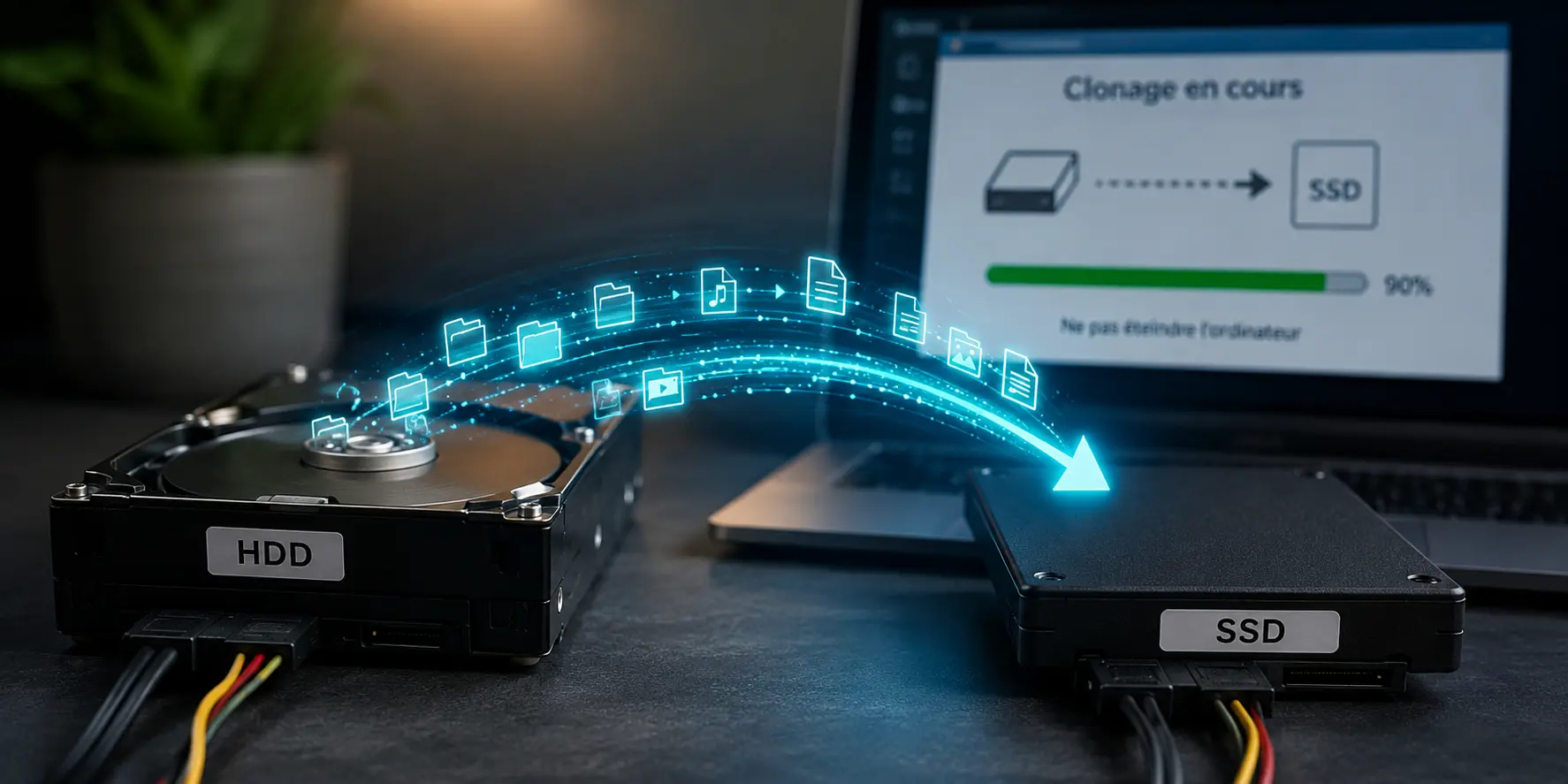
Disk cloning means creating an exact, bit-for-bit copy of one storage device onto another. In theory, your PC boots from the new drive exactly as it did from the old one.
The problem is that “exactly as it did before” also means copying everything—including the things you’d rather leave behind:
If your PC was already slow and unstable before cloning, there’s a good chance it will remain that way afterward. All you’ve really done is move the problem to a new drive.
If the old drive is already unstable, inaccessible or showing read errors, I prefer to assess the options for recovering the data before attempting a clone that could place even more strain on the device.
| Situation | Disk Cloning | Clean Installation |
|---|---|---|
| Fast PC, only the drive is too small | ✅ Effective | Unnecessary |
| Slow PC with unusual behavior | ⚠️ Risky | ✅ Recommended |
| Virus or malware present | ❌ Avoid | ✅ Essential |
| Windows with recurring errors | ❌ Copies the existing problems | ✅ Fresh start |
| Simple HDD → SSD upgrade, healthy OS | ✅ Suitable | ✅ Also a good option |
eMMC is the type of storage soldered directly onto the motherboard that you’ll find in many entry-level laptops, netbooks, and Windows tablets. Unlike a standard SSD with a removable connector, it’s an integrated chip—and that makes a big difference.
In practice, cloning an eMMC drive to another storage device often produces disappointing results. The storage structure, the way Windows addresses it, and the manufacturer-specific partitions don’t always translate well to a simple mirror copy. I’ve seen cloned systems refuse to boot, or start with persistent errors that could only be resolved by reinstalling Windows from scratch. On these machines, a clean installation isn’t just the default choice—it’s the most reliable solution.
When I recommend a complete Windows reinstallation, it’s not to make life more difficult for my clients. It’s because the final result is far superior to a rushed disk clone.
Here’s what the process looks like.
And that’s when I take a moment to discuss something important with the client.
Tera24 provides on-site computer services across Dordogne, including hard drive to SSD upgrades, disk cloning, clean Windows installations, and performance optimization for desktop and laptop computers.
A clean PC stays clean only if the right software is installed. There are programs I always recommend, and others that I strongly advise against.
Reinstalling Windows is, in theory, something anyone can do. Microsoft provides official guides and tools. But in practice, common mistakes can be costly:
When I work on a client’s computer anywhere in Dordogne, I handle the entire process—from diagnosis to a fully functional system—making sure they get their PC back in better condition than before, without losing their personal data. And if anything unexpected happens during the process, I’m there to deal with it.
Disk cloning is a useful tool in the right circumstances. But when a PC is slow, unstable, infected, or when the storage architecture is changing, a clean Windows installation is almost always the better long-term investment. Instead of carrying problems over, you start again with a healthy system.
If you’re based in Dordogne and you’re wondering which solution is best for your desktop or laptop, I can perform a quick diagnosis and recommend the most suitable approach before any work begins.
Written by
IT technician and founder of Tera24, I provide computer repair, troubleshooting, and optimization services throughout Dordogne, helping individuals and businesses keep their technology running smoothly.
About Tera24 ↗From guide to workshop
Further reading
PCs & Computers
Files, software, licences, email and peripherals: a checklist for verifying a new Windows PC before erasing the old one.
PCs & Computers
A non-destructive test to restore files, inspect their contents, record errors and fix your backup before a real incident.
PCs & Computers
Inventory, scheduling, retention, a separate copy and restore tests: organise usable NAS backups for several small-business computers.