PCs & Computers
Moving to a New Windows PC: A Checklist for Files, Apps and Access
Files, software, licences, email and peripherals: a checklist for verifying a new Windows PC before erasing the old one.

PCs & Computers / Practical guide
THE TERA24 JOURNALIs Your Computer Running Slow? Your Hard Drive Might Be the Problem
Before replacing your computer, there's one essential question to ask: is your PC really outdated—or is it simply held back by an old mechanical hard drive?
In most cases, replacing an HDD with an SSD is enough to completely transform the way your computer performs, even if it's several years old.
The Tera24 approach
Why an SSD Is Still the Number One Upgrade in 2026
Long startup times, applications that take 30 seconds to open, and Windows updates that bring your entire system to a crawl—old mechanical hard drives have become the biggest performance bottleneck in many computers still in use today.
Contrary to popular belief, getting a fast and responsive PC again doesn't necessarily mean buying a brand-new computer.
About half of the calls I receive for a « slow computer » aren’t caused by a hardware failure at all. The computer still works perfectly—it just relies on an old mechanical hard drive that’s reached the end of its useful life.
The result? Windows takes 4 to 8 minutes to start. Programs need 30 seconds or more to open. Saving a file, running an antivirus scan, or launching a web browser becomes painfully slow. At that point, most people are convinced they need to buy a brand-new computer.
In around 80% of cases, replacing the old drive with an SSD costing less than €70 solves the problem in about an hour.
It’s the upgrade I perform most frequently across Dordogne with Tera24—on both laptops and desktop PCs—and it’s by far the most dramatic improvement. Seeing a client watch their computer boot in just 15 seconds after years of frustration is something you don’t forget.
Although an old mechanical hard drive is very often responsible for the slow computers I encounter, it’s far from the only possible cause. Too many startup programs, insufficient RAM, conflicting antivirus software, overheating, or a poorly maintained Windows installation can all turn an otherwise capable computer into a frustrating machine. If your PC is running slowly every day, I also recommend reading my article on the seven most common reasons why Windows PCs become slow.
Before looking at specific products, it’s worth taking a moment to understand the difference—because once you do, you’ll immediately see why the performance improvement is so dramatic.
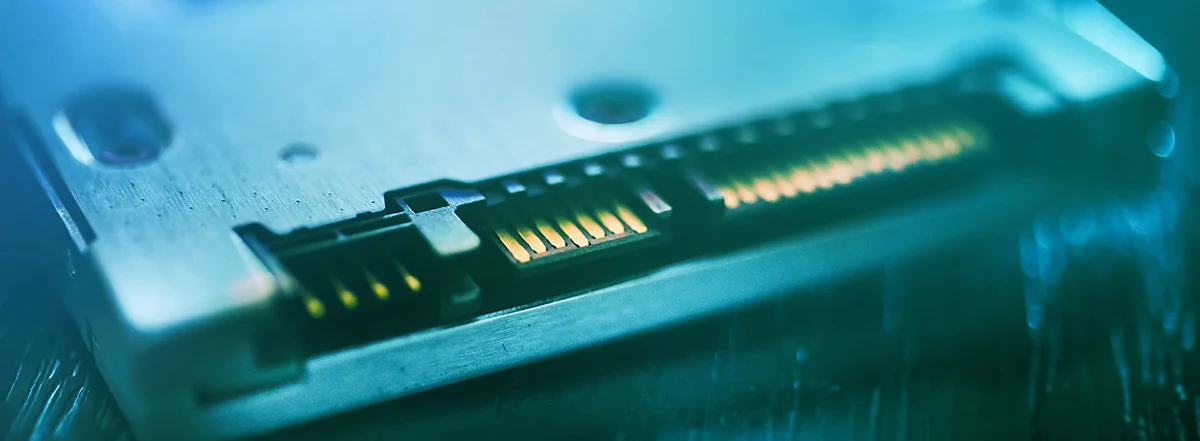
An HDD (Hard Disk Drive) stores data on spinning magnetic platters that are read by a moving read/write head. Think of it like an old record player. It’s mechanically slow by design, generates heat, wears out over time, and can fail unexpectedly—often at the worst possible moment.
An SSD (Solid State Drive) uses flash memory instead. There are no moving parts, so data is accessed almost instantly. There are two main types:
| Feature | HDD | SATA SSD | NVMe SSD |
|---|---|---|---|
| Windows startup | 3–8 min | 15–25 sec | 10–15 sec |
| Opening applications | 15–40 sec | 2–5 sec | 1–3 sec |
| Read speed | ~100 MB/s | ~500 MB/s | 3000+ MB/s |
| Noise | Audible clicking | Silent | Silent |
| Risk of mechanical failure | High after 5 years | Very low | Very low |
If these technical terms sound unfamiliar, that’s perfectly normal—they’re simply here to illustrate the real performance gap between these storage technologies. The key takeaway is this: a SATA SSD is typically 4 to 6 times faster than a traditional HDD, while an NVMe SSD can be up to 30 times faster. That’s why your computer can start in 15 seconds instead of taking 5 minutes.
Before going any further, here’s an important point I’ve noticed firsthand while ordering parts for my clients: SSD prices have increased significantly since the end of 2025.
The reason is straightforward: global demand for NAND flash memory has surged, driven by AI and data centers. Manufacturers have shifted much of their production toward these far more profitable markets, leaving fewer products available for consumers. SATA SSD prices have risen by roughly 75% compared with their 2025 lows, while NVMe drives have increased by as much as 115%. Some popular models have even doubled in price within just a few months.
This is also why Crucial—the consumer RAM and SSD brand owned by Micron—effectively disappeared from the consumer market in early 2026. AI infrastructure consumed virtually all of its production capacity. When major manufacturers pull away from the consumer market, supply shrinks and prices continue to rise.
Market forecasts for the second quarter of 2026 still predict further price increases. Waiting is unlikely to save you money. The prices mentioned in this guide reflect today’s market—and they are not expected to fall anytime soon.
The right SSD depends on your computer’s hardware—not on marketing claims or the latest trend. Here’s how I approach every upgrade.
This is by far the most common situation. Older HP, Lenovo, Asus, and Dell laptops usually contain a standard 2.5-inch hard drive that can easily be replaced. A quality SATA SSD delivers around 500 MB/s—roughly four to six times faster than the mechanical drive it replaces. For everyday use, the difference is dramatic.
Most laptops released in recent years no longer include a 2.5-inch drive bay. Instead, they use an M.2 slot directly on the motherboard. These drives are much smaller and offer performance that far exceeds SATA SSDs. If your laptop was built after 2018 and shipped with a slow or low-capacity SSD, chances are it uses NVMe storage.
Be aware, however, that some thin-and-light laptops (excluding MacBooks) have their SSD soldered directly to the motherboard. In those cases, replacing the drive simply isn’t possible. That’s one of the very first things I check before ordering any parts.
Desktop computers are usually the easiest machines to upgrade. Most towers include both a 2.5-inch bay for a SATA SSD and an M.2 slot on the motherboard. You can even use both: an NVMe SSD for Windows and your applications, plus a SATA SSD for file storage. This is the configuration I often recommend to clients who want a fast, responsive PC without spending a fortune.
Older desktop towers equipped with large 3.5-inch hard drives simply require an inexpensive 2.5-inch mounting bracket, and the upgrade is ready to go.
Many desktop PCs sold in recent years come with entry-level 256 GB NVMe SSDs. While they look impressive on paper, they quickly fill up and often deliver poor write performance once heavily used. In this case, the upgrade isn’t replacing an HDD—it’s replacing the original SSD with a faster, higher-capacity NVMe model. The improvement is especially noticeable on Windows 11 systems running several applications simultaneously. Your storage needs, everyday workload, and desired amount of free space should all be considered when choosing between a 1TB and 2TB SSD.
This is becoming increasingly common in budget laptops priced between €200 and €400, including many Chromebooks and entry-level Windows notebooks. eMMC storage consists of flash memory soldered directly onto the motherboard, much like the storage inside a smartphone. In theory, there is no drive bay and nothing to replace.
The downside is that it’s relatively slow, often limited to just 32 GB or 64 GB, and fills up extremely quickly. Windows Update alone can leave these computers unusable for hours.
However, I’ve discovered that some of these laptops actually include an unused M.2 NVMe slot hidden on the motherboard. In those cases, I install an NVMe SSD, migrate Windows to the new drive, and disable the eMMC storage in the BIOS. For around €45–60 in hardware, the computer gains fast, reliable storage with much more available space.
Of course, this isn’t possible on every eMMC-based computer—some truly have no upgrade options at all. But it’s always worth checking before writing off the machine or buying a replacement. It’s the kind of diagnosis I regularly perform throughout Dordogne, and the results often surprise owners who thought their computer was beyond saving.
Not sure what’s inside your computer? That’s perfectly normal—most people aren’t expected to know their PC’s internal hardware. A quick phone call is all it takes, and I can usually tell you exactly what you need in just a couple of minutes.
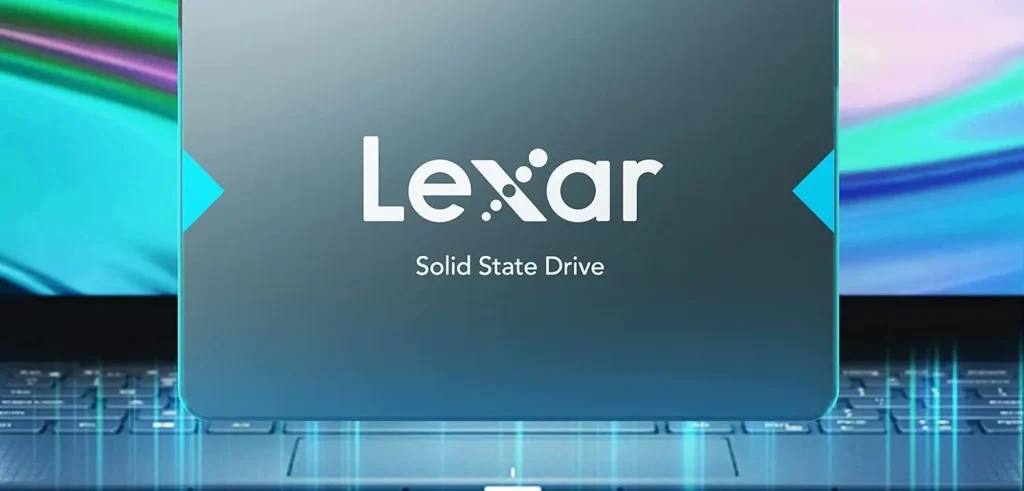
This is the SSD I install most often in family computers and student laptops. Its 7 mm form factor makes it compatible with almost every laptop, and it’s proven to be reliable over time.
My opinion: I’ve installed dozens of these without any issues. For everyday tasks like web browsing, office work, and photo storage, it does exactly what you need it to do.
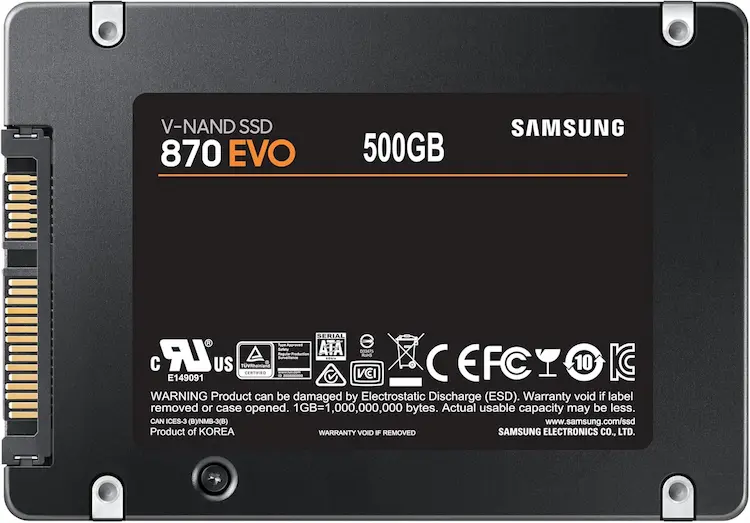
When a client wants to install an SSD and not think about it again for the next ten years, this is the one I recommend. I usually suggest the 500 GB version instead of the 250 GB model—the price difference is reasonable, and it helps avoid running out of storage after only a year or two.
My opinion: One of the most durable SATA SSDs available. For computers that are used heavily every day, it’s an excellent investment—and Samsung has a strong reputation for honoring its warranty.
Tera24 provides on-site computer services across Dordogne, including hard drive to SSD upgrades, disk cloning, clean Windows installations, and performance optimization for desktop and laptop computers.
Most laptops and desktop computers built after 2018 include an M.2 slot—a smaller, faster storage format that is often no more expensive than a SATA SSD with the same capacity. It’s always one of the first things I check during a hardware diagnosis.
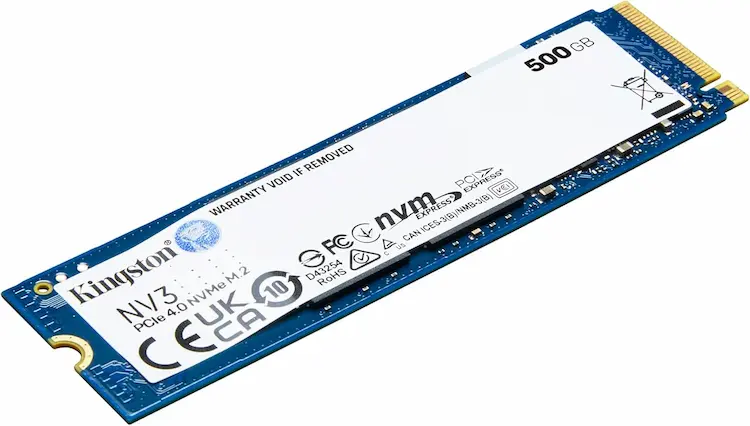
My opinion: At this level of performance, it’s hard to beat. Kingston remains one of the few major brands still strongly focused on the consumer market, and that’s becoming increasingly important.
Whenever I open a laptop to install an SSD, I always take a look at the RAM as well. Very often, there’s another easy performance upgrade waiting to be made.
Running Windows 11 with only 4 GB of RAM simply isn’t enough anymore. Upgrading to 8 GB or 16 GB usually costs between €20 and €50 and makes a noticeable difference in everyday responsiveness—especially if you keep several browser tabs open, work with photos, or run applications like Microsoft Office alongside an antivirus program.
One important point: many recent laptops have their RAM soldered directly onto the motherboard, making upgrades impossible. That’s something I always verify before starting any work—there’s no point promising an upgrade that simply can’t be done.
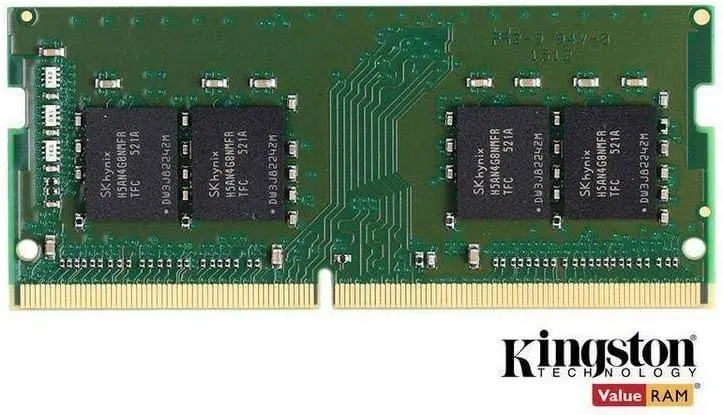
My opinion: Reliable, compatible with the vast majority of laptops, and one of the few trusted brands that remains widely available. For less than €25, it’s one of the best value-for-money upgrades you can make.
Tera24 provides on-site computer services across Dordogne, including hard drive to SSD upgrades, disk cloning, clean Windows installations, and performance optimization for desktop and laptop computers.
Sure, you can order an SSD online and follow a YouTube tutorial. But here are the things that are easy to overlook—and what I always take care of when performing this upgrade.
Checking the health of your current drive first. Before ordering any parts, I assess the condition of the existing drive. A hard drive with failing sectors can crash halfway through the cloning process, potentially causing serious data loss. I’ve recovered important files more than once simply because I detected the warning signs in time.
Secure disk cloning. Your Windows installation, software, documents, photos, emails, and settings all need to be transferred safely. A failed clone can leave you with a PC that won’t boot, missing files, and hours spent reinstalling everything from scratch. It’s not a task to take lightly.
Hardware compatibility. Drive format, thickness, interface, available slots… ordering the wrong SSD means returns, delays, and another week without a working computer. I make sure the right part is chosen the first time.
On-the-spot RAM advice. If your computer would genuinely benefit from a memory upgrade, I’ll tell you exactly what’s compatible—without trying to sell you hardware you don’t actually need.
The result? You get your computer back exactly as you left it—the same desktop, the same software, the same files—but up to ten times faster. No stress and no unnecessary risk of losing your data.
Upgrading from an HDD to an SSD offers one of the best cost-to-performance improvements you can make to a personal computer. For around €60 to €90, you can often extend the life of a PC by another five to seven years instead of replacing it.
And with SSD prices continuing to rise, waiting is only likely to make the upgrade more expensive. That’s not a sales pitch—it’s simply the current reality of the hardware market.
If you’d like me to handle everything—from diagnosis and secure cloning to installation and final testing—feel free to get in touch. I provide on-site computer support in Saint-Chamassy and throughout the surrounding area within a 60 km radius.
Some links in this article are Amazon affiliate links. If you purchase through these links, I may earn a commission at no additional cost to you. This helps support and fund the Tera24 website.
Written by
IT technician and founder of Tera24, I provide computer repair, troubleshooting, and optimization services throughout Dordogne, helping individuals and businesses keep their technology running smoothly.
About Tera24 ↗From guide to workshop
Further reading
PCs & Computers
Files, software, licences, email and peripherals: a checklist for verifying a new Windows PC before erasing the old one.
PCs & Computers
A non-destructive test to restore files, inspect their contents, record errors and fix your backup before a real incident.
PCs & Computers
Inventory, scheduling, retention, a separate copy and restore tests: organise usable NAS backups for several small-business computers.