PCs & Computers
Moving to a New Windows PC: A Checklist for Files, Apps and Access
Files, software, licences, email and peripherals: a checklist for verifying a new Windows PC before erasing the old one.

PCs & Computers / Practical guide
THE TERA24 JOURNALA failing hard drive often gives warning signs — if you know what to look for
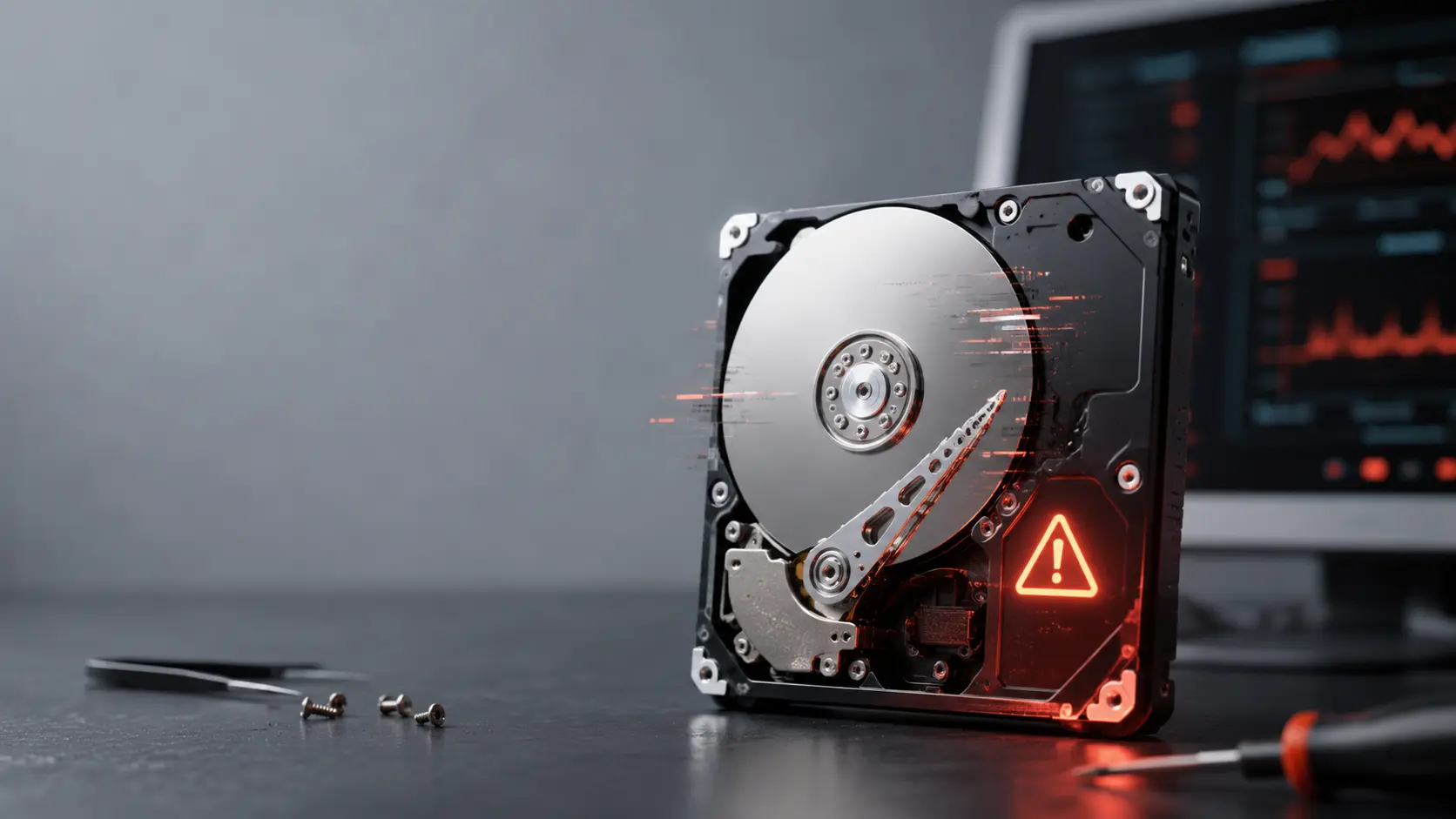
A computer that suddenly takes several minutes to start, folders that refuse to open, an external drive that repeatedly disappears, or an unusual clicking noise: these are symptoms I regularly come across during my call-outs in Dordogne.
The difficulty is that a failing hard drive does not always stop working overnight. It may continue to function just well enough to make the problem seem less urgent, while files gradually become damaged or increasingly difficult to read.
When family photos, business documents or years of personal data are stored on that drive with no other copy, continuing to use it normally can turn a manageable problem into a far more complicated recovery.
The Tera24 approach
Not every slow computer has a dying hard drive
A slow computer does not automatically mean that its hard drive is failing. The cause may instead be insufficient memory, too many startup programs, an update running in the background, overheating or simply the limitations of an older mechanical drive.
Some symptoms are more concerning than others, however: unusual noises, read errors, corrupted files, a drive that keeps disappearing, copies that repeatedly freeze or SMART warnings.
In this article, I will explain how to recognise these signs, what you can safely check yourself, why software such as CrystalDiskInfo can never provide an absolute guarantee, and what you should do immediately while your files are still accessible.
A mechanical hard drive, also known as an HDD, contains spinning platters and read heads that move extremely close to their surface. These mechanical components can wear out, suffer damage after a shock or begin struggling to read certain areas of the drive.
Failure is not always immediate. A drive may initially become slower, produce occasional errors or disappear intermittently before becoming completely inaccessible.
One symptom on its own does not necessarily mean that the drive is about to fail. Several symptoms appearing together, or a problem that is quickly becoming worse, should be taken much more seriously.
A mechanical hard drive naturally produces a faint spinning sound and some movement from the read heads. What should concern you is a new, loud or repetitive noise.
In this situation, I do not recommend restarting the drive repeatedly to see whether it comes back. Each power cycle may worsen a mechanical fault. If the data is important and does not exist anywhere else, the safest approach is to stop using the drive and arrange a diagnosis.
One file refusing to open does not automatically mean that the hard drive is faulty. The file may have been saved incorrectly, moved or damaged by software.
The situation becomes more concerning when several unrelated files begin showing problems, particularly if you notice:
These symptoms may be caused by areas of the drive that have become difficult or impossible to read. A sector is a small area used to store data. When an increasing number of sectors can no longer be read reliably, the drive may slow down considerably while repeatedly trying to access them.
A failing drive can temporarily freeze the entire system. Windows waits for a response, the drive repeatedly attempts the same read operation and the computer appears to stop responding.
Disk usage at 100% can also be caused by Windows Update, antivirus software, insufficient RAM or too many background programs. To distinguish a drive fault from the other common causes of a slow computer, you need to consider all the symptoms rather than relying on one figure in Task Manager.
An internal or external drive that disappears from Windows, the BIOS or Disk Utility on a Mac may be failing, but hardware failure is not the only possible explanation.
Before assuming that the drive itself is dead, it is also worth considering:
In this type of situation, I generally begin by ruling out everything around the drive: the cable, power supply, USB port, adapter or enclosure. This can sometimes reveal that the drive itself is still perfectly functional.
However, if the drive disappears during a transfer, disconnects once it becomes warm or is only recognised after several attempts, it should no longer be used normally.
No. Older mechanical hard drives are naturally much slower than modern SSDs, particularly when Windows starts, several programs are opened or updates are being installed.
A computer can therefore feel extremely slow even when its drive has no physical fault. The drive may still be working correctly, but its performance may no longer be suitable for a modern operating system.
The difference can often be seen in the way the problem develops:
If the drive is still healthy but severely limits performance, replacing the HDD with an SSD can give the computer a new lease of life. That decision should come after checking the drive and protecting the data, rather than being treated as an automatic answer to every slow computer.
Is your computer taking forever to start up, running slowly, or struggling with everyday tasks? A free diagnosis can often identify the real issue—and help you avoid replacing hardware unnecessarily. Contact Tera24 to schedule an appointment.
On Windows, I use CrystalDiskInfo as one of the tools for obtaining an initial overview of a drive’s condition. It reads the SMART information recorded by the drive.
SMART stands for Self-Monitoring, Analysis and Reporting Technology. It is a monitoring system built into hard drives and many SSDs.
Depending on the model, the available information may include:
When a drive detects that an area is no longer reliable, it may stop using it and redirect the data to a spare area. This is known as sector reallocation.
A small number of values does not always allow you to predict exactly when a drive will fail. However, an increase in reallocated sectors, unstable sectors or uncorrectable errors is a serious warning sign.
I prefer to be clear: CrystalDiskInfo is useful, but it does not replace a complete diagnosis.
A drive may display a “Good” status and still fail shortly afterwards. Some electronic or mechanical faults occur before the SMART values have reached their warning thresholds.
Conversely, a SMART warning does not necessarily mean that the drive will stop working within the next hour. It means that the drive should no longer hold the only copy of important data.
The most important rule: if the drive contains irreplaceable data and is already producing errors, do not begin with a series of intensive tests. A long test places additional strain on the drive and may accelerate the failure of an already fragile device.
If the drive can still be read, is not making worrying mechanical noises and contains important data, the priority is not to repair Windows or immediately identify the exact fault. The priority is to create another copy of the data.
Do not necessarily begin by copying the entire drive in a random order. Start with the files that cannot easily be replaced:
Windows, applications and most software can be reinstalled. Personal memories and certain documents cannot.
The data must be copied to a different physical drive, a NAS or a suitable cloud-storage service. Creating another folder on the same drive is not a backup: if the drive fails, both folders become inaccessible. For a practical comparison, the NAS or external hard drive guide explains the main criteria.
Recovered files should not be saved back onto the failing drive either. Doing so may overwrite data that could still be recoverable and places further strain on the device.
When a drive contains unreadable areas, a normal copy through File Explorer may remain stuck for a long time on one damaged file.
In some situations, I prefer to clone the drive to a healthy device before working with the files. The aim is to reduce the amount of work carried out directly on the original drive and create as complete a copy as possible.
This is not always harmless, however. Cloning can place considerable strain on the drive and is not suitable for a serious mechanical fault.
If the drive is later replaced, you will then need to decide whether to transfer the existing system or begin again with a clean installation. I explain this choice in my guide to disk cloning and clean Windows installations.
I regularly see situations made worse by well-intentioned attempts to fix the problem. With an unstable drive, avoid operations that write new data, unnecessarily stress the mechanics or alter the structure of the file system.
Restarting a drive that is clicking or struggling to spin does not repair it. It adds further start-up cycles and may worsen the damage.
Tools such as CHKDSK can be useful for certain logical problems, but they modify the structure of the file system. They should not automatically be run on a physically unstable drive containing important data.
Before attempting any repair, I prefer to have a usable backup or clone.
If Windows says that a drive needs to be formatted or initialised, this does not necessarily mean that it is empty.
The operating system may simply be unable to read the partition or file system correctly. Formatting or initialising the drive writes new information to it and may make recovery more difficult.
If recovery software is used, it must be installed on another drive. Recovered files must also be saved somewhere else.
Installing software or downloading files onto the affected drive may overwrite deleted or damaged data that could otherwise still be recovered.
Opening the metal casing of a hard drive does not allow you to reposition the read head safely in a normal room. Dust in an ordinary environment can contaminate the platters and cause permanent damage.
Opening a hard drive mechanically requires a controlled environment, specialised equipment and a data-recovery professional.
I recommend avoiding any unnecessary power-up when one or more of the following applies:
In these situations, every additional attempt should have a clear purpose. The aim is no longer to return the drive to normal daily use, but to preserve the best possible chance of recovering the files.
I can deal with certain logical faults, carry out an initial diagnosis and work with drives that remain sufficiently accessible. For mechanical failures or recovery requiring a clean-room environment, Tera24 works with Clinique de Données, an official specialist partner.
My article about data recovery in Dordogne explains the difference between cases that can be handled locally and those that require specialist laboratory equipment.
A serious warning about the condition of a drive generally justifies replacing it, especially when it contains the operating system or important data.
This does not mean that the entire computer needs to be replaced. In many PCs, the storage drive is a replaceable component. If the rest of the computer still suits your needs, installing an SSD may be a sensible and durable repair.
Before choosing the replacement, you should still check:
Repairing before replacing is generally the right approach, but continuing to rely on a drive showing reliable signs of failure is not a real saving.
Even a drive that appears perfectly healthy today can fail tomorrow, be damaged by a power surge, suffer a fall or be affected by malicious software.
SMART monitoring and health checks are useful, but they never replace a backup. The best protection is not predicting the exact moment a drive will fail. It is ensuring that the failure does not cause permanent data loss.
For important data, I recommend keeping at least one copy on a separate device. For irreplaceable or professional documents, a second copy stored elsewhere or with a suitable cloud service provides additional protection.
A backup must also be checked. An external drive that has been stored for years but never opened is not reliable protection until you have confirmed that the files can actually be read.
A hard drive may be failing if it produces unusual mechanical noises, read errors, corrupted files, repeated disconnections, extremely slow transfers or a SMART warning.
Slowness alone is not enough to condemn the drive. The cable, enclosure, Windows installation, available storage space and other possible causes should also be checked.
When several symptoms appear together, or the drive contains the only copy of important data, the priority is straightforward: reduce its use, copy what remains accessible and avoid operations that write new data to the drive.
Software can help with an initial assessment, but it cannot predict the exact date of failure or guarantee that a drive is completely reliable.
There is no reliable way to predict this. The drive may continue working for some time or become inaccessible very quickly. A SMART warning should be treated as a reason to back up the data and arrange a replacement.
A mechanical drive naturally produces a small amount of noise. Repeated clicking, grinding or continuous attempts to start are not normal, however. If the data is important, avoid restarting the drive unnecessarily.
No. CrystalDiskInfo reads health information reported by the drive, but it cannot repair mechanical damage or physically defective sectors. It is a diagnostic tool, not a repair tool.
That depends on the cause of the fault and the physical condition of the drive. Some logical or electronic faults may still allow recovery, while others require specialist laboratory work. Complete recovery can never be guaranteed before the drive has been diagnosed.
I do not recommend continuing to store important data on it. Copy anything that remains accessible to another device and replace the drive.
Not exactly. An SSD contains no moving parts and therefore does not produce clicking noises. It can still cause errors, freezing, slowdowns, intermittent detection or suddenly become inaccessible.
Written by
IT technician and founder of Tera24, I provide computer repair, troubleshooting, and optimization services throughout Dordogne, helping individuals and businesses keep their technology running smoothly.
About Tera24 ↗From guide to workshop
Further reading
PCs & Computers
Files, software, licences, email and peripherals: a checklist for verifying a new Windows PC before erasing the old one.
PCs & Computers
A non-destructive test to restore files, inspect their contents, record errors and fix your backup before a real incident.
PCs & Computers
Inventory, scheduling, retention, a separate copy and restore tests: organise usable NAS backups for several small-business computers.