PCs & Computers
Moving to a New Windows PC: A Checklist for Files, Apps and Access
Files, software, licences, email and peripherals: a checklist for verifying a new Windows PC before erasing the old one.

PCs & Computers / Practical guide
THE TERA24 JOURNALAfter a spill, the next startup can wait
I explain the first prudent steps without pretending that the inside of a laptop can be diagnosed remotely.
The Tera24 approach
Remove power, record the incident and arrange inspection
You will see why retesting is unsafe, why improvised drying methods should be avoided, how to protect the data, and why no universal waiting time makes a restart automatically safe.
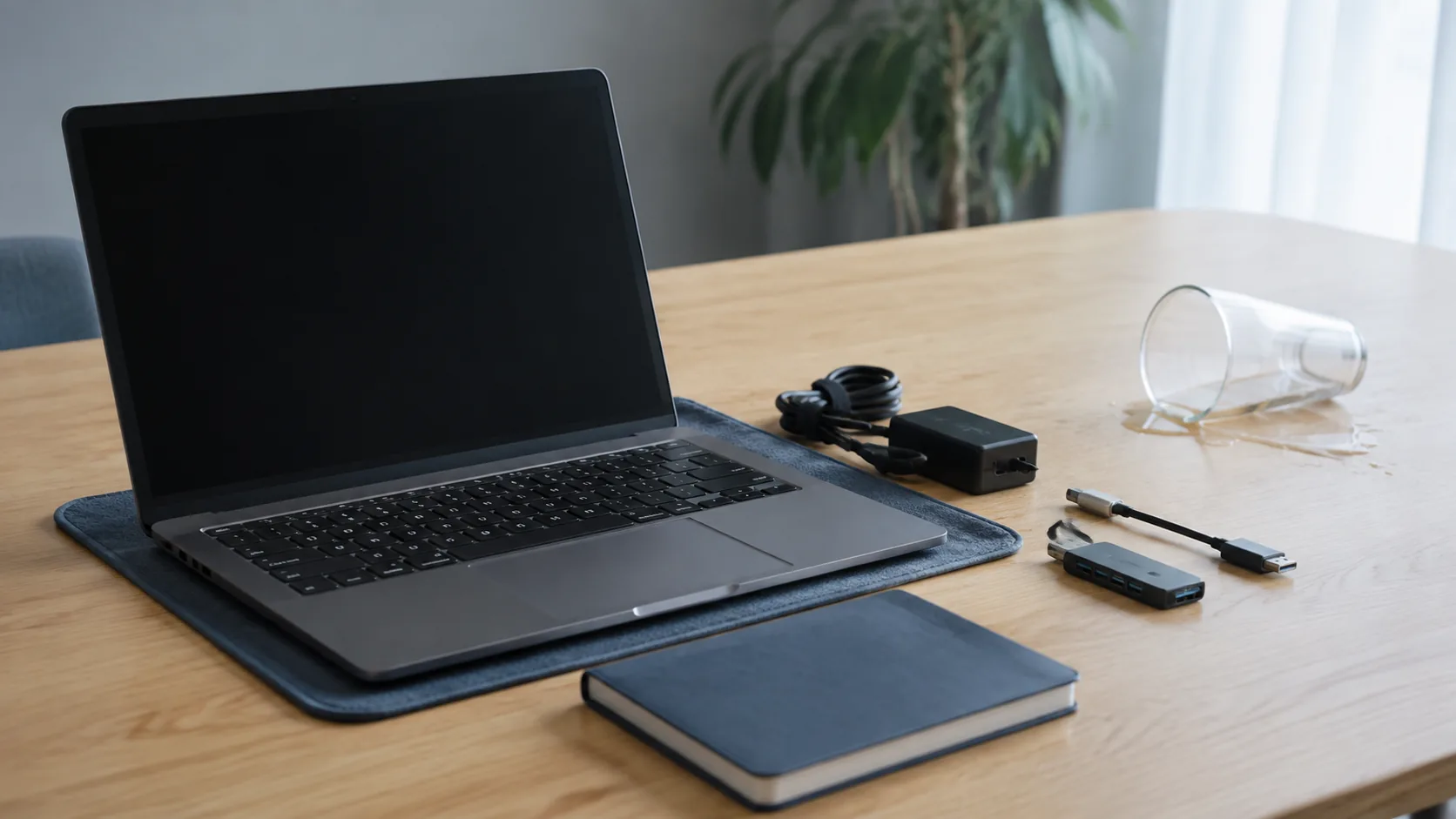
After liquid is spilled on a laptop, the first priority is to stop the machine and remove its sources of power. Shut it down immediately, unplug the charger from the mains and then from the laptop, and do not check whether the keyboard, display or Windows still works. Dell specifically advises against trying to restart a laptop after a spill.
Disconnect every attached accessory as well: network cable, display, USB drive, external disk, headset or any other peripheral. The aim is not to diagnose each port during the emergency, but to leave the laptop powered off and electrically disconnected. Apple warns that powering a device through a wet connector can corrode its pins and cause permanent damage.
A successful-looking start does not prove that the laptop is undamaged. I would rather preserve the diagnostic options than apply power again while connectors or components may still be wet.
The same rule applies if the laptop already appears to be off. Do not attach the charger merely to watch for a light, and do not use a docking station to test an external display. General checks for a computer that will not turn on must wait until the liquid incident has been handled appropriately, never while moisture may still be present.
Dell recommends removing or disconnecting the battery when this can be done safely. That qualification matters: I do not turn conditional guidance into a universal procedure. The laptop must already be off and its external power disconnected before that possibility is even considered.
Check the method intended for the exact model. If it allows the battery to be removed or disconnected safely, follow it. If that condition is not clearly met, stop after disconnecting the external power; liquid damage often requires professional attention.
Dell also says the laptop may be placed upside down to help liquid drain away from internal components. This option comes after shutdown and disconnection. Apple’s separate guidance still says not to reconnect an accessory until the device and cable are dry.
‘Remove or disconnect the battery when this can be done safely’ remains a condition, not a universal disassembly instruction. No foreign object should be inserted into a connector.
Once shutdown, disconnection and any safe battery step are complete, do not reconnect a cable or accessory. Apple’s guidance says to keep the accessory disconnected until both the device and the cable are dry. That condition is not a universal restart time.
Forced drying may look like a shortcut to getting the laptop back into service, but Apple’s guidance rules out external heat, compressed air, foreign objects inside a connector and rice. Do not use a hair dryer, radiator, heat gun or any other heat source directed at the computer.
Do not blow compressed air into the keyboard or sockets. Do not insert any foreign object into a connector. Apple’s guidance explicitly lists both prohibitions alongside external heat and rice.
Rice does not authorise a restart. The guidance says not to reconnect until both the device and cable are dry, but it does not provide a universal waiting time that can safely be applied to every laptop.
Apple’s wait of at least a day applies to the Mac models explicitly covered by that procedure. I do not turn it into a general rule or an automatic green light for any laptop.
Without a universal safe delay, the useful question is not ‘how many hours should I wait?’ but ‘has the interior been inspected, and has powering it up been judged reasonable?’ Until that is answered, keep the laptop off and disconnected.
Before visible traces disappear, record what happened: water, a sugary drink or another identified product, the approximate amount, the side of the keyboard or ports affected, and the accessories that were connected at the time. This factual description helps prepare the inspection without requiring another electrical test.
I cannot assess the extent of the damage remotely from the liquid’s name alone. The source ledger for this guide does not establish a universal chemical hierarchy between water, sugary drinks and a product identified as corrosive. It says that a spill can corrode the motherboard, that storage media and their connectors may also show corrosion, and that pins may be damaged.
An external photograph taken without further handling can supplement your notes, along with the approximate time and the visible entry area. Do not invent an exact quantity when you do not know it. An honest estimate and the product name from its container are more useful than a conclusion about unseen internal damage.
This information helps direct the inspection. On its own, it cannot guarantee that a component is intact or beyond recovery.
The SSD or other storage device may hold the important files, but it can also be affected. Dell notes possible corrosion on storage media and their connectors, as well as damaged pins. That possibility rules out any remote guarantee about the drive or the data.
Do not turn the computer on for a quick data copy: Dell says not to attempt a restart after the spill. If the files matter and no recent copy exists, simply state that priority when arranging the professional intervention often required after liquid damage.
I prefer to be clear: the condition of the SSD, the data and the motherboard cannot be guaranteed before inspection. The only technical conclusions used here are those in the ledger: possible motherboard corrosion, possible corrosion of storage media or their connectors, and potentially damaged pins.
When the files are the priority, my guide to data recovery in Dordogne explains what an initial diagnosis can cover and when more specialised handling may be needed. After a spill, that decision must remain grounded in the physical condition found during inspection.
Complete recovery can never be promised. The instruction not to restart the laptop still applies when the data is the priority.
Liquid damage often requires professional intervention. The ledger does not provide a universal cleaning or inspection procedure to reproduce yourself. This guide therefore stops at the covered first steps: shut down, disconnect, do not restart, and remove or disconnect the battery only when this can be done safely.
Dell states that a spill can corrode the motherboard. Storage media and their connectors may also show corrosion, or pins may be damaged. Those possibilities define the limit of this guide without establishing the condition of any particular laptop.
I therefore do not give a universal restart time. The exact model, affected areas and findings from inspection matter more than a countdown. If inspection cannot happen immediately, simply keep the laptop off, without its charger or accessories, and pass on the notes you recorded about the incident.
Repair before replacement remains the editorial principle, but no particular technical solution is promised here. Professional diagnosis comes before deciding whether to repair or replace the laptop; state clearly when the data is the priority, without expecting a guaranteed outcome.
The first minutes come down to four actions: power off, disconnect, do not retest, and document. Everything else depends on the model and a real inspection of the device.
Written by
IT technician and founder of Tera24, I provide computer repair, troubleshooting, and optimization services throughout Dordogne, helping individuals and businesses keep their technology running smoothly.
About Tera24 ↗From guide to workshop
Further reading
PCs & Computers
Files, software, licences, email and peripherals: a checklist for verifying a new Windows PC before erasing the old one.
PCs & Computers
A non-destructive test to restore files, inspect their contents, record errors and fix your backup before a real incident.
PCs & Computers
Inventory, scheduling, retention, a separate copy and restore tests: organise usable NAS backups for several small-business computers.