Windows Diagnostics and Troubleshooting
Computer Overheating and Noisy Fan: Cleaning, Thermal Paste or Hardware Failure?
Noisy fan, dust, thermal paste or hardware fault: follow a safe, progressive diagnosis before dismantling or replacing parts.

Windows Diagnostics and Troubleshooting / Practical guide
THE TERA24 JOURNALNo sign of power does not automatically mean a dead motherboard
You press the power button and nothing happens — or almost nothing. Before buying a PSU, charger or replacement computer, identify the signs that remain and rule out the simplest causes.
The Tera24 approach
Define the symptom before changing a component
This guide separates true no-power faults from failed startup, a black screen and restart loops. It covers low-risk checks, desktop and laptop differences, the limits of basic testers and the signs that mean you should stop.
Before blaming a component, I first establish what the machine is actually doing. No light, sound, fan or response suggests an apparent no-power condition. A computer with a power light, beeps or a brief fan movement may receive power but fail its power-on self-test. A machine that appears to start yet produces no picture belongs in a black-screen-at-startup diagnosis. A PC that shuts down after a few seconds or keeps looping is a fourth situation.
This distinction prevents a power supply, battery or motherboard from being condemned on one symptom. Record the lights, sounds, delay before shutdown and what happened immediately before the fault. An unlit indicator does not prove the motherboard is dead; it only tells you that no power is visible at that indicator.
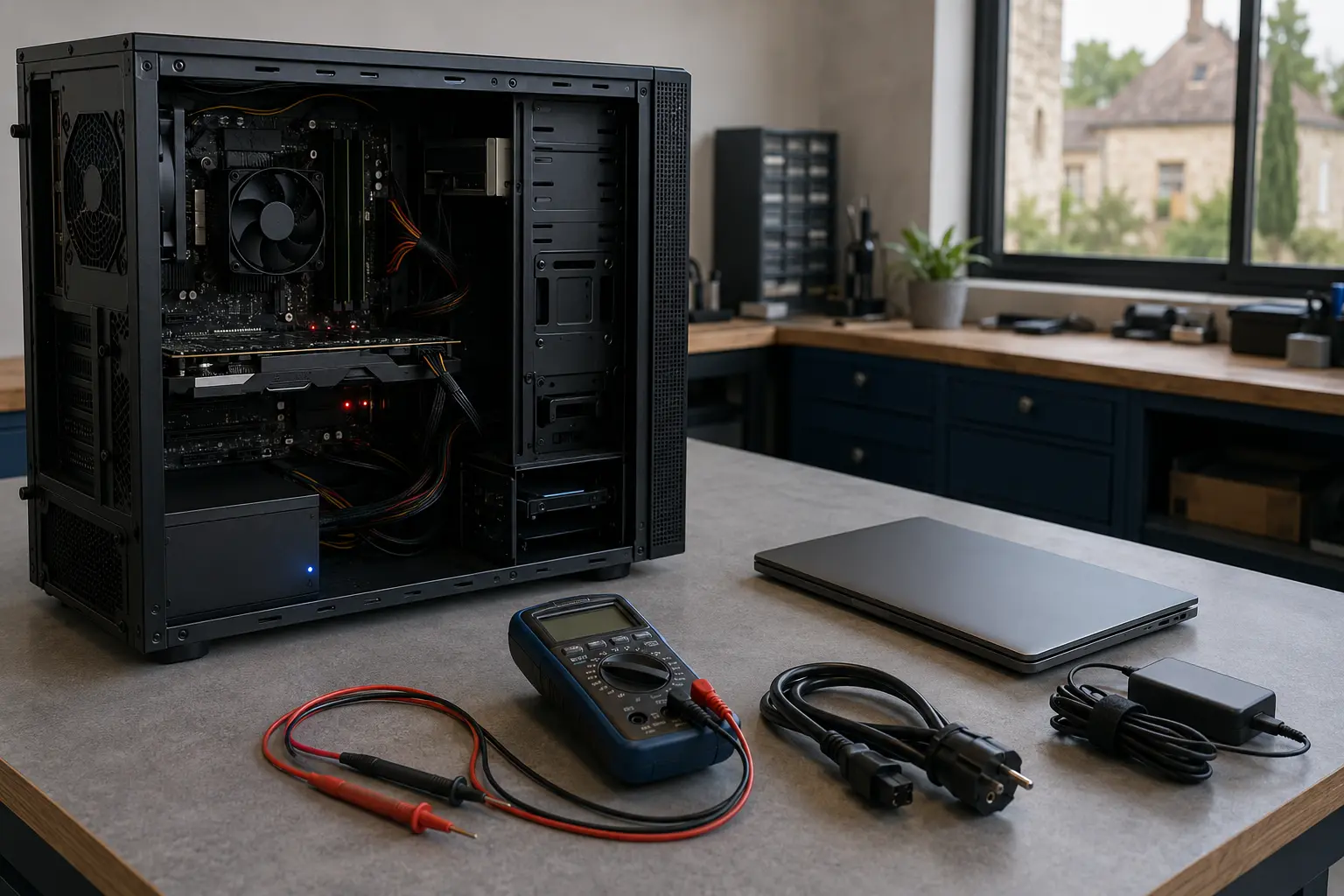
I work from the simplest check to the most informative. Plug the computer directly into another socket that has been verified with a safe appliance. Temporarily bypass the power strip, extension lead, surge protector or UPS. Reseat the mains cable at both ends and, if available, test with a compatible known-working lead. On a desktop, also check the rear PSU switch; the “I” symbol normally indicates on.
Electrical safety: never open the metal casing of a power supply. Internal components can retain hazardous voltages after unplugging. Replacing a complete PSU is not the same as attempting an internal repair.
A power reset can clear a power-management circuit left in an inconsistent state. A typical sequence is to shut the device down, remove mains power and peripherals, hold the power button briefly, then reconnect power. The timing and battery procedure vary by manufacturer and model. Do not dismantle a built-in battery at random; some laptops provide an emergency reset hole documented for that specific model.
This does not repair a failed PSU or damaged motherboard. If the computer is under warranty, check the manual before opening anything. If you notice a burning smell, liquid, melted cable, crackling sound or swollen battery, unplug the device if that can be done safely and stop testing.
A desktop PSU converts mains electricity into several voltages for the components. A complete failure may remove every sign of life, but a faulty supply can still twitch a fan, shut down immediately or become unstable under load. A spinning fan is therefore not proof that the PSU is healthy. The case switch, an internal cable, a shorted peripheral, memory or the motherboard can cause similar symptoms.
Some branded desktops include a built-in PSU test. Follow the exact model documentation because the result is not universal. A basic ATX tester mainly checks whether rails are present under a light load; it may not reproduce what happens when the processor and graphics card demand substantial current. A correctly sized, compatible known-working PSU is often a stronger cross-check when fitted safely.
A charger can look undamaged yet provide the wrong voltage or collapse when current is drawn. Inspect its lead, plug and indicators without bending or opening it. A test adapter must meet the laptop’s electrical requirements and supported protocol; a plug that physically fits is not enough. With USB-C charging, the cable and power negotiation matter too.
A flat, worn or protected battery can prevent some models from starting, but the charger, DC socket, charging circuit and motherboard are also candidates. A removable battery may sometimes be taken out for an AC-only test if the manual allows it. I do not advise an unequipped reader to dismantle an internal battery. No charging light is a clue, not a motherboard verdict.
Is your computer taking forever to start up, running slowly, or struggling with everyday tasks? A free diagnosis can often identify the real issue—and help you avoid replacing hardware unnecessarily. Contact Tera24 to schedule an appointment.
A shutdown after a few seconds may involve the PSU, thermal protection, memory, a loose component or the motherboard. A failure that occurs only during gaming or another heavy workload makes unstable power or overheating more interesting, but does not prove either. If the computer repeatedly loops, the guide to the common reasons a PC keeps restarting by itself develops those branches.
If Windows shows a stop code first, record it and focus on identifying the cause of the Windows blue screen, rather than treating it as no power. Likewise, slow operation, file errors or mechanical noises call for checking the signs that a hard drive may be failing and protecting the data before repeated restarts.
Beep sequences and flashing LEDs often come from the power-on self-test. Count them, note the colours and pauses, then consult the manual for the exact model or its official support page. The same colour does not mean the same fault across manufacturers, or even across generations from one brand.
These codes can point towards memory, processor, graphics, power or the motherboard, but they do not always replace component testing. Do not move memory modules or internal cables unless you know how to work with power disconnected and control electrostatic discharge. A photograph of the sequence and the exact model reference is more useful than an approximate description.
During one call-out, a desktop had abruptly shut down and then showed no sign of life. I checked its mains cable and tried another socket; it still would not start. I temporarily fitted another compatible power supply as a diagnostic test. The computer then started normally.
A new 750 W Gold-certified PSU with the required connectors was subsequently ordered. The lesson is not that every dead computer needs a 750 W unit. In this particular case, a working supply confirmed the diagnosis before purchase. Another machine requires its own power calculation and checks for quality, physical format, genuine output and connectors. A larger wattage figure does not compensate for poor design.
Trying another socket, using a known-working lead, removing peripherals, observing indicators and following the documented reset procedure are reasonable checks. Testing an external monitor is also reasonable when the computer seems to start. Beyond that, useful diagnosis depends on safe measurements, suitable known-working hardware and correct interpretation.
Stop testing if there is a smell, abnormal heat, liquid, a swollen battery, electrical noise or an active warranty. A motherboard should only be declared faulty after simpler causes have been excluded. Board repairs requiring microsoldering are outside Tera24’s scope and need a properly equipped specialist.
“No sign of life”, “no picture” and “restart loop” are not interchangeable. Begin with the external power path and simple observations, then use manufacturer codes and appropriate cross-tests. The aim is to repair when that remains sensible and avoid replacing a charger, battery, PSU or entire computer at random.
Tera24 provides on-site computer services across Dordogne, including hard drive to SSD upgrades, disk cloning, clean Windows installations, and performance optimization for desktop and laptop computers.
No. Part of the supply may still deliver current while its outputs are unstable or inadequate under load. The symptom must be combined with other tests.
Only when the model supports it and the battery can be removed according to its manual. Do not dismantle an internal battery for an improvised test.
It can expose a missing or clearly incorrect rail, but may not reproduce a real workload. An intermittent or load-related fault can therefore escape it.
No. The socket, cable, charger, PSU, battery, connector or protection circuit can all prevent that light from appearing. The motherboard remains a hypothesis to test.
Written by
IT technician and founder of Tera24, I provide computer repair, troubleshooting, and optimization services throughout Dordogne, helping individuals and businesses keep their technology running smoothly.
About Tera24 ↗From guide to workshop
Further reading
Windows Diagnostics and Troubleshooting
Noisy fan, dust, thermal paste or hardware fault: follow a safe, progressive diagnosis before dismantling or replacing parts.
Windows Diagnostics and Troubleshooting
Before reinstalling Windows after a blue screen, record the stop code, check recent changes, test the RAM, SSD and temperatures, and review the Minidump files. A reinstall will not fix a hardware fault.
Windows Diagnostics and Troubleshooting
A practical sequence for separating a display problem, Windows fault or hardware failure before replacing a computer.