PCs & Computers
Can Your Backup Be Restored? A Simple Test Before You Need It
A non-destructive test to restore files, inspect their contents, record errors and fix your backup before a real incident.

PCs & Computers / Practical guide
THE TERA24 JOURNALA migration involves more than files
I inventory the data, applications, accounts and peripherals that must genuinely work on the new computer.
The Tera24 approach
The old PC remains the safety net
I erase it only after priority workflows have been tested and every checklist gap has been corrected.
Moving to a new Windows PC is not just a matter of copying the Documents folder. I begin by listing everything that must work on the new computer: local files, synchronised folders, software, licences, accounts, email, browser, printer, scanner and any business tools. This inventory becomes the reference for the entire migration.
I separate files genuinely stored on the old PC from material that is online-only or synchronised. I check Documents, Desktop, Downloads, Favourites, Music, Pictures and Videos without assuming that everything is kept there. Business software or email data may use another folder and require its own procedure.
I also record what should not be transferred: obsolete downloads, confirmed duplicates or accounts that are no longer used. This is a cautious review. I do not remove data simply because it looks old; I first establish whether it still has administrative, personal or business value.
Before the transfer: if an item is not on the checklist, its absence may only become visible after the old computer is retired.
The method depends on the inventory, data volume and accounts in use. Windows Backup can save folders, settings, preferences, Wi-Fi information and information about many applications. When folder backup is enabled, the selected folders are synchronised to OneDrive and become available on a new PC after sign-in.
This option has important limits. Windows Backup is mainly intended for consumer devices signed in with a personal Microsoft account; work or school accounts do not work with this application. Insufficient OneDrive storage also prevents some storage-dependent items or settings from being backed up. I therefore check the account, covered folders and available space before describing the result as complete.
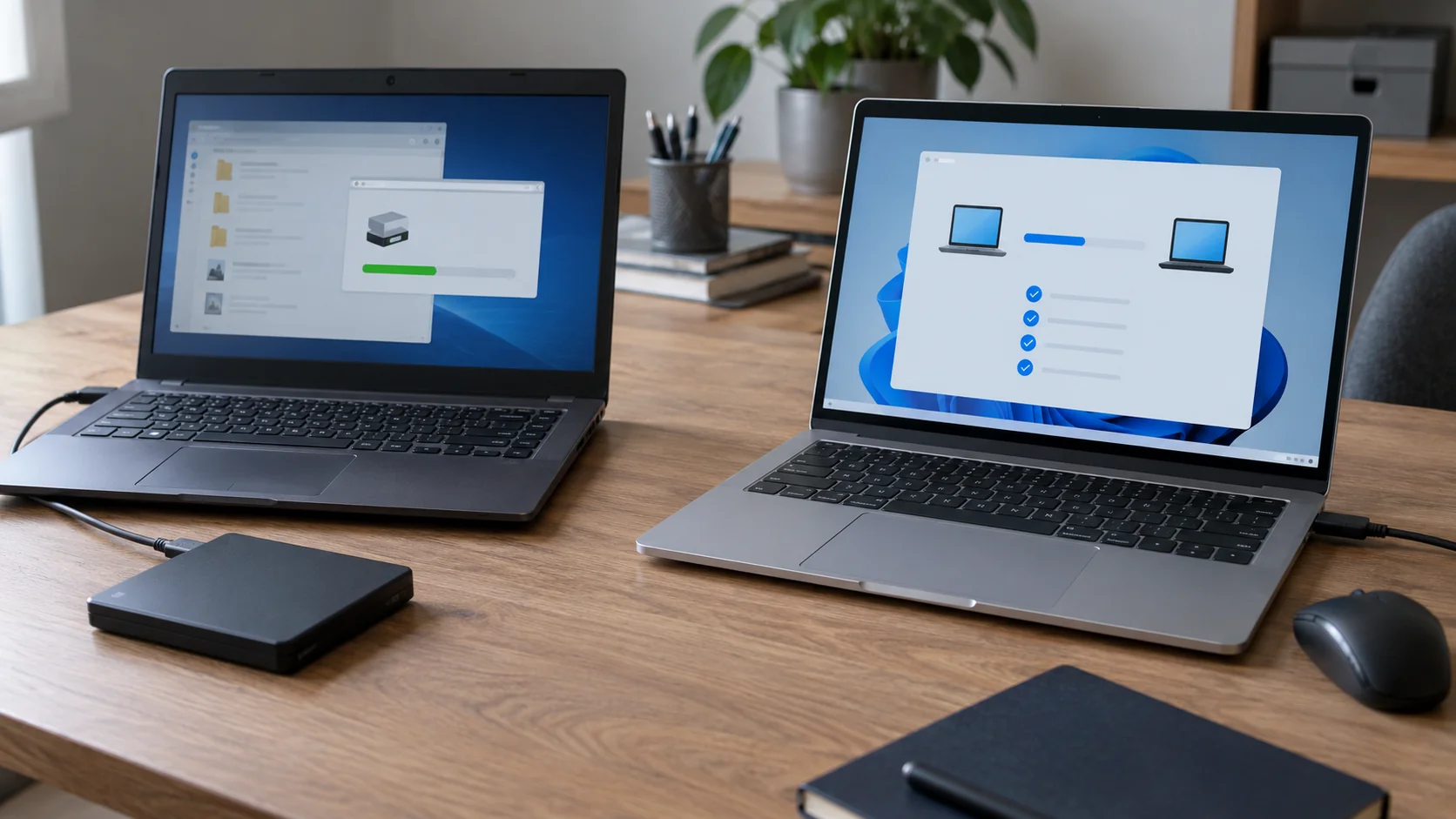
An external drive can copy files from the old PC and then transfer them to the new one. After copying, I browse the drive to confirm that the expected files are in the correct location before ejecting it. On the new computer, I check their destination again. A controlled copy can complement or replace the cloud, but it must always be verified.
I keep an independent copy throughout the transition. If synchronisation propagates a deletion or the new PC develops a problem, this precaution prevents the migration from depending entirely on the two computers being changed.
To organise several copies without treating the migration copy as the only backup, the 3-2-1 backup rule explains how to separate storage locations.
Backup, restoration and PC-to-PC transfer address different needs. Copying files does not reinstall software. Restoring settings does not guarantee that a licence will activate. Application information may help identify a program without automatically carrying over its executable, extensions, profile and all related data.
I download each application from its official source, then check its licence and operation. I do not copy Program Files as though it were an installation. Software that uses a local database, certificate, add-on or driver needs a specific check before anything is removed from the old computer.
For every priority application, I prepare one action and one test: find the installer, identify the account or licence, install the software, open a known file and save a controlled change. This sequence quickly exposes what is genuinely missing.
When replacement is prompted by Windows compatibility, I first recommend the guide to a Windows 10 PC not eligible for Windows 11. It helps confirm that a new machine is justified before beginning the migration.
Access can be more sensitive than visible documents. I list the accounts in use without writing down plaintext passwords. I check where favourites, signatures, email profiles and the codes or devices required for authentication are stored. I keep the old PC available until these elements have been tested on the new one.
No transfer method should promise that passwords, profiles, licences and business data will all follow automatically. A browser may synchronise some elements when that feature was enabled, while another profile may remain local. Email may keep messages on the server but leave archives or signatures only on the former computer.
I connect accounts one by one, confirm sending and receiving, inspect expected folders and test authentication. The guide to using a password manager to move accounts safely complements this checklist.
I also check that another authorised person could find the sign-in procedure if the main computer became unavailable. The objective is not to share secrets, but to avoid making recovery depend on one forgotten device.
Do not postpone this: check recovery and authentication methods before the old PC is reset or handed over.
A migration is not finished when the desktop resembles the previous one. I test actual tasks: print a page, scan a document, open a business file, send an attachment, reach useful favourites and use the usual displays or peripherals. A device detected by Windows may still be missing a driver or a specific function.
I start from real workflows rather than a hardware list. In a small organisation, this might include invoicing, viewing a schedule, accessing shared storage or using a certificate. I record the exact result and blockage instead of deciding that “everything works” after sign-in.
I compare both computers while they are still available. For each inventory line, I record: present, installed, connected, tested, needs correction or not applicable. I check a sample of files in their new location and actually open them. A visible folder is not enough if its contents or version are wrong.
Windows Backup can restore files, themes, settings, application information and Wi-Fi information to a compatible new PC. I still verify each result that matters rather than assuming every category has been transferred. The checklist turns a general impression into limited but useful evidence.
I also keep a copy of the application list and resolved issues. It remains useful if a forgotten need appears a few days later. The right verdict is not “automatic migration succeeded”, but “the listed data, access, software and workflows were checked on this date”.
Open gaps remain visible until they are resolved. A “needs correction” line is not hidden inside an overall success: it receives an owner, a precise action and a new check.
I keep the old computer intact but remove it from day-to-day work once the data has moved. This safety period allows an omission to be checked without creating two active versions of the same documents. Its duration depends on usage and completed checks; I do not impose one number of days for everyone.
Erasing or handing over the old PC is a separate step. I begin only after the checklist is complete, backups are confirmed and licences or accounts still linked to the device have been checked. If a problem appears, I correct it and repeat the relevant test before making deletion irreversible.
My advice: a reliable migration ends with verified workflows, not a simple file copy. Keep the old computer as a safety net until every priority item has been confirmed on the new one.
Written by
IT technician and founder of Tera24, I provide computer repair, troubleshooting, and optimization services throughout Dordogne, helping individuals and businesses keep their technology running smoothly.
About Tera24 ↗From guide to workshop
Further reading
PCs & Computers
A non-destructive test to restore files, inspect their contents, record errors and fix your backup before a real incident.
PCs & Computers
Inventory, scheduling, retention, a separate copy and restore tests: organise usable NAS backups for several small-business computers.
PCs & Computers
RAM, SSD or another cause? Observe the real workload, check compatibility and identify the bottleneck before buying an upgrade.