PCs & Computers
Moving to a New Windows PC: A Checklist for Files, Apps and Access
Files, software, licences, email and peripherals: a checklist for verifying a new Windows PC before erasing the old one.

PCs & Computers / Practical guide
THE TERA24 JOURNALCentralising backups is not enough
I start with essential computers and data before choosing the tasks that will run to the NAS.
The Tera24 approach
A useful backup must be restorable
Frequency, a separate copy and recovery tests turn central storage into an operational method.
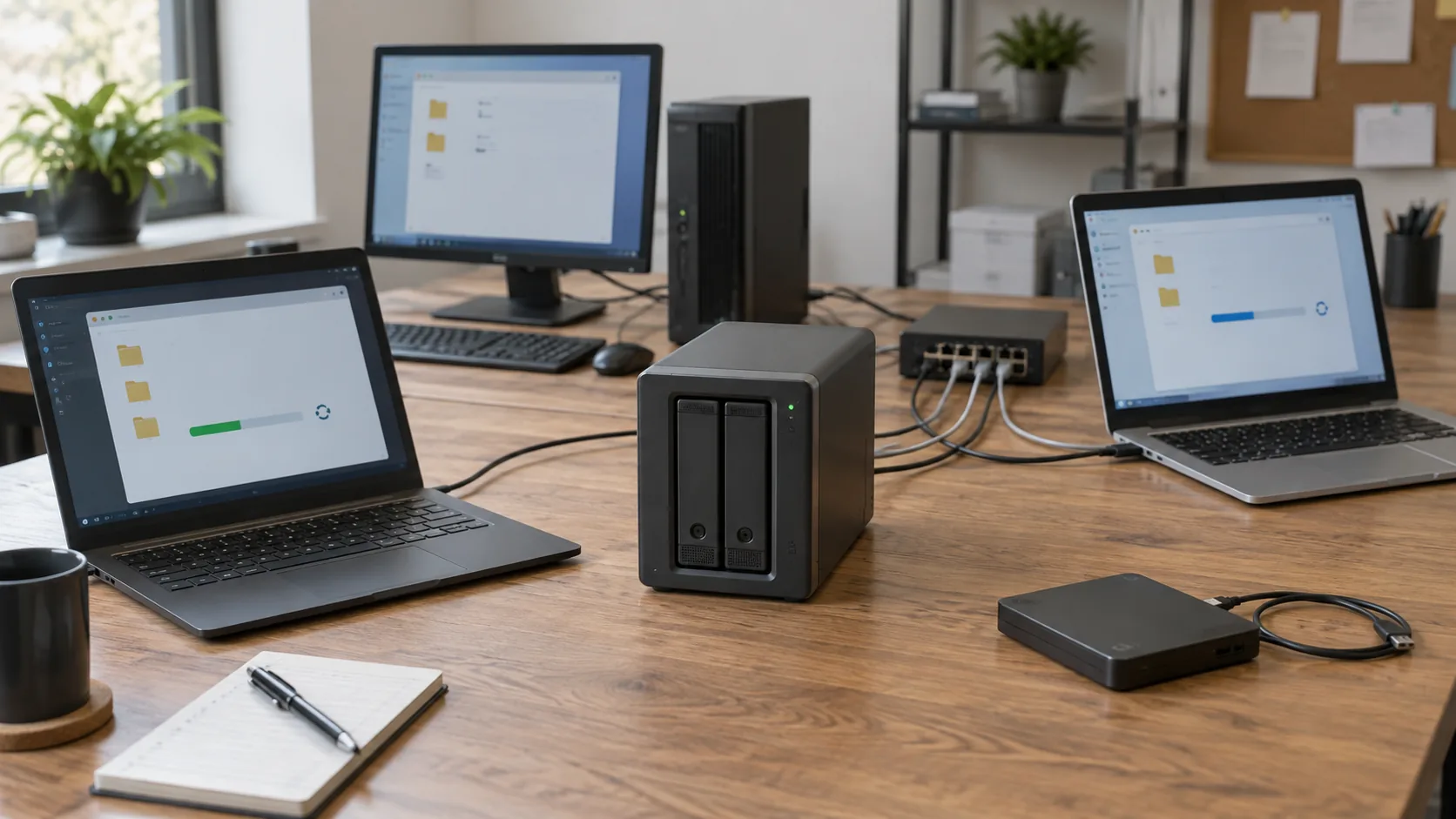
Backing up several computers to a NAS does not start with software installation. I begin by inventorying the small business’s equipment and identifying the data that is genuinely essential to continued operation. The method must inventory computers, data, applications and configurations. A reception computer, a manager’s laptop and a billing workstation may contain different material and require different recovery methods.
The inventory extends beyond visible documents. Application installation sources, licences and configuration files may also need to be preserved. For every computer, I therefore record business folders, essential applications, necessary settings and the elements needed to return that tool to service.
Separate backup sets can be organised for business data and technical data. This makes the plan easier to understand: it shows what must be restored quickly to resume work and what is needed to rebuild computers. It also avoids treating every item on a drive as equally urgent.
Starting point: if you do not know which computers, folders, applications and settings are essential, the NAS cannot decide what deserves priority protection.
A strategy can protect the whole device or selected folders, but the available recovery options differ. You must choose between files and full-device backup for each computer. File backup targets the documents you select. A full-system backup can include files, applications and settings, then allow full or selective restoration when the solution and device are compatible.
I make this choice per computer, not once for the entire business. A machine that contains only shared files may need selected-folder protection. A workstation that would require several applications, licences and configurations to be rebuilt may justify a complete image. The inventory and expected recovery effort drive that decision, not simply the free space on the NAS.
I also distinguish backup from synchronisation. Synchronisation organises the presence of files across locations; the backup plan must state which versions are retained and what can be restored. The article OneDrive Syncs Your Files, but Is It Really a Backup? expands on that distinction for cloud-stored data.
Finally, I verify exact compatibility. Active Backup for Business, for example, can manage backups of compatible Windows PCs and Macs from a central console. That illustrates centralised management, but it must not become a promise for every NAS, operating system or model.
Backup frequency should match the volume of data produced and the loss the business can accept. I therefore ask a concrete question: if the latest usable copy were from yesterday, what information would need to be entered again and how long would the company be disrupted? The answer may differ between a rarely changed administrative folder and business data updated throughout the day.
Backups can be automated and scheduled. Versioning can return a file to an earlier state, while task templates can apply a frequency and retention policy to protected devices. Those functions should be configured around established requirements rather than enabled without limits, which could consume storage without providing a useful restore point.
I create a small matrix: computer, data, frequency, retention period and recovery priority. It allows the expected volume to be compared with genuinely available capacity and exposes overambitious policies. I do not impose a universal frequency or version count: the right value depends on data production and the loss the activity can accept.
Decide before automating: how much work can be lost, which versions must remain available and which computers must return first? Without those answers, a “successful” task does not prove that the policy is suitable.
A central console can simplify the monitoring of several compatible computers, but the organisation still has to be defined. You must organise agents, access rights, capacity and network requirements as one system. I list the protected machines, the agent or method used, the account allowed to run the task and the people who may restore data. Access rights should not be improvised on the day a file is missing.
I then relate source volume, frequency, retention and computer count to NAS capacity. The network must also let planned tasks finish in the selected window. The objective is not to promise a speed: it is to observe after configuration whether backups finish and failures remain visible.
Task templates can apply the same frequency and retention policy to several protected devices. I use them only when those machines genuinely share the same requirements. The initial storage choice is covered by my guide to a NAS or an external hard drive; the subject here is the daily operation of several backups.
Centralising computers on one local NAS does not complete the strategy. An additional layer in another location remains necessary against theft or a disaster affecting the premises. The NAS alone, like RAID alone, is therefore not the small business’s complete backup.
Depending on the selected solution, a NAS copy can be sent to another NAS, cloud storage or external media. I select the separate location according to the data, operational constraints and the ability to verify copies. The important point is that an incident affecting the local NAS should not make the additional layer unavailable at the same time.
This organisation connects with the 3-2-1 backup rule without imposing a product or universal architecture here. I document the destination, frequency, retention, person responsible for checks and restore path.
Mistake to avoid: if the NAS and its “copy” remain dependent on the same device or local disaster, the intended separation has not been achieved.
Regular backups can speed restoration after an incident, including ransomware, but I never consider the outcome proven without a check. You must test file restoration and full recovery separately. I first restore one file to a test location, then confirm that it opens and matches the expected version. This validates one precise path; it does not by itself guarantee the complete recovery of a computer.
For a full-system backup, I also prepare the machine-restoration scenario. Creating recovery media is part of the full-computer recovery process. I record where it is kept, which hardware should boot it, who knows how to use it and where the necessary information is stored.
The plan becomes usable when every computer has a clear scope, a justified policy, a separate copy and a tested restore path. The NAS then provides a useful central point, but reliability comes from the whole process: inventory, configuration, monitoring and recovery exercises.
Written by
IT technician and founder of Tera24, I provide computer repair, troubleshooting, and optimization services throughout Dordogne, helping individuals and businesses keep their technology running smoothly.
About Tera24 ↗From guide to workshop
Further reading
PCs & Computers
Files, software, licences, email and peripherals: a checklist for verifying a new Windows PC before erasing the old one.
PCs & Computers
A non-destructive test to restore files, inspect their contents, record errors and fix your backup before a real incident.
PCs & Computers
RAM, SSD or another cause? Observe the real workload, check compatibility and identify the bottleneck before buying an upgrade.