PCs & Computers
Moving to a New Windows PC: A Checklist for Files, Apps and Access
Files, software, licences, email and peripherals: a checklist for verifying a new Windows PC before erasing the old one.

PCs & Computers / Practical guide
THE TERA24 JOURNALWhy Do So Many Computers Become Slow Today?
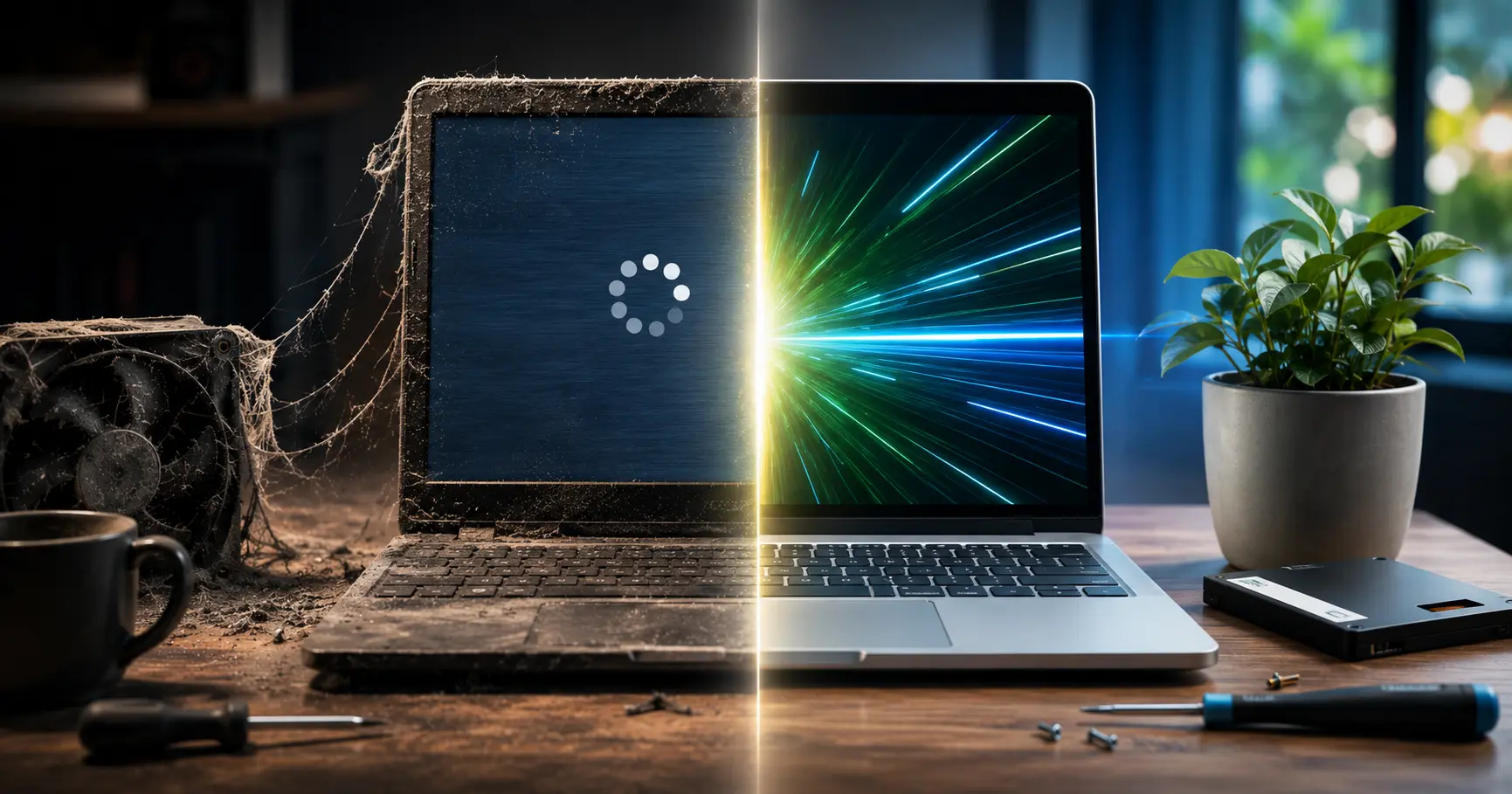
Is your computer taking forever to start, freezing as soon as you open Chrome, or running its fans constantly? Before replacing your laptop or desktop PC, there's one thing you should know: in most cases, the problem isn't a major hardware failure.
An old mechanical hard drive, insufficient RAM, overheating, or simply years of unnecessary software can be enough to turn an otherwise functional computer into one that feels painfully slow.
Here are the seven most common issues I encounter while repairing computers across Dordogne—and, more importantly, how to fix them before spending hundreds of euros on a new PC unnecessarily.
The Tera24 approach
Before Replacing Your PC, Understand What's Really Slowing It Down
Contrary to what many people believe, a slow PC isn't necessarily "dead." Some of the slowest computers I work on every day are given a second life with just a few targeted upgrades: replacing the hard drive with an SSD, adding more RAM, cleaning the cooling system, or removing unnecessary software.
The problem is that many computers are replaced today even though they could have remained perfectly usable for several more years with the right diagnosis.
On the other hand, some brand-new computers are already underpowered the moment they come out of the box.
Before looking at the best solutions, let's examine the mistakes that really make a PC slow in 2026.
This is probably the number one cause of slow computers that I deal with on a daily basis.
The HDD—the traditional mechanical hard drive with spinning platters—was perfectly adequate ten years ago. Today, with Windows 10 and Windows 11, it’s often the main reason a computer feels painfully slow.
Typical symptoms include:
That doesn’t necessarily mean Windows is the problem. In many cases, it’s simply the storage device struggling to keep up.
In most situations, upgrading to an SSD (Solid State Drive) is the most effective solution. SSDs have no moving parts, making them significantly faster, quieter, and far more responsive.
Upgrading from an HDD to an SSD is probably the single most dramatic performance improvement you can make to a slow computer. Some of my clients have even called me afterward to say it feels like they bought a brand-new PC.
There are several types of SSDs (SATA, NVMe M.2, and others), different form factors, and compatibility varies depending on the computer. I’ve written a complete guide covering everything you need to know:
👉 Upgrading from HDD to SSD: The Complete Guide to Speeding Up a Slow PC
Every time your computer starts, Windows loads all the programs configured to launch automatically in the background. In many cases, you never asked for this—the software simply added itself to startup during installation.
Teams, Discord, Steam, Adobe Acrobat, multifunction printer software, RGB utilities, game launchers, cloud assistants, pre-installed antivirus programs… each one uses a little memory and CPU power. Together, they can significantly slow down your PC’s startup and leave Windows sluggish for several minutes.
Computers sold in supermarkets and electronics stores are often the worst offenders. Some are already slow on their very first boot because of all the pre-installed software.
Here’s what you can do:
This doesn’t uninstall the software—it simply prevents it from launching automatically when Windows starts.
RAM (Random Access Memory) is your computer’s workspace.
When there’s not enough of it, Windows has to use your storage drive as temporary memory. This is called swapping, and even with an SSD, it’s much slower than using real RAM.
In 2026, the reality is simple:
The situation I encounter most often is entry-level Celeron or Pentium laptops sold for around €300, equipped with only 4 GB of RAM soldered directly onto the motherboard.
And « soldered » means it can’t be upgraded.
In those cases, there’s no practical way to significantly improve the computer’s performance. It’s exactly the kind of situation where a professional assessment before buying could have prevented an expensive mistake.
On upgradeable computers, however, adding more RAM is often a simple and highly cost-effective upgrade.

My opinion: this is a RAM module I install regularly in laptops originally limited to 8 GB. The improvement in responsiveness and multitasking is immediate.
Is your computer taking forever to start up, running slowly, or struggling with everyday tasks? A free diagnosis can often identify the real issue—and help you avoid replacing hardware unnecessarily. Contact Tera24 to schedule an appointment.
This is one of the most underestimated causes of poor computer performance.
When I open some laptops, I often find cooling fans completely clogged with dust. The result is that the processor overheats and automatically reduces its performance to protect itself from excessive temperatures.
This is known as thermal throttling.
Your computer intentionally slows itself down to prevent overheating.
Typical symptoms include:
Laptops used on beds, sofas, or blankets are especially vulnerable because their air vents become blocked very quickly.
Thermal paste also dries out over time. After four or five years, it often loses much of its ability to transfer heat efficiently.
What you can do:
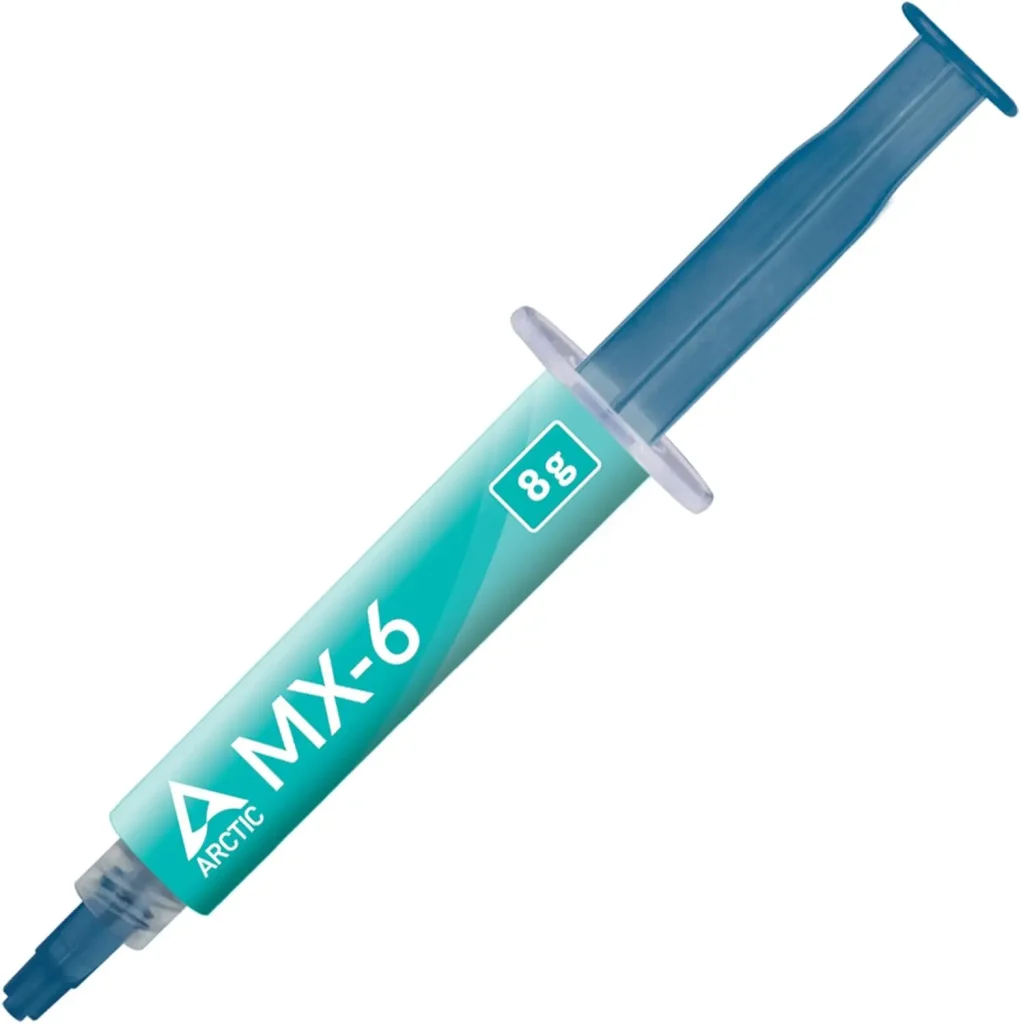
My opinion: after replacing the thermal paste on some computers that were running above 90°C (194°F), I’ve seen temperatures drop by 20 to 30°C. Once the processor stops throttling, performance improves immediately.
« I installed something to speed up my PC… and now it’s even worse. »
I hear that surprisingly often.
Fake Windows optimizers, miracle PC cleaners, questionable antivirus programs downloaded from pop-up ads, unnecessary browser extensions… all of these can turn an already slow computer into an even bigger mess.
The issue isn’t always a dramatic virus infection. More often than not, the system is simply cluttered with:
In many cases, a targeted cleanup is enough to restore a significant amount of performance and responsiveness.
It may sound surprising, but some antivirus programs can noticeably slow down a computer, especially older PCs or entry-level systems.
Continuous scanning, web protection modules, built-in VPNs, download monitoring, constant notifications, marketing pop-ups… some security suites eventually become resource-hungry software packages.
But the most common issue is simply running too many security tools at the same time.
When repairing computers, I still regularly come across systems with:
In theory, Microsoft Defender Antivirus disables its primary protection when a third-party antivirus is installed correctly.
In practice, however, residual services, active components, or overlapping protections often remain.
The result?
Your PC ends up performing multiple file scans, network inspections, and background tasks simultaneously… all of which can significantly reduce system performance.
On some computers, simply removing unnecessary security suites is enough to make the machine feel dramatically faster.
For most home users, Microsoft Defender is now more than sufficient:
More importantly, good security habits matter even more:
This is probably the most frustrating situation I encounter.
Many computers sold for between €250 and €350 are technically brand new… but already outdated the day you buy them.
They often come with:
These computers are designed to look attractive on a store shelf—not to provide a smooth Windows 11 experience for years to come.
In these cases, the problem existed from day one.
Unfortunately, some machines are so limited that no amount of cleaning or optimization will ever deliver truly satisfying performance.
Is your computer taking forever to start up, running slowly, or struggling with everyday tasks? A free diagnosis can often identify the real issue—and help you avoid replacing hardware unnecessarily. Contact Tera24 to schedule an appointment.
I’d rather be honest about this: some computers simply aren’t worth repairing anymore.
These are the situations where I generally recommend replacing the machine:
The purpose of a professional diagnosis is to avoid two common mistakes:
Some repairs look easy on YouTube… until something goes wrong.
Disk cloning, for example:
upgrading from an HDD to an SSD without losing your data or breaking Windows requires the right tools and the right method.
The same goes for RAM upgrades.
Compatibility, speed, form factor, memory generation… not every RAM module works in every computer.
Most importantly, there’s the actual diagnosis.
A slow computer doesn’t always have the same underlying problem:
I provide on-site computer repair services throughout Dordogne to diagnose the problem, verify hardware compatibility, install the new components, and make sure everything is working properly once the job is complete.
And most importantly, the diagnosis is free. It’s always worth checking before replacing a computer that could easily keep running for several more years.
Most of the computers I repair are not truly at the end of their life. They usually suffer from very common issues: an old mechanical hard drive that has become too slow, insufficient RAM, too much unnecessary software, overheating caused by dust, or simply poor hardware choices from the day they were purchased. If the machine also shuts down or loops, review why a PC keeps restarting by itself.
And that’s exactly what misleads many people. The PC becomes frustrating to use, Windows takes several minutes to start, and everything feels slow… so eventually, the computer seems completely worn out. In reality, a few targeted upgrades or repairs are often enough to give it a second life at a reasonable cost.
Before replacing a laptop or desktop computer, the smartest option is often to have the existing machine checked first. A proper diagnosis can frequently prevent an unnecessary purchase—or worse, stop you from buying another new PC that will develop exactly the same problems a few years later.
Some links in this article are Amazon affiliate links. If you purchase through these links, I may earn a commission at no additional cost to you. This helps support and fund the Tera24 website.
Written by
IT technician and founder of Tera24, I provide computer repair, troubleshooting, and optimization services throughout Dordogne, helping individuals and businesses keep their technology running smoothly.
About Tera24 ↗From guide to workshop
Further reading
PCs & Computers
Files, software, licences, email and peripherals: a checklist for verifying a new Windows PC before erasing the old one.
PCs & Computers
A non-destructive test to restore files, inspect their contents, record errors and fix your backup before a real incident.
PCs & Computers
Inventory, scheduling, retention, a separate copy and restore tests: organise usable NAS backups for several small-business computers.