Explain the end of standard Windows 10 support with a date
Standard support for Windows 10 ended on 14 October 2025. A computer running it did not stop working the next day. However, Microsoft no longer provides free technical assistance, software updates or standard security fixes. In September 2026, carrying on as if nothing had changed is therefore not a sustainable plan, particularly for a PC used online, for administrative work or for important documents.
The date does not mean that you must buy a computer in a hurry either. I prefer to establish why the machine is reported as ineligible, assess its overall condition and list the software you depend on. Microsoft presents three routes for remaining within a supported framework: upgrade an eligible PC to Windows 11, replace it with a compatible device, or temporarily enrol the computer in the Extended Security Updates programme.
For consumers, Extended Security Updates can protect an enrolled Windows 10 device until 12 October 2027. This is a transition, not a hardware refurbishment or a guarantee of future software compatibility. I see it mainly as time to organise a verified backup, check applications and make a measured decision.
Key point: the end of standard support means that you need a plan, but it does not prove that the computer is unusable or that immediate replacement is the right answer.
Use PC Health Check to identify the blocker
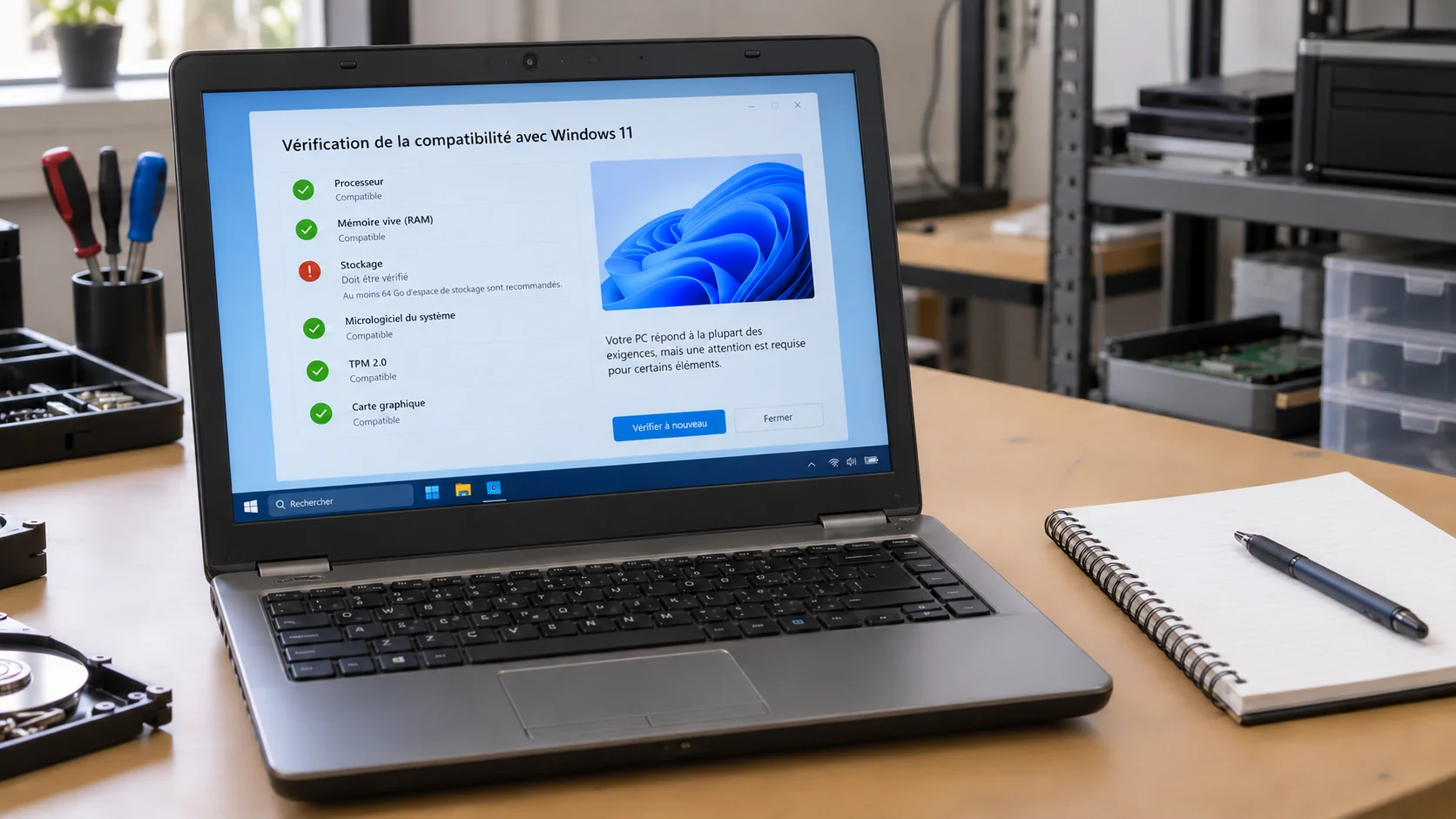
A message saying that the PC does not meet the requirements is too broad to support a decision. Microsoft’s official PC Health Check app checks Windows 11 eligibility and explains why a device does or does not meet the minimum requirements. I start with that result, then record the exact model reference and the reported criterion. A product family or an estimated age is not precise enough.
The app also provides access to Windows Update status and certain information about the battery, storage, startup and PC specifications. These details place compatibility in the context of the machine’s real condition. An eligible computer in poor physical condition raises a different question from a clean device suited to its workload whose configuration still needs checking.
Keep the result and note what it identifies: processor, TPM, Secure Boot, memory, storage or another requirement. Then consult the manufacturer’s documentation for the exact model. Do not change several firmware settings at random, because that removes the useful connection between the observed cause and the attempted correction.
- run the check on the actual PC, not on a supposedly identical model;
- record the precise blocker and full machine reference;
- check Windows Update status and available storage;
- keep a copy of the result before changing anything.
Check processor, TPM, Secure Boot, memory and storage
Windows 11 minimum requirements include a compatible processor, memory, storage, UEFI, Secure Boot, TPM 2.0, graphics and display criteria. Examine them separately. One red line in a tool does not yet tell you whether the cause is configurable, upgradeable or built into the platform.
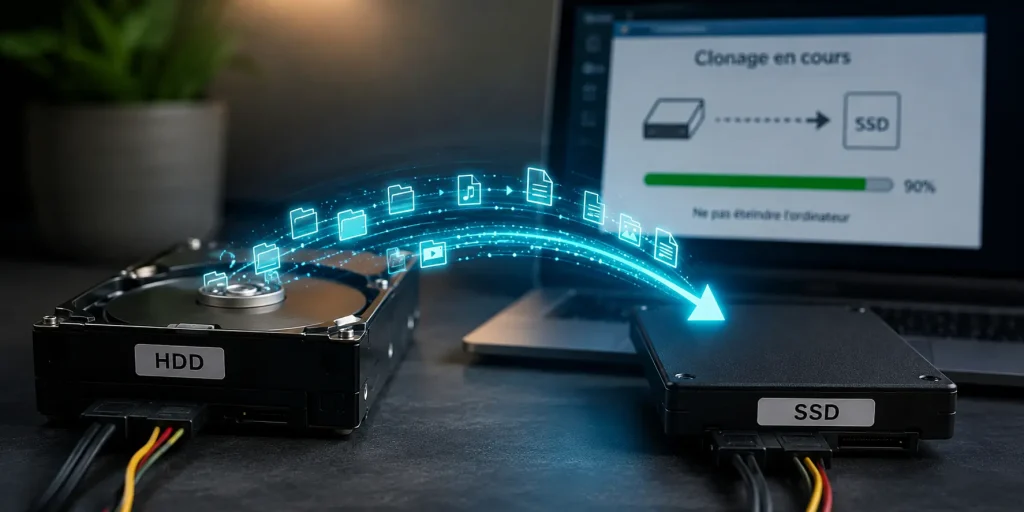
The processor is a determining factor and, because of its design, is not normally an upgradeable component. On many laptops, replacing it is neither an intended upgrade nor a sensible answer. Insufficient memory or storage can sometimes be corrected, but only when the manufacturer and exact model genuinely permit the change. If storage needs to be upgraded, my guide to an HDD-to-SSD upgrade helps you prepare that operation without confusing it with processor eligibility.
TPM and Secure Boot may require a configuration check rather than an immediate conclusion that the PC is permanently incompatible. That is not a reason to enable an option blindly. Before making a change, I record the current configuration and follow only the manufacturer’s documentation for the exact model.
Important limit: adding memory or replacing storage does not make an unsupported processor compatible. Confirm each requirement independently.
Distinguish a temporary hold from hardware ineligibility
The absence of an upgrade offer does not always mean permanent hardware ineligibility. Microsoft may apply a safeguard hold when a known issue could disrupt a device. The upgrade is then delayed temporarily. PC Health Check and Windows Update help separate that situation from a minimum hardware requirement that the computer genuinely does not meet.
I therefore separate three cases. First, a setting such as TPM or Secure Boot deserves a documented check. Second, a resource such as memory or storage may sometimes be upgradeable, depending on the machine’s design. Third, an unsupported processor or platform is a more structural limit. Treating these cases as identical can lead either to premature replacement or to a change that does not address the problem.
After each safe check, run the official assessment again and compare its result. If the reason remains unclear, pause the migration and obtain a precise diagnosis. The objective is not to force a green indicator; it is to establish whether Windows 11 will be supported on this device and whether the computer still suits your workload.
- temporary hold: a safeguard may delay the upgrade;
- configuration: a supported setting may need to be checked;
- possible upgrade: memory or storage, depending on the model;
- hardware limit: an unsupported processor or platform.
Compare supported upgrade, ESU, another system and replacement
If the PC becomes officially eligible after a configuration check or an upgrade that the model genuinely supports, the supported Windows 11 upgrade is the most direct route. Before proceeding, check the applications, peripherals and overall hardware condition. Windows 11 eligibility does not guarantee that the battery, storage or performance still meets your needs.
If the machine is ineligible, Extended Security Updates can provide a transition until 12 October 2027 for an enrolled consumer device. They do not correct a hardware limitation; they mainly give you time to prepare. Another operating system may also be considered if it supports your applications and peripherals and suits your practical needs, but I do not present it as a universal drop-in replacement for Windows.
Replacement becomes coherent when the platform is unsupported and the workload depends on Windows 11 for the longer term, or when the machine’s overall condition makes the other choices unreasonable. Check the exact replacement model, repairability and real requirements before buying. Conversely, if the main complaint is performance, begin by identifying why the PC is slow: a slow computer is not automatically ineligible, and an ineligible computer is not necessarily slow.
Do not bypass the requirements: Microsoft does not recommend installing Windows 11 on a device that fails to meet the minimum requirements. Such a PC is unsupported, may experience compatibility problems and is not guaranteed to receive updates, including security updates.
Back up before any migration without bypassing requirements
Before an upgrade, reinstallation, operating-system change or replacement, make an independent backup and confirm that you can restore a file from it. Copying a few folders at the last minute is not enough if photographs, documents, browser data, mail archives or information held by a specialist application are missed. My practical 3-2-1 backup method for photographs and documents provides a simple foundation so that the migration does not become a single point of failure.
List the essential applications, their licences and the peripherals you actually use. A printer, scanner or older specialist program may matter more to the decision than the operating system itself. Check official compatibility with the chosen route before erasing or transforming the current installation.
I advise against bypassing Windows 11 requirements simply to extend the machine’s life. Microsoft states that a device upgraded despite being ineligible is unsupported and may not receive updates, including security updates. An installation that starts today is not evidence that it will remain reliably maintained tomorrow.
A sound decision follows a simple sequence: identify the blocker, confirm what is configurable or upgradeable, assess the PC’s real condition, check the software, back up, and then choose an officially supported route. For English-speaking households and small organisations around Saint-Chamassy and elsewhere in Dordogne, this avoids both premature replacement and the false economy of keeping an unsupported system.