PCs & Computers
Moving to a New Windows PC: A Checklist for Files, Apps and Access
Files, software, licences, email and peripherals: a checklist for verifying a new Windows PC before erasing the old one.

PCs & Computers / Practical guide
THE TERA24 JOURNALWhen a computer restarts without warning, Windows is not always to blame
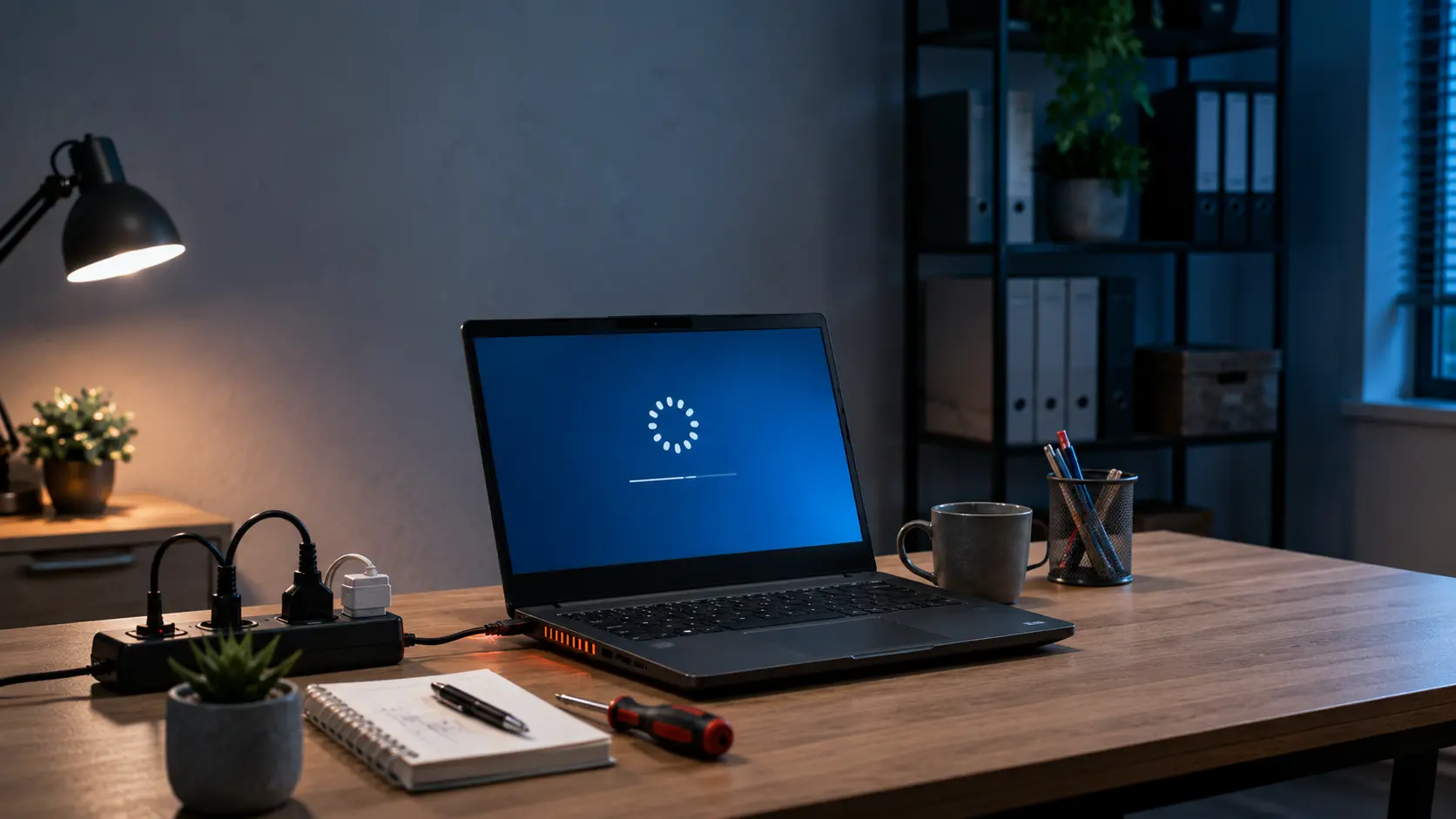
You may be working on a document, watching a video or simply browsing the internet when the screen suddenly goes black. A few seconds later, the manufacturer’s logo appears and the computer starts again as though nothing happened. Sometimes it happens only once. In other cases, the restarts return every day, only while gaming, during Windows startup or whenever the computer begins working a little harder. I regularly encounter this symptom during computer repair call-outs. The difficulty is that a sudden restart does not point to one specific fault. It may be caused by overheating, unstable power, faulty memory, a driver or a component beginning to fail.
The Tera24 approach
The same symptom can hide very different faults
Before reinstalling Windows or replacing components, it is important to observe exactly when the restart occurs. A computer that restarts during a game does not point towards the same causes as one that restarts while idle, during an update or whenever the charging cable is moved. In this article, I will explain the most common causes, the clues that help distinguish between them, the reasonable checks you can carry out yourself and the situations where it is better to stop experimenting to avoid data loss or a more serious failure.
Before looking for the fault, you need to describe exactly what the computer is doing. The words “shutdown”, “crash” and “restart” are often used to describe quite different behaviour.
During a genuine restart, the screen goes black and the manufacturer’s logo or the Windows loading screen then reappears automatically. You do not need to press the power button. For more detail on this symptom, see my guide to Black Screen at Startup.
In other situations, the computer may switch off completely and remain off. It may also freeze on a still image, display a blue screen or lose the video signal while the fans continue running.
These differences matter because they do not point towards the same causes.
The first useful step: write down what you were doing when the restart happened, the approximate time and any message displayed on screen. These details are often more useful than attempting several random repairs.
Overheating is one of the first causes to consider when a computer restarts during gaming, video editing, a video call or another demanding task.
The processor and graphics card generate more heat when they are placed under load. If the cooling system can no longer remove that heat effectively, the computer may reduce its performance, become unstable or shut itself down to protect the components.
In a laptop, dust can form a compact layer between the fan and the heatsink. The fan may then spin at full speed without being able to move enough air through the cooling system.
The thermal paste may also have lost some of its effectiveness, but replacing it should not be the first step without a proper diagnosis. Incorrect disassembly or reassembly can create more problems than the original fault.
Precaution: do not use a household vacuum cleaner directly on computer components and do not stop a fan with an object. On a laptop that is difficult to open, internal cleaning may require the removal of the motherboard or several fragile ribbon cables.
A computer requires stable electrical voltages to operate correctly. A failing power supply can cause an immediate restart, sometimes without a blue screen or any useful error message.
On a desktop PC, the problem may come from the power supply unit itself, a loose connector, a faulty extension lead or a power supply that is no longer powerful enough after the installation of a more demanding graphics card.
On a laptop, the charger, its cable, the charging socket and the battery must also be considered. A poor connection can repeatedly switch the computer between mains power and battery power, or cause a shutdown if the battery can no longer take over correctly.
It can be tempting to buy a new power supply immediately. I prefer to check the configuration, connections and behaviour of the machine before replacing the part. The power supply may be responsible, but a short circuit or fault in another component can produce a very similar symptom.
Do not do this: never open a desktop PC power supply. Some internal components can retain a dangerous electrical charge even after the computer has been unplugged.
Is your computer taking forever to start up, running slowly, or struggling with everyday tasks? A free diagnosis can often identify the real issue—and help you avoid replacing hardware unnecessarily. Contact Tera24 to schedule an appointment.
Random-access memory, usually called RAM, temporarily stores the information being used by Windows and your software. When a module is faulty or poorly connected, the resulting errors can appear very irregularly.
The PC may work correctly for several hours and then restart while opening a program, extracting a file or performing a more demanding task. It may also display blue screens with a different error message each time.
Windows includes a memory diagnostic tool that can provide an initial check. It can detect certain errors, but a test that reports no problem does not always prove that the RAM is completely reliable.
On a PC with several memory modules, testing them separately can help isolate the fault. This is only appropriate if you know how to open the computer without damaging its connectors and if the device is not covered by a warranty that could be affected.
Important: a memory error can corrupt data while it is being written. Avoid continuing to use a computer intensively if it is showing repeated blue screens or unexplained restarts.
Windows may restart automatically after a critical error. The restart can happen so quickly that there is not enough time to read the blue screen, making it appear that the computer simply switched off.
The cause may be an incompatible driver, an update that did not complete correctly, software interacting with a system component or a hardware problem detected by Windows.
A driver is the software that allows Windows to communicate with a component such as the graphics card, Wi-Fi adapter, storage controller or USB device. A faulty driver can therefore cause a crash even when the component appears to work normally most of the time.
These tools provide clues, but they do not always identify the cause directly. An event stating that the previous shutdown was unexpected confirms that the computer stopped incorrectly, but it does not necessarily explain why.
Similarly, temporarily disabling automatic restart after a system failure may allow you to read the blue-screen message. This can help with diagnosis, but it does not repair the fault.
Advice: take a photograph of the code displayed on the blue screen before restarting. The exact message is far more useful than simply remembering that “Windows showed an error”.
A failing storage drive does not always cause only slow performance. If Windows can no longer read a system file or temporarily loses access to the drive, the computer may freeze, display a blue screen or restart.
The most concerning signs are restarts accompanied by unusual slowness, file errors, very long startup times, drives disconnecting or abnormal mechanical noises from a traditional hard disk.
I use CrystalDiskInfo to obtain an initial overview of the health information reported by a drive. It can help identify certain warning signs, but it does not replace a complete diagnosis. A drive shown as healthy can still fail unexpectedly.
If the restarts are accompanied by unusual noises, inaccessible files or severe slowdowns, read my guide explaining how to recognise the signs of a failing hard drive.
Protect the data first: if the drive contains important files, the first step is not to launch several repair tools. Back up anything that remains accessible to another device and avoid unnecessary restarts. A hard drive that clicks, scrapes or repeatedly disappears should not be stressed further.
If the drive is already inaccessible or physically unstable, data recovery suited to the type of failure may be necessary. No recovery can be guaranteed in advance, and some situations require specialist laboratory equipment.
Tera24 provides on-site computer services across Dordogne, including hard drive to SSD upgrades, disk cloning, clean Windows installations, and performance optimization for desktop and laptop computers.
Restarts can also begin after installing software, a driver, a printer, a USB adapter or another peripheral.
A faulty device can interfere with a USB controller or cause an electrical fault. Poorly installed security software, an aggressive optimisation tool or a program that makes deep changes to Windows can also make the system unstable.
Malware is also possible, but it should not automatically be blamed for every restart. In most diagnostic situations, it is better to begin by looking at when the problem started and what was recently changed on the computer.
Unnecessary programs, outdated drivers and overheating can also make a computer very slow before it becomes genuinely unstable. My guide to the common reasons why a PC becomes slow covers these problems in more detail.
Avoid miracle cleaning tools: automatically removing drivers, modifying the Windows registry or disabling services at random may hide the symptom temporarily or create additional faults.
If the previous checks do not reveal anything, a deeper hardware fault must be considered. An unstable graphics card, damaged connector, motherboard component or even the processor can cause unexpected restarts.
These faults are more difficult to distinguish because their symptoms can be very similar. A graphics card may restart the PC only during gaming. A motherboard may work correctly while cold and become unstable after several minutes. A loose connection may appear only when the case is moved.
In this type of situation, diagnosis generally involves checking the temperatures, testing the memory, verifying the power supply and isolating the components one by one. Replacing several parts at random often costs more than carrying out a proper diagnosis.
A motherboard repair may be technically possible, but it is not always economically worthwhile. Repairs requiring microsoldering or specialist laboratory equipment also fall outside the scope of ordinary computer troubleshooting.
To avoid replacing parts unnecessarily, I recommend following a simple progression. The aim is to begin with the lowest-risk observations before opening the computer or making major changes to Windows.
Reinstalling Windows should not be automatic: it may correct a software problem, but it will not repair an unstable power supply, overheating, faulty RAM or a physically damaged drive. Without a backup, it can also waste time or cause data loss.
A single restart after an update is not as concerning as a computer that restarts several times a day. Some symptoms, however, justify stopping further tests and protecting the data.
Continuing to restart an unstable machine can make the diagnosis more difficult and, in the case of a failing storage drive, reduce the chances of recovering the files. Protecting the data should then take priority over trying a quick solution found at random online.
A PC that restarts by itself may be suffering from a minor software incompatibility or a more serious hardware fault. The moment when the problem occurs is often the best place to begin: during gaming, while idle, on battery power, after an update or when using a particular device.
Before replacing the power supply, changing the memory or reinstalling Windows, observe the symptoms, protect the important data and test the possible causes in a logical order.
During my home computer repair call-outs in Dordogne, I prefer to spend time identifying the real cause rather than replacing several components without evidence. The repair may ultimately be simple, but only once the correct component or software problem has been isolated.
A restart during gaming may be caused by an overheating processor or graphics card, an insufficient power supply, an unstable graphics driver or a faulty component. The temperatures and power supply should be checked before assuming that the game itself is responsible.
Windows may be configured to restart automatically after a critical error. A power problem or thermal protection shutdown can also stop the computer too quickly for a message to appear.
Windows may restart to complete an update. Repeated restarts or a startup loop, however, may indicate an incomplete update, an incompatible driver, Windows corruption or a hardware fault that appeared at the same time.
It is possible, but malware is not the most likely explanation in every case. A scan with Microsoft Defender is reasonable, but the temperature, memory, storage, drivers and power supply should also be checked.
Not before carrying out an initial diagnosis. Reinstalling Windows may correct certain software problems, but it will have no effect on overheating, a failing power supply, unstable RAM or a physically damaged drive.
The level of risk depends on the cause. Repeated restarts can corrupt open files. If the hard drive is making unusual noises, files are becoming inaccessible or you notice an abnormal smell, it is better to switch the computer off and avoid repeated tests.
Written by
IT technician and founder of Tera24, I provide computer repair, troubleshooting, and optimization services throughout Dordogne, helping individuals and businesses keep their technology running smoothly.
About Tera24 ↗From guide to workshop
Further reading
PCs & Computers
Files, software, licences, email and peripherals: a checklist for verifying a new Windows PC before erasing the old one.
PCs & Computers
A non-destructive test to restore files, inspect their contents, record errors and fix your backup before a real incident.
PCs & Computers
Inventory, scheduling, retention, a separate copy and restore tests: organise usable NAS backups for several small-business computers.