PCs & Computers
Moving to a New Windows PC: A Checklist for Files, Apps and Access
Files, software, licences, email and peripherals: a checklist for verifying a new Windows PC before erasing the old one.

Windows Diagnostics and Troubleshooting / Practical guide
THE TERA24 JOURNALA blue screen does not necessarily mean Windows needs reinstalling
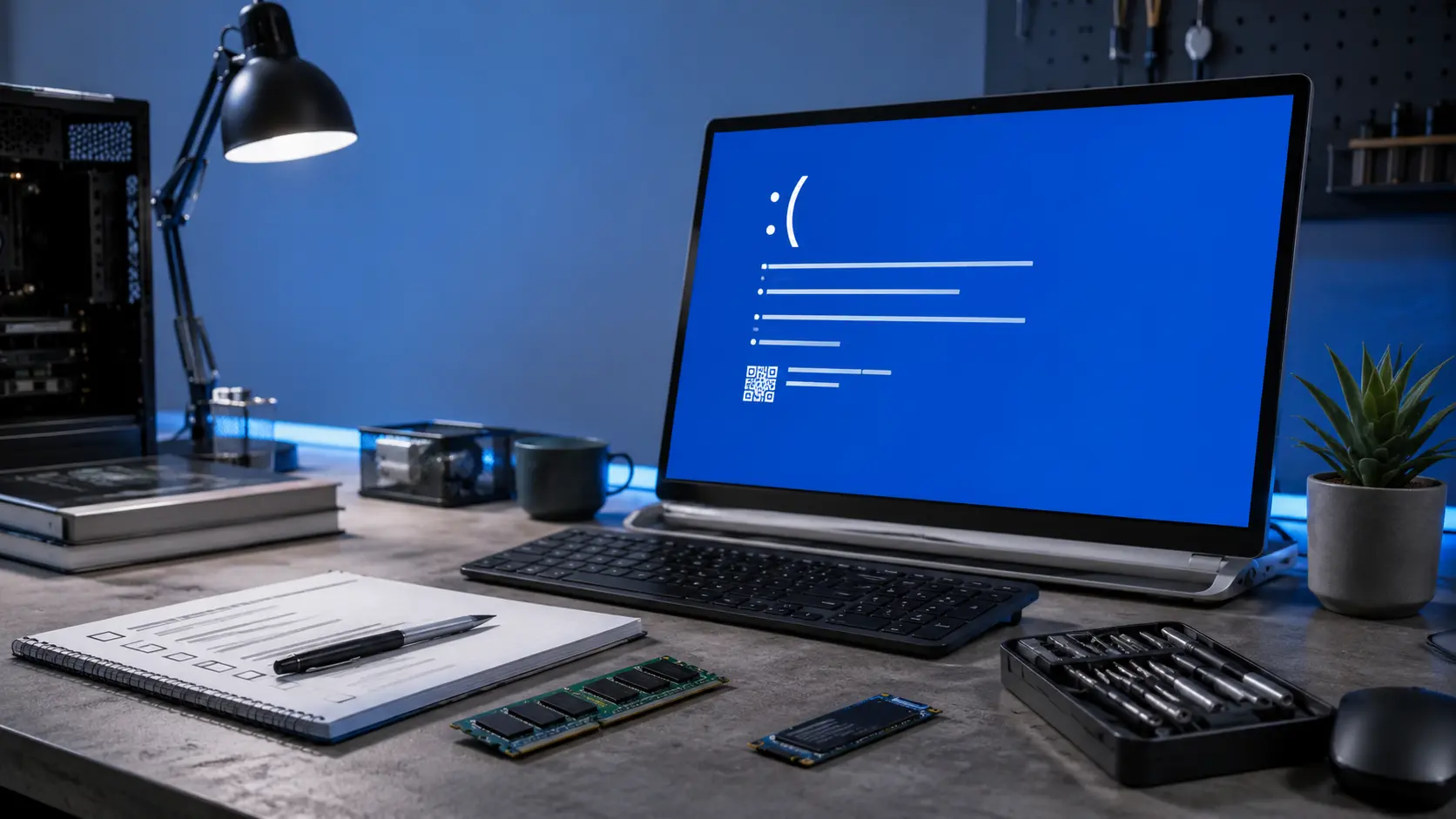
A blue screen is always unsettling. The computer freezes, displays a message that is difficult to understand and may restart before you have even had time to read it. The most common reaction is to assume that Windows needs to be reinstalled. In my work, however, I prefer to begin with a much simpler question: what actually caused the system to stop? A faulty driver, unstable memory, a struggling SSD, overheating or a weakening power supply can all produce a similar symptom. Reinstalling Windows without identifying the cause may make the problem disappear temporarily—or may change nothing at all.
The Tera24 approach
The right approach is to collect the clues before erasing the evidence
A blue screen, also known as a BSOD or stop error, appears when Windows encounters a problem serious enough to stop the system. In this article, I will explain how to use the available clues before reinstalling the PC: the circumstances of the crash, the stop code, recent changes, Safe Mode, temperatures, memory, storage, drivers and crash dump files. The aim is not to turn every user into a Windows debugging specialist. It is to avoid jumping to conclusions and to understand when a reinstall is appropriate, unnecessary or potentially risky.
A blue screen appears when Windows detects a critical error and decides to stop rather than continue in a potentially unstable state. The message normally includes a stop code and may also display the name of a file or driver.
That code is a useful clue, but it does not always identify the true cause. A memory-related error, for example, may be caused by a faulty RAM module, a driver writing to the wrong area of memory, an unstable BIOS setting or, less commonly, another component corrupting data held in memory.
It is also important to distinguish a genuine blue screen from a sudden restart. If the PC switches off as though the power cable had been pulled, without displaying an error, the power supply or overheating becomes a more likely line of investigation. I explain this distinction in more detail in my guide to the most common reasons a PC keeps restarting by itself.
Key point: the stop code helps to guide the diagnosis, but it should not be treated as absolute proof. The circumstances of the crash and the records saved by Windows are often more useful than searching for the code in isolation.
Before launching any diagnostic tool, I usually start by reconstructing the sequence of events. A blue screen during startup does not point towards the same causes as a crash while gaming, waking from sleep or connecting a peripheral.
A reproducible crash is much easier to diagnose. If the blue screen appears every time you open a particular program, start a game or place the computer under heavy load, that consistency already provides a valuable clue.
By contrast, widely varying stop codes, corrupted files and crashes with no obvious pattern may point towards a broader instability involving memory, storage, the power supply, overheating or an overly aggressive hardware setting.
If the blue screen remains visible for long enough, take a photograph of the whole screen. Record the stop code, the name of any file ending in .sys, and what you were doing immediately before the crash.
A photograph is better than an approximate handwritten note. Names such as MEMORY_MANAGEMENT, CRITICAL_PROCESS_DIED and IRQL_NOT_LESS_OR_EQUAL are quite different to a technician, but they can easily be confused when recalled from memory.
If Windows restarts immediately, automatic restart after a system failure can be disabled temporarily through the advanced startup options. The purpose is not to leave the computer frozen unnecessarily, but to keep the information on screen long enough to record it properly.
Precaution: do not change several things at the same time. If you update the BIOS, replace drivers, remove a RAM module and reinstall Windows on the same day, you will no longer know which action actually affected the fault.
Many recent blue-screen problems begin after a change: a new driver, an update, a newly connected device, security software, replacement hardware or an altered BIOS setting.
If the fault began immediately after a graphics, network, audio or storage driver update, rolling back to the previous driver may be more useful than downloading several different versions at random. I recommend using the computer or component manufacturer’s official driver rather than generic utilities that promise to update every driver automatically.
Temporarily remove the newly added hardware when this can be done safely: a USB device, expansion card or new memory module, for example. If the problem disappears, that does not yet prove that the part is faulty, but its compatibility, installation and drivers should be checked.
An ambitious memory profile, an unstable overclock or a poorly tested undervolt can cause blue screens that are difficult to interpret. For diagnostic purposes, I prefer to return temporarily to standard settings rather than trying to repair Windows around unstable hardware settings.
Safe Mode starts Windows with a limited set of drivers and services. If the computer becomes stable in this mode, a driver, third-party service or startup program becomes a stronger possibility.
This result does not completely clear the hardware. Safe Mode places less demand on the graphics system, loads fewer drivers and often reduces the overall load on the computer. A weak power supply or unstable graphics card may therefore appear to work simply because it is being stressed less.
When Windows remains usable, a clean boot can also help identify a third-party program or service. The same rule applies: proceed gradually, disable a limited group of items, test the computer, and then re-enable anything that is not responsible.
Useful interpretation: stable in Safe Mode does not automatically mean “Windows is corrupted”. It mainly means that the fault does not appear with the reduced configuration used in that mode.
Reinstalling Windows may repair damaged system files, but it cannot fix unstable RAM, a failing SSD or an overheating processor. These areas need to be tested separately.
A computer that mainly crashes during gaming, video encoding or other demanding tasks should be monitored under load. Dust, a failed fan, ageing thermal compound or poor contact with the cooling system can make the machine unstable.
Temperature readings must be interpreted according to the component, model and workload. A single figure is not enough: the useful clues are how the temperature changes, whether the processor reduces its speed, how the fans behave and exactly when the crash occurs.
The Windows Memory Diagnostic tool can provide an initial check. In the workshop, a longer test and checking the memory modules individually are often necessary when the problem is intermittent.
Passing a short test does not guarantee that the RAM is fault-free. Some instability only appears once the computer is warm, with a particular memory profile or when several modules are working together.
I use CrystalDiskInfo, among other tools, to obtain an initial overview of the drive’s SMART information. It can reveal useful warnings, but a reassuring status does not by itself guarantee that a hard drive or SSD is completely healthy.
Sudden slowdowns, unreadable files, update errors, freezing and blue screens can sometimes accompany a failing storage device. The warning signs are covered in more detail in my guide on how to tell if a hard drive is failing.
Protect the data first: if the drive makes unusual noises, disappears from the BIOS, produces read errors or contains important files that have not been backed up, avoid running repeated tests. Copying or cloning the drive may take priority over repairing Windows.
When Windows stops with a critical error, it may save a memory dump file, often referred to as a dump or minidump. This file contains information about the state of the system at the time of the crash.
Small dump files are normally stored in C:\Windows\Minidump. Depending on the system configuration, a larger file may also be saved as C:\Windows\MEMORY.DMP.
Analysing these files with a tool such as WinDbg can reveal the stop code, call stack and modules loaded when the crash occurred. It may highlight a suspicious driver, but the file shown is not always the real culprit. A component may be named simply because it encountered corruption caused elsewhere.
A single dump file can be misleading. When several are available, I prefer to look for a recurring element rather than draw a conclusion from the first line highlighted by the tool.
Event Viewer and Reliability Monitor can help reconstruct the sequence of events: a driver installation, a failed update, an unexpected shutdown, a disk error or repeated crashes involving the same component.
One common mistake is to treat the first critical event as the cause. An event stating that the computer restarted without a proper shutdown normally confirms that the shutdown was unexpected, but it does not necessarily explain why it happened.
The most useful events are often those recorded immediately before the crash, particularly when they appear before every incident. A single warning that has been present for months without any obvious effect carries less weight than a group of errors that began on the same day as the blue screens.
When the initial checks do not reveal an obvious hardware fault, it becomes reasonable to examine Windows itself: system files, incomplete updates, drivers, security software and programs loaded at startup.
System tools such as SFC and DISM can repair certain Windows components. They are useful when files have been damaged, but they are not a universal answer to every blue screen.
A slow, cluttered or poorly maintained computer does not necessarily produce blue screens. Conversely, a fast PC can still be unstable. Performance and stability should not be confused. For a broader diagnosis, you can also review the common reasons a Windows PC becomes slow, without assuming that they automatically explain the BSOD.
Advice: avoid utilities that claim to repair the registry, update every driver and fix blue screens in one click. They can introduce further problems and make the original fault harder to diagnose.
When a computer becomes unstable, the backup should not wait until the diagnosis is complete. If Windows still starts and the storage device remains accessible, copy the important files to another device first.
Cloud synchronisation does not always replace an independent backup: a deleted, corrupted or encrypted file may also be synchronised to the other devices. Depending on the amount of data and the number of computers, choosing between a NAS, an external hard drive and an off-site copy mainly depends on how you actually use your files.
If the drive shows signs of physical failure or contains irreplaceable data, the priority is no longer to make Windows start at any cost. Writes should be limited, repeated restarts avoided and an appropriate recovery method considered. I explain the limits of this work in my article about data recovery in Dordogne and when specialist recovery is needed.
Important: never save recovered files back onto the same drive that is causing the problem. Any additional write may overwrite data that could otherwise still be recovered.
A clean installation becomes reasonable once the hardware has been checked to an appropriate level, the data has been backed up and the evidence points towards a serious software problem: a heavily damaged system, drivers that cannot be stabilised, a problematic old migration, a persistent infection or years of changes that are difficult to reverse.
It can also serve as a diagnostic test. If a clean Windows installation, with only the essential drivers installed, crashes before the usual applications have been added, the hardware becomes a much stronger suspect again.
By contrast, reinstalling Windows on a failing SSD, with unstable RAM or a weakened power supply does not correct the fault. The computer may work for a few hours or days before the crashes return.
If the storage device needs replacing, the next decision is whether to preserve the existing system or start again from scratch. I cover that choice in my guide to disk cloning versus a clean Windows installation.
Before reinstalling Windows, I recommend following this order and adapting it to the condition of the computer:
This method sometimes takes longer than formatting the computer immediately, but it helps avoid hiding a hardware fault and returning a PC with the same problem waiting to reappear.
The essential principle: reinstalling Windows is a software solution. It should only be chosen after the likelihood of a hardware fault has been reduced sufficiently.
Professional diagnosis becomes sensible when the computer will not remain on long enough to back up the files, when the stop codes keep changing, when the drive disappears, or when the next tests require the computer to be dismantled.
It is also better not to continue if you notice an unusual smell, heat damage, a blocked fan, mechanical noises from the hard drive or repeated crashes during the Windows installation itself.
During my computer repair visits in Dordogne, the aim is not to reinstall every unstable PC automatically. I first try to determine whether the fault comes from Windows, a driver, storage, memory, cooling or the power supply, and then explain the available options and their limits.
A Windows blue screen does not automatically mean that the system needs to be erased. It mainly tells you that the computer encountered a critical error whose circumstances need to be understood.
The best approach is to protect the data, keep the stop codes and dump files, check what changed, and then examine the drivers, memory, storage, temperatures and most likely components separately.
A clean Windows installation can be an excellent solution when Windows is genuinely responsible. If the fault is hardware-related, however, reinstalling will only delay the return of the problem.
No. A single blue screen can be caused by a driver, an update or a one-off incident. Repeated crashes should be investigated, particularly if they become more frequent or are accompanied by read errors, overheating or sudden restarts.
It can fix software corruption, but it will not repair unstable RAM, a failing SSD, overheating or a power-supply problem. Back up the files and check the main hardware possibilities before resetting Windows.
Not always. The named driver may be responsible, but it may also have been affected by corruption caused by the memory, storage or another module. Several crashes should be compared and the result interpreted in context.
Different stop codes can appear when a broader instability corrupts different parts of the system. The RAM, storage, power supply, temperatures and hardware settings should then be examined carefully.
Avoid repeated restarts if the drive shows unusual symptoms. Use the Windows recovery environment only for cautious checks and give priority to protecting the data. If the drive is no longer detected or makes abnormal noises, stop testing it.
Written by
IT technician and founder of Tera24, I provide computer repair, troubleshooting, and optimization services throughout Dordogne, helping individuals and businesses keep their technology running smoothly.
About Tera24 ↗From guide to workshop
Further reading
PCs & Computers
Files, software, licences, email and peripherals: a checklist for verifying a new Windows PC before erasing the old one.
PCs & Computers
A non-destructive test to restore files, inspect their contents, record errors and fix your backup before a real incident.
PCs & Computers
Inventory, scheduling, retention, a separate copy and restore tests: organise usable NAS backups for several small-business computers.