PCs & Computers
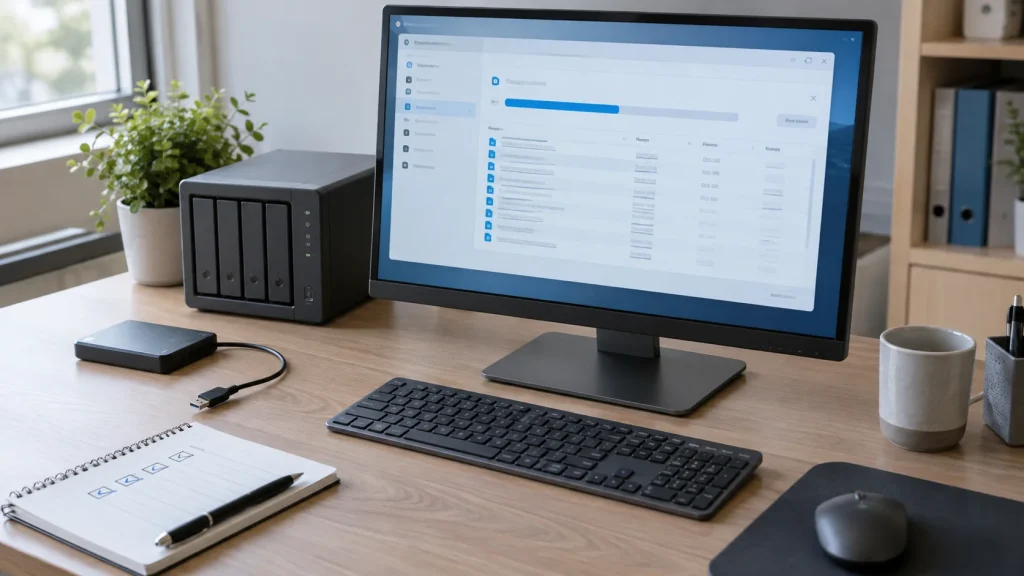
Moving to a New Windows PC: A Checklist for Files, Apps and Access
Files, software, licences, email and peripherals: a checklist for verifying a new Windows PC before erasing the old one.

PCs & Computers / Practical guide
THE TERA24 JOURNALA slow PC does not always need the component you expect
I measure the resource that is genuinely limited before recommending RAM, an SSD or another solution.
The Tera24 approach
Connect the symptom, the measurement and compatibility
Task Manager, the exact model and the PC’s overall condition help prevent an unnecessary upgrade.
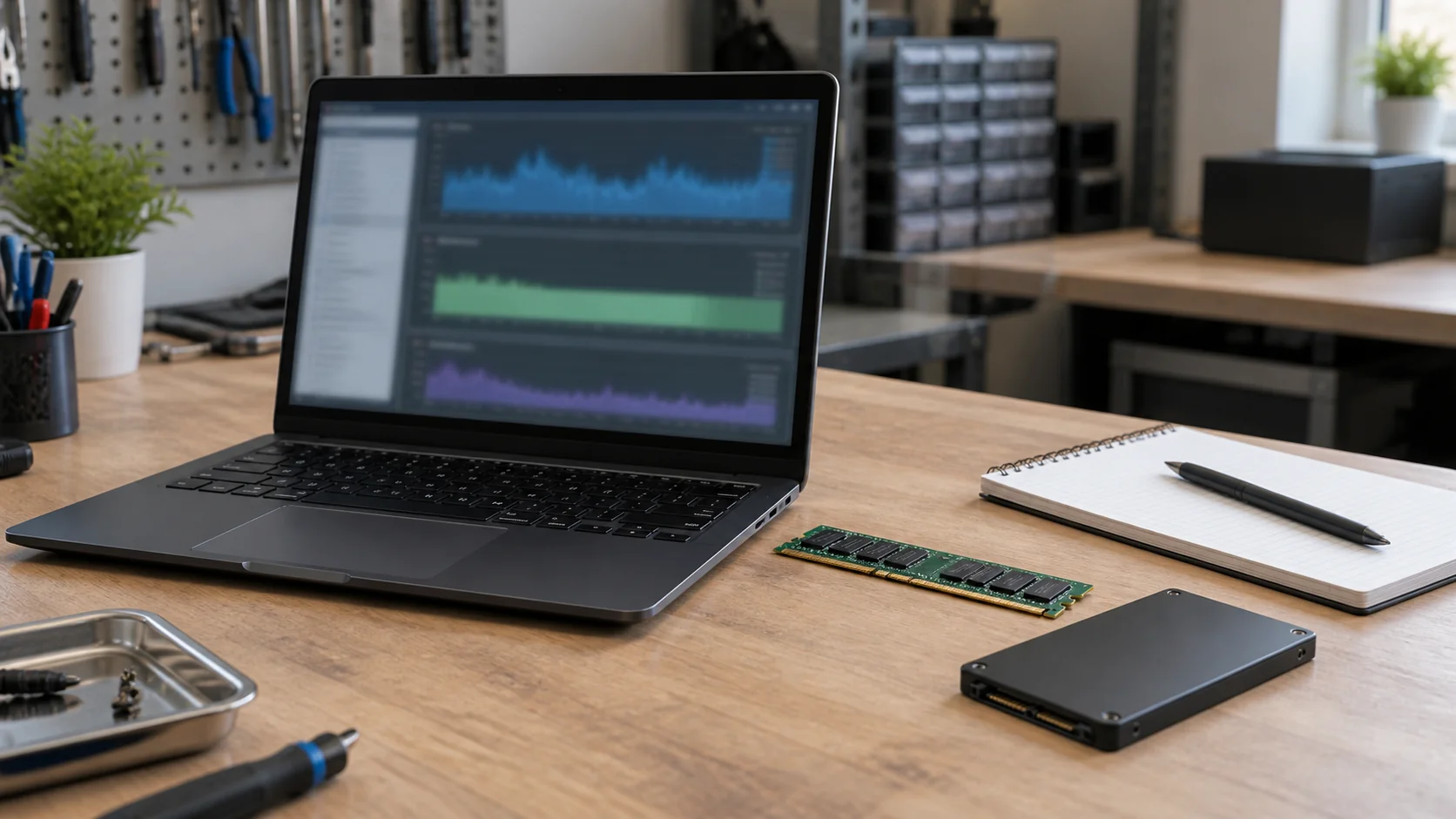
When a PC becomes slow, immediately buying more RAM or an SSD means choosing a solution before identifying the problem. Several factors can contribute at the same time. I begin by separating three resources: memory used by active applications, storage that holds Windows, programs and files over the long term, and the processor that performs the requested work.
RAM holds information and applications that are needed immediately, whereas storage retains the operating system, software and data. Low free storage is therefore not the same problem as insufficient memory. For a broader first check, my guide to the common reasons why a PC is slow also covers background applications and programs that start with Windows.
I then look for the resource that coincides with the real symptom. Memory pressure when several applications or browser tabs are open can point towards RAM. Heavy storage activity during startup, application loading or file access can point towards the drive. If the processor remains the limiting resource during the troublesome task, neither more RAM nor an SSD necessarily addresses the cause.
Starting point: one percentage in isolation is not enough. Ask which resource remains constrained while you reproduce the workload that genuinely makes the PC slow.
Task Manager is Windows’ built-in system monitor and startup manager. It displays processor load, memory use, disk activity and network use. Its Processes and Performance tabs help you see what running applications consume, while Startup apps helps identify programs that launch with Windows.
For a useful observation, I reproduce the activity that causes the delay: signing in, opening the usual software, working with the tabs that are genuinely needed or loading the affected files. I allow the workload to settle and watch how it changes. Looking at Task Manager immediately after opening it, without recreating the problem, does not justify a conclusion.
A brief peak can be part of normal work. A measurement becomes more meaningful when it returns with the same symptom and workload. I do not disable an unfamiliar process at random: the purpose is to connect the load to the inconvenience and then verify the cause before changing anything.
RAM is a coherent candidate when the PC remains acceptable with few applications but slows while your usual software or many tabs are open together, and observation then shows memory pressure. Adding memory may help in that scenario. It does not guarantee a gain when the installed amount was already sufficient for the real workload.
An SSD is a different candidate when the machine still uses a mechanical hard drive and the main delays affect startup, application loading or opening files. Replacing that hard drive with an SSD can improve those operations. My guide to an HDD-to-SSD upgrade explains this case, but the improvement should not be presented as a cure for every kind of slow computer.
Disk activity and available capacity must also be distinguished. Low free storage can impair performance, but adding RAM does not release that space. Conversely, replacing storage without checking memory does not automatically fix slowdowns caused by several simultaneous applications. Unnecessary background programs can also consume resources without making a hardware purchase necessary.
Limit: if the observation mainly identifies the processor, a particular application or several combined factors, the binary choice between RAM and SSD is incomplete. Address the dominant cause, not the easiest component to order.
A technically relevant candidate becomes a possible upgrade only after the exact model has been checked. For RAM, I verify the specifications required by the system, supported capacity, available slots and how memory is integrated. Replacement memory must match the model and system characteristics. Search tools based on make and model can help, but I compare their result with the manufacturer’s documentation.
For storage, I record the physical format, interface, available mounting space and limits stated for the machine. Two computers with similar product names may offer different options. I therefore do not buy from a photograph, the approximate age of the PC or a broad description such as “laptop”.
I also establish what the operation means for Windows and the data. Moving to new storage may involve cloning or a clean installation, depending on the system’s condition and the objective. That decision is covered in my comparison of cloning and clean installation. In either case, make and verify an independent backup before opening the machine or transforming its installation.
A rational upgrade depends on more than its purchase price. I compare the expected benefit for the real workload, the PC’s overall condition, Windows compatibility, migration effort and how long the machine can continue to fulfil its role. A compatible and inexpensive component can still be the wrong purchase when it does not target the bottleneck.
If memory is genuinely insufficient during the normal workload and the model supports an upgrade, RAM can provide more working room for several applications. If a mechanical hard drive mainly delays startup and loading, an SSD may provide a benefit that is more directly connected to those symptoms. I describe these as expected effects, never as a guaranteed acceleration or a universal performance figure.
I include the other visible limits in the decision: hardware condition, the condition of the existing storage, the battery when mobile use depends on it, necessary connections and the system’s ability to remain maintained. A coherent, compatible computer that still suits a modest workload may justify a targeted upgrade. Several accumulating limits can instead turn a small purchase into the first of many repairs.
Practical decision: compare a precise upgrade with the complete alternative you actually need. The better choice addresses the measured limitation and preserves a coherent remaining service life.
I advise against adding RAM when observation shows no memory pressure during the affected workload. I also advise against replacing storage in the hope of correcting a task that is mainly limited by the processor. In both cases, the new component may work perfectly without resolving the reason it was purchased.
No upgrade is rational when the model does not support it, component compatibility remains uncertain or the machine’s overall condition undermines the expected benefit. A platform that no longer meets software or maintenance needs deserves a whole-system decision. Repairing before replacing remains a sound principle, but keeping a computer at any cost is not automatically economical.
The conclusion must therefore be allowed to say “RAM”, “SSD”, “software correction”, “further diagnosis” or “measured replacement”. I prefer a choice that can be explained: reproduced symptom, observed resource, confirmed compatibility and expected benefit. If one link is missing, I postpone the purchase and continue the diagnosis.
This sequence also creates a useful baseline. If the computer becomes slow again later, you can compare the same workload and the same resources instead of starting from a vague impression. The evidence remains useful even when the appropriate decision is to make no hardware change.
For English-speaking households and small organisations around Saint-Chamassy and elsewhere in Dordogne, this method starts with the workload rather than a sales promise. You know why an intervention is proposed, what it can improve and what it will not change. That is the safest way to avoid buying the wrong component for a slow PC.
Written by
IT technician and founder of Tera24, I provide computer repair, troubleshooting, and optimization services throughout Dordogne, helping individuals and businesses keep their technology running smoothly.
About Tera24 ↗From guide to workshop
Is your computer taking forever to start up, running slowly, or struggling with everyday tasks? A free diagnosis can often identify the real issue—and help you avoid replacing hardware unnecessarily. Contact Tera24 to schedule an appointment.
Further reading
PCs & Computers
Files, software, licences, email and peripherals: a checklist for verifying a new Windows PC before erasing the old one.
PCs & Computers
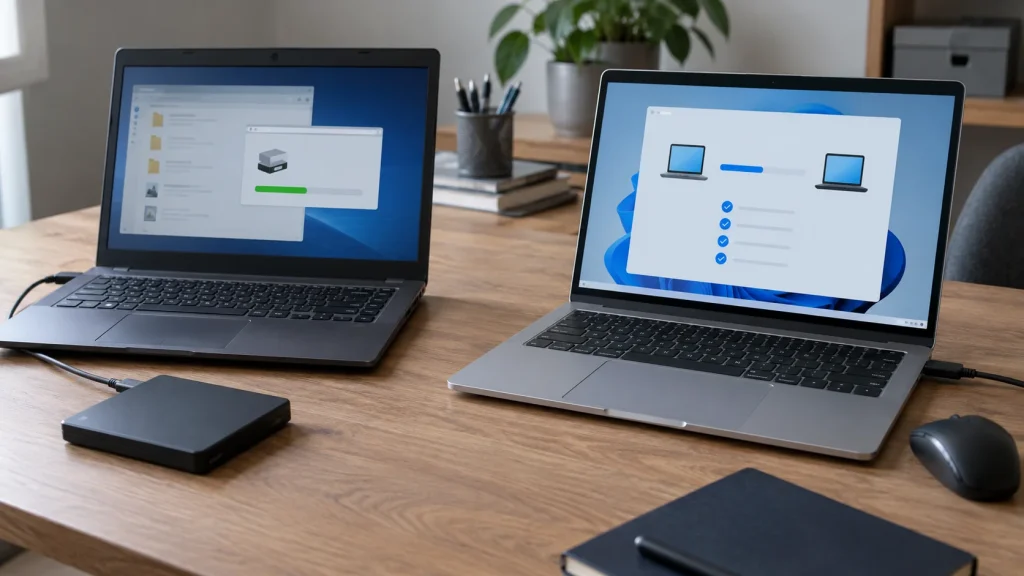
A non-destructive test to restore files, inspect their contents, record errors and fix your backup before a real incident.
PCs & Computers
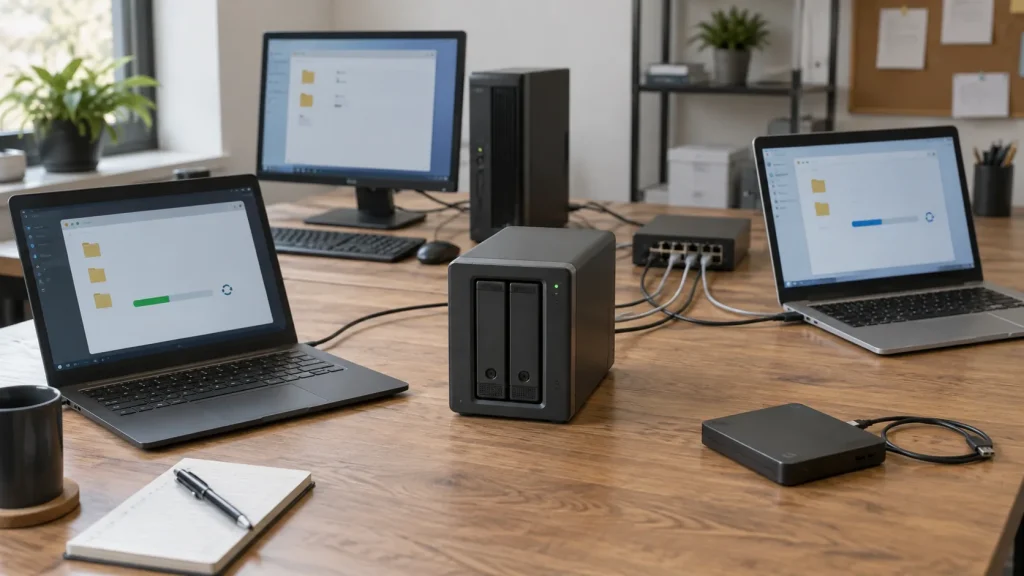
Inventory, scheduling, retention, a separate copy and restore tests: organise usable NAS backups for several small-business computers.