Windows Diagnostics and Troubleshooting
Computer Overheating and Noisy Fan: Cleaning, Thermal Paste or Hardware Failure?
Noisy fan, dust, thermal paste or hardware fault: follow a safe, progressive diagnosis before dismantling or replacing parts.

Windows Diagnostics and Troubleshooting / Practical guide
THE TERA24 JOURNALA black screen does not mean your computer must be replaced
The power light may be on and the fans may be turning, yet nothing appears. Before reinstalling Windows or buying another PC, separate a display issue from a startup or hardware fault.
The Tera24 approach
Locate the fault before changing parts
This guide moves from low-risk observations to more technical checks: identify startup signs, isolate the display and cable, separate Windows from hardware, and decide whether repair remains sensible. It also explains the limits of each test and when data protection takes priority.
A black screen is a symptom, not a diagnosis. The PC may have no power, start without video, stop after the manufacturer logo or load Windows without the desktop. Note when the picture disappears. If it shuts down or loops, review the common reasons a PC keeps restarting by itself.
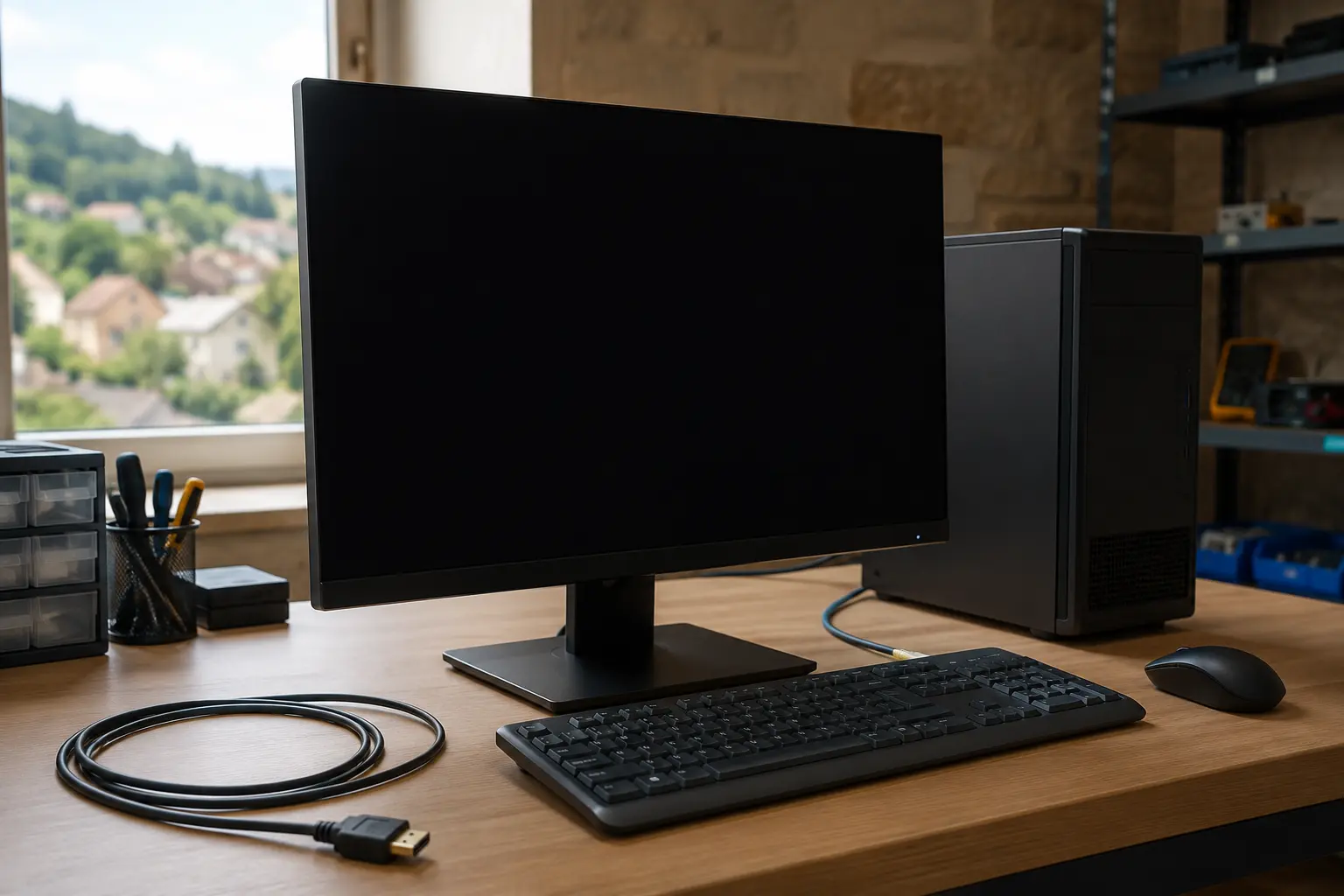
Confirm monitor power, input selection and cable seating. Test with a known-working cable or screen, and disconnect docks and non-essential peripherals. On a desktop with dedicated graphics, make sure the monitor uses the graphics-card output rather than an inactive motherboard socket.
Safety note: disconnect power before touching internal cables or opening the case. Check warranty terms before dismantling the device.
Without a manufacturer logo or UEFI screen, the fault probably occurs before Windows. If the logo appears first, storage, Windows, an update or the graphics driver become plausible. Microsoft documents Windows + Ctrl + Shift + B to reset the graphics driver and Windows + P to correct display output. A stop code instead calls for identifying the cause of a Windows blue screen.
Windows RE provides Startup Repair, Startup Settings, Uninstall Updates and System Restore. Safe Mode loads a limited set of files and drivers: a returning picture narrows the investigation but does not automatically identify the cause.
Important: some options require the BitLocker recovery key. Do not reset or reinstall until important files and that key are protected.
No picture before Windows, diagnostic beeps or LEDs, and intermittent operation justify hardware checks. If the drive slows down, disappears, reports read errors or makes unusual sounds, stop repeated restarts and review the signs that a hard drive may be failing.
Diagnostic limit: a light or spinning fan only confirms that part of the computer receives power, not that its power supply, motherboard, RAM or graphics hardware is healthy.
A cable, monitor, memory module, driver or setting does not justify replacing the entire PC. A major fault in an old machine can, however, be poor value. Cost, age, parts availability and intended use should guide the choice. Keep a chronology of symptoms so that parts are not replaced at random.
Written by
IT technician and founder of Tera24, I provide computer repair, troubleshooting, and optimization services throughout Dordogne, helping individuals and businesses keep their technology running smoothly.
About Tera24 ↗From guide to workshop
Further reading
Windows Diagnostics and Troubleshooting
Noisy fan, dust, thermal paste or hardware fault: follow a safe, progressive diagnosis before dismantling or replacing parts.
Windows Diagnostics and Troubleshooting
No lights, a black screen or a restart loop: separate charger, battery, PSU and motherboard faults before replacing parts.
Windows Diagnostics and Troubleshooting
Before reinstalling Windows after a blue screen, record the stop code, check recent changes, test the RAM, SSD and temperatures, and review the Minidump files. A reinstall will not fix a hardware fault.