Windows Diagnostics and Troubleshooting
Computer Won’t Turn On: Power Supply, Charger, Battery or Motherboard?
No lights, a black screen or a restart loop: separate charger, battery, PSU and motherboard faults before replacing parts.

Windows Diagnostics and Troubleshooting / Practical guide
THE TERA24 JOURNALYour computer is hot: observe before dismantling
In summer, a more active fan can be normal. Repeated slowdowns or shutdowns require a methodical diagnosis.
The Tera24 approach
Normal heat, limited cooling or a fault?
This guide covers low-risk checks, cleaning limits and the signs that mean testing should stop.
A computer can feel warm and increase its fan speed during gaming, video calls, updates or demanding work without being faulty. The cooling system is moving more heat. Noise becomes more meaningful when it starts suddenly at idle, never settles, includes scraping or clicking, or comes before slowdowns, a black screen, restarts or shutdowns.
I therefore begin with timing: does it happen from a cold start, after several minutes, only under load or while the processor is nearly idle? I also compare it with the machine’s usual behaviour. That sequence helps separate a fan responding normally from restricted airflow or a fault that needs proper diagnosis.
The processor and graphics chip turn some of their electrical power into heat. Heat crosses a thin thermal interface, reaches a heatsink — often through heat pipes in a laptop — and is carried away by fan-driven airflow. Thermal paste does not cool the computer by itself. It fills microscopic gaps between the chip and heatsink so that heat transfers more effectively.
Blocked intake air, dust-packed fins, poor heatsink contact or a failing fan make temperatures rise faster. The cooling controller responds by increasing fan speed and may reduce performance. A hot room or direct sunlight can make matters worse, including during Dordogne summers, but ambient heat is an aggravating factor rather than a diagnosis.
A steady rush of air that increases during demanding work and fades at idle often reflects normal control. Full fan speed from a cold start, with no visible workload, deserves checks of software load, sensors and cooling. Clicking, rumbling or scraping points more towards a mechanical issue, although sound alone cannot identify the exact component.
Record the task, the delay before the noise begins, system stability and what changes after a restart. A fault that appears after sustained load and clears after cooling makes a thermal cause more plausible. A noise present at power-on can instead involve a worn fan, a cable touching the blades or, in a desktop, the power-supply or graphics-card fan.
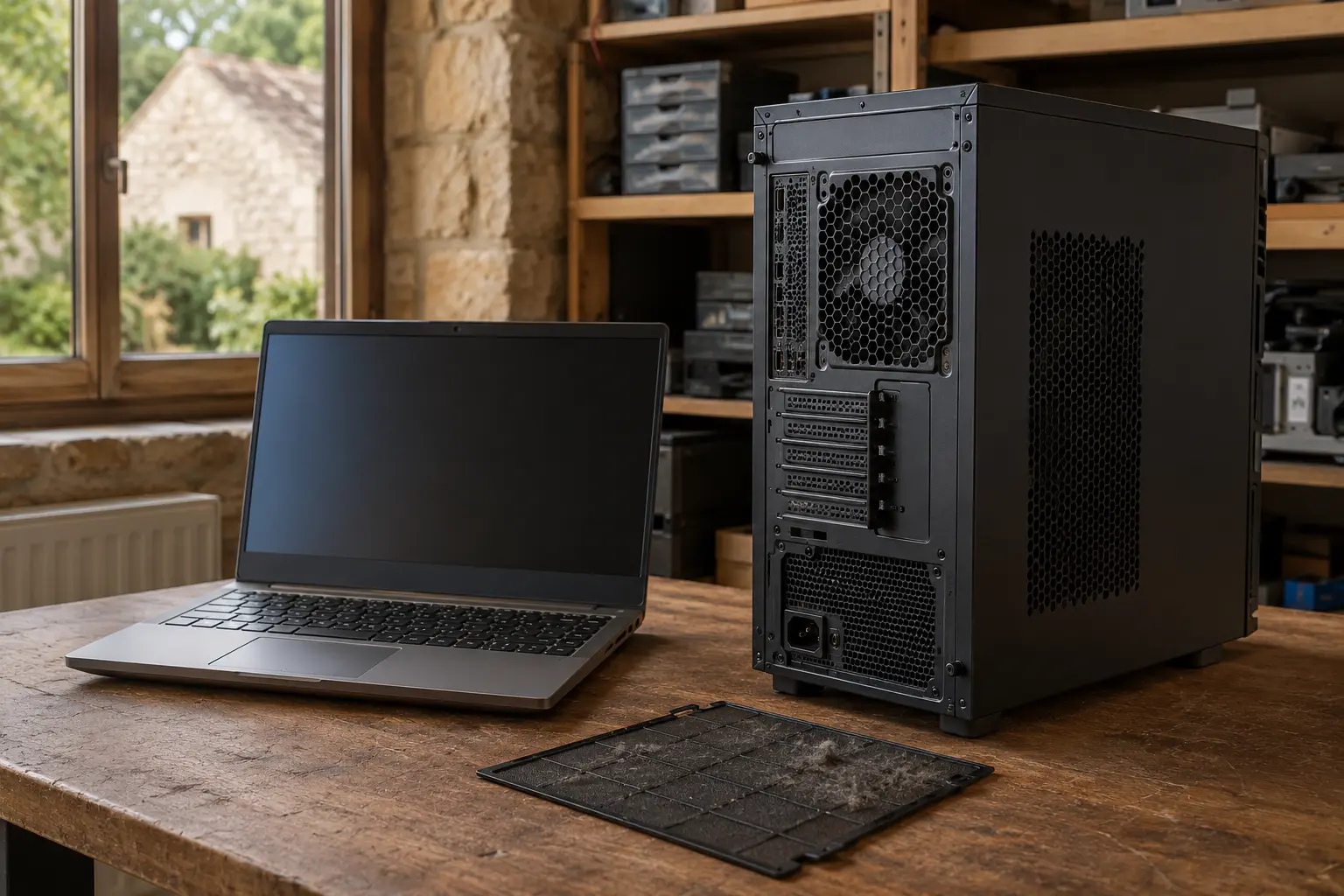
A bed, sofa, blanket or stack of papers can block laptop intakes underneath the case. On a desktop, a dirty filter, a front panel pushed against furniture or thick carpet can restrict airflow. Dust may form a dense layer between a fan and the cooling fins. The fan then spins faster while less air crosses the heatsink.
You can shut the computer down, unplug it and inspect accessible vents from the outside. Do not insert tools. Careless use of compressed air can drive dust further inside or overspeed a fan. During internal cleaning, the fan must be held still without stressing the blades; opening the machine also requires model-specific instructions and electrostatic precautions.
Important limit: never open a power supply. Check the manufacturer’s warranty terms before opening a laptop. External cleaning cannot remove a solid dust mat trapped behind a fan.
Over time, thermal paste can lose effectiveness after repeated heating cycles, or it may have been applied poorly during earlier work. I suspect it when the heatsink is clean, the fan works and software load is normal, yet temperature rises very quickly or the temperature rise from idle to load has become unusually steep. A loose heatsink can create similar signs.
Replacement should not be automatic or come before airflow inspection. It requires removing the cooler, using compatible cleaning materials, applying the right amount and tightening the assembly evenly. Too much, too little or uneven pressure can make heat transfer worse. Laptop access varies widely; disassembling a graphics card can also disturb thermal pads that require precise thicknesses.
Practical advice: do not replace thermal paste solely because the fan is noisy. Compare idle and load behaviour, inspect dust, mounting and fan operation first.
A worn bearing may rumble, click or scrape as speed changes. An off-centre fan can vibrate, start in bursts or stop. Cleaning its blades will not repair the mechanism. Identify the affected fan before buying anything: CPU, case, graphics-card and power-supply cooling require different diagnosis, and a power supply must not be opened.
Other possibilities include a loose heatsink, disconnected fan lead, fan-control issue, misleading sensor or a laptop heat pipe that no longer transfers heat properly. These can resemble degraded thermal paste. Comparing temperatures, fan speed, airflow and behaviour after cleaning helps decide between remounting, targeted fan replacement and deeper hardware investigation.
Before dismantling anything, save your work and open Task Manager. An update, cloud sync, security scan, busy browser or stuck application may keep the processor or graphics chip active. Unwanted software is another possibility. Close unneeded applications properly, restart and check whether the load falls.
If the fan settles when the workload drops, investigate the software instead of replacing hardware. If performance remains poor without an obvious process, continue with the checks for a slow PC. Temperature-monitoring software can show a trend, but one reading is not a universal diagnosis because sensors, limits and cooling profiles vary.
| Observed sign | Possible cause | Reasonable check | Caution |
|---|---|---|---|
| Noise mainly under load | Normal or restricted cooling | Compare idle and load; clear vents | Low |
| Full speed from cold | Software load, sensor or cooling | Task Manager and restart | Moderate |
| Clicking or scraping | Worn fan, imbalance or nearby cable | Shut down; locate without opening PSU | High |
| Blocked vents | Insufficient airflow | External inspection while powered off | Low |
| Better on a hard surface | Obstructed underside intake | Keep the base flat and clear | Low |
| Heat with slowdowns | Thermal throttling or abnormal load | Check workload and trend | Moderate |
| Shutdown, restart or black screen | Thermal protection or another fault | Back up; record circumstances | High |
| No airflow | Stopped fan or blocked duct | Stop demanding tests | High |
These are diagnostic pointers, not proof. A PC that keeps restarting may have power, memory, driver or Windows faults. Likewise, follow the dedicated black-screen startup checks when the fault is present from cold rather than assuming heat is responsible.
Do not disable thermal protection, change thresholds at random or force a stress test on a computer that shuts down. Improvement on a hard surface confirms that airflow matters, but does not prove the inside is clean. Back up business-critical data before any dismantling.
Shut the device down and unplug it if safe to do so after a burning smell, smoke, crackling, melted cable or liquid exposure. Stop demanding tests after repeated shutdowns, black screens or restarts, a stationary fan, strong mechanical noise or a case that is changing shape.
Possible swollen battery: switch the laptop off, disconnect the charger, do not press the case back into shape and do not continue charging it. Have it inspected and replaced by a qualified technician. Battery swelling is not a thermal-paste problem.
After a sudden shutdown, let the machine cool and back up your data once it is stable. If it no longer shows any sign of power, use the guide for a computer that will not turn on rather than repeatedly cycling the power.
A reliable method is progressive: inspect the computer and its surroundings, observe workload and symptoms, record comparable readings, clear or clean the airflow path, then repeat the same checks. Removing the cooler and replacing thermal paste comes later, only when the evidence supports it.
Persistent mechanical noise, unreliable starting or absent airflow may justify replacing the identified fan. If the heatsink, heat pipe, sensor, power supply or graphics card remains suspect, hardware diagnosis avoids changing a working part. This inspect, measure, clean, retest and repair sequence is the approach I favour when helping homes and small businesses in Dordogne.
No. Check workload, airflow, dust, fan operation and mounting first. Thermal paste becomes a credible lead when those checks do not explain an unusually rapid temperature rise.
No. Smooth airflow under load can be normal. A bearing that clicks, scrapes or starts unreliably deserves mechanical inspection and, once confirmed, targeted replacement.
Written by
IT technician and founder of Tera24, I provide computer repair, troubleshooting, and optimization services throughout Dordogne, helping individuals and businesses keep their technology running smoothly.
About Tera24 ↗From guide to workshop
Tera24 provides on-site computer assistance around Saint-Chamassy and within roughly 60 km, including overheating diagnosis, cooling-system cleaning, and fan or thermal-paste replacement when the diagnosis supports it.
Further reading
Windows Diagnostics and Troubleshooting
No lights, a black screen or a restart loop: separate charger, battery, PSU and motherboard faults before replacing parts.
Windows Diagnostics and Troubleshooting
Before reinstalling Windows after a blue screen, record the stop code, check recent changes, test the RAM, SSD and temperatures, and review the Minidump files. A reinstall will not fix a hardware fault.
Windows Diagnostics and Troubleshooting
A practical sequence for separating a display problem, Windows fault or hardware failure before replacing a computer.