Windows Diagnostics and Troubleshooting
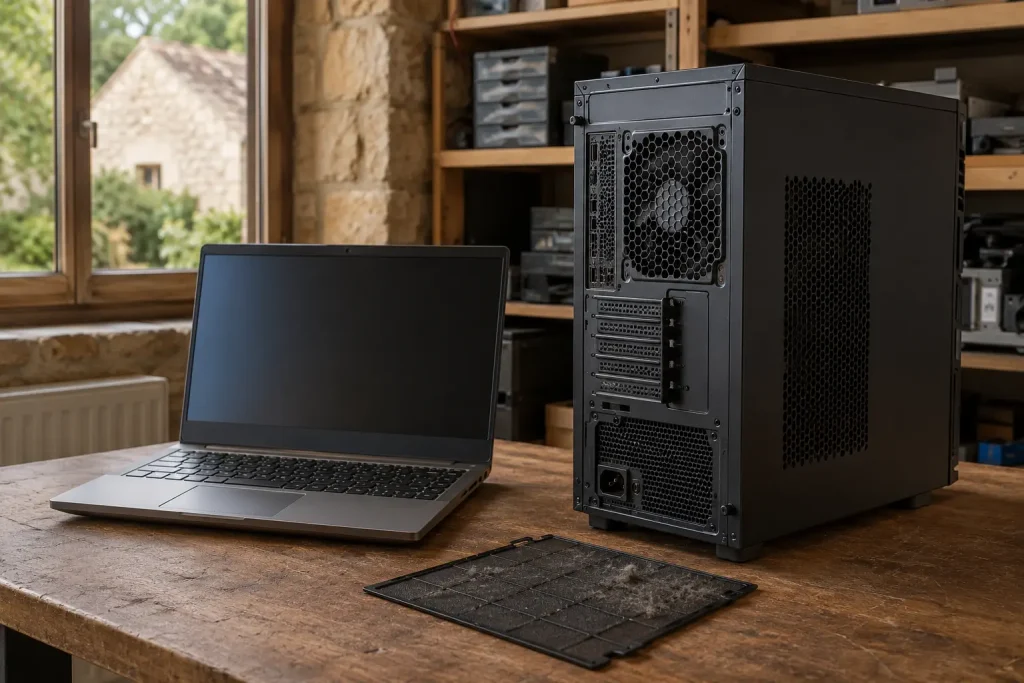
Computer Overheating and Noisy Fan: Cleaning, Thermal Paste or Hardware Failure?
Noisy fan, dust, thermal paste or hardware fault: follow a safe, progressive diagnosis before dismantling or replacing parts.

Resources / The Tera24 journal
Understand what is wrong.
Repair what can be repaired.
Make an informed choice.
Featured From the workshop
Windows Diagnostics and Troubleshooting
Noisy fan, dust, thermal paste or hardware fault: follow a safe, progressive diagnosis before dismantling or replacing parts.
Windows Diagnostics and Troubleshooting
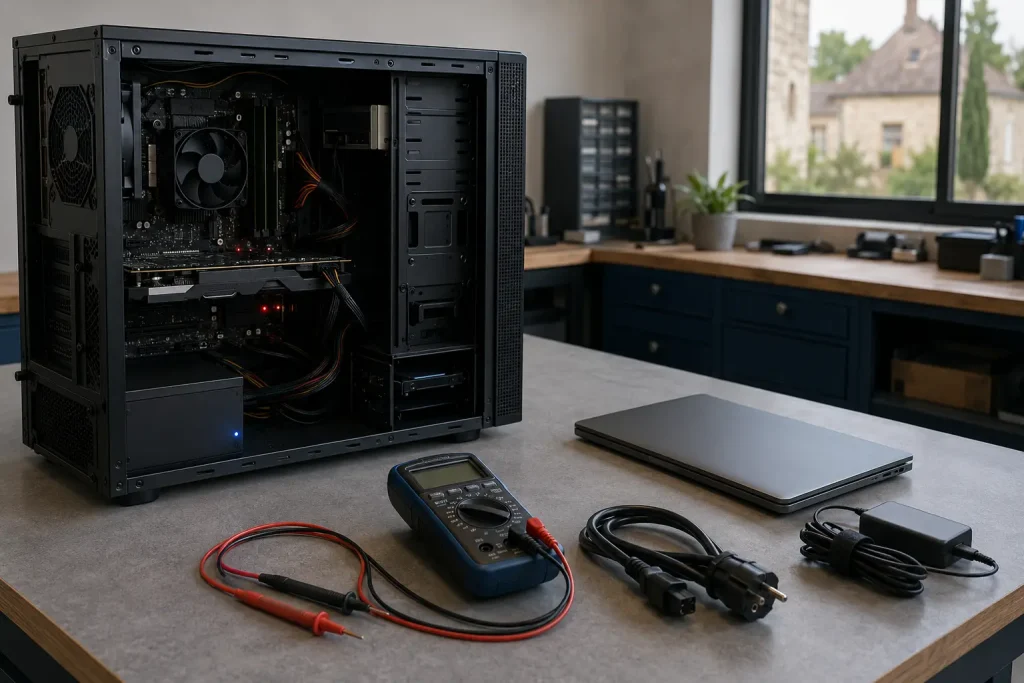
No lights, a black screen or a restart loop: separate charger, battery, PSU and motherboard faults before replacing parts.
Windows Diagnostics and Troubleshooting
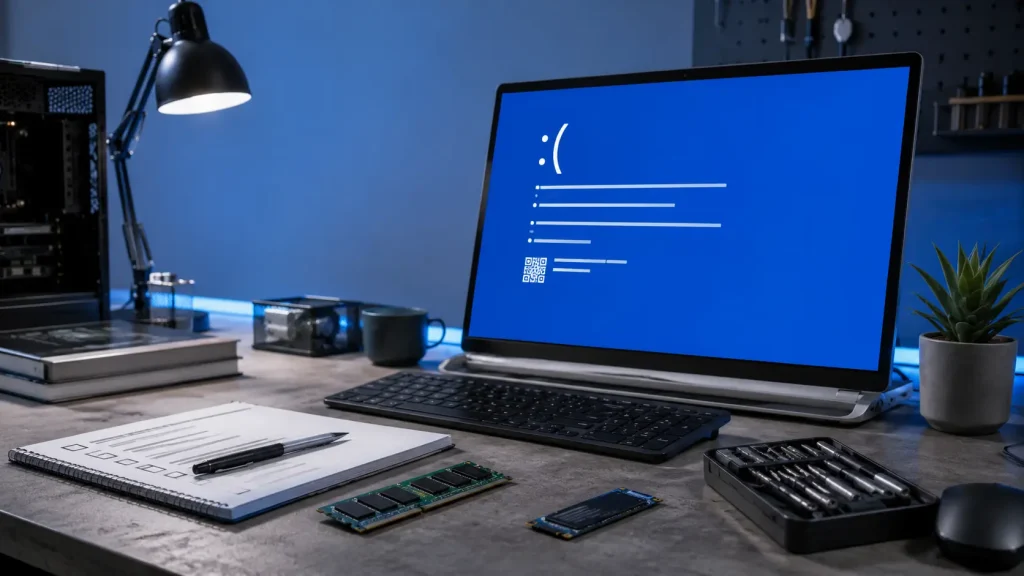
Before reinstalling Windows after a blue screen, record the stop code, check recent changes, test the RAM, SSD and temperatures, and review the Minidump files. A reinstall will not fix a hardware fault.
Windows Diagnostics and Troubleshooting
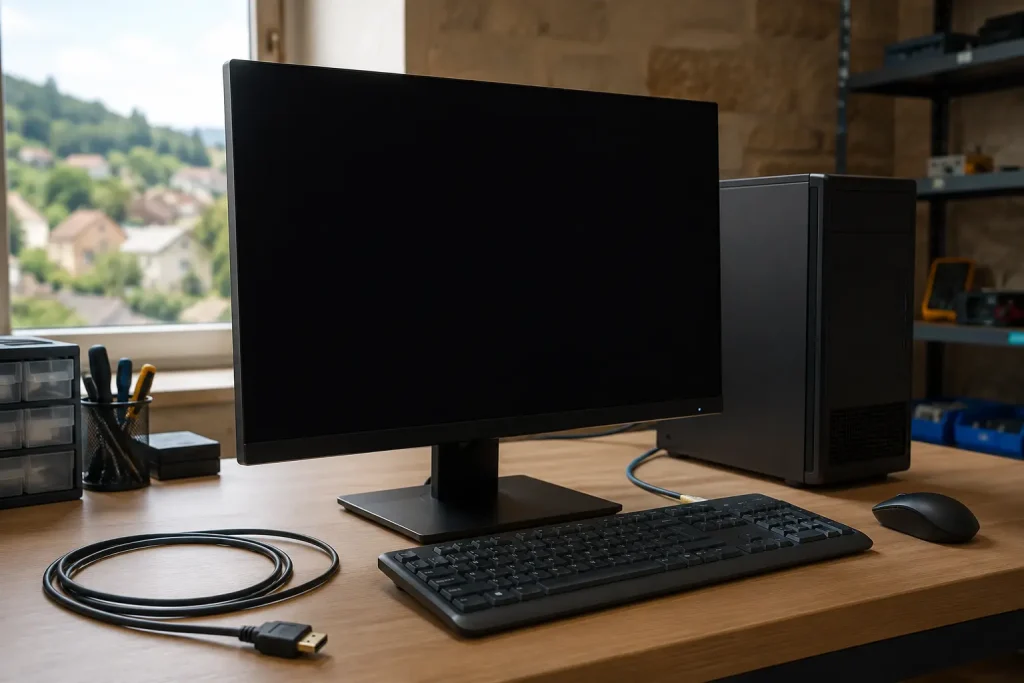
A practical sequence for separating a display problem, Windows fault or hardware failure before replacing a computer.
PCs & Computers
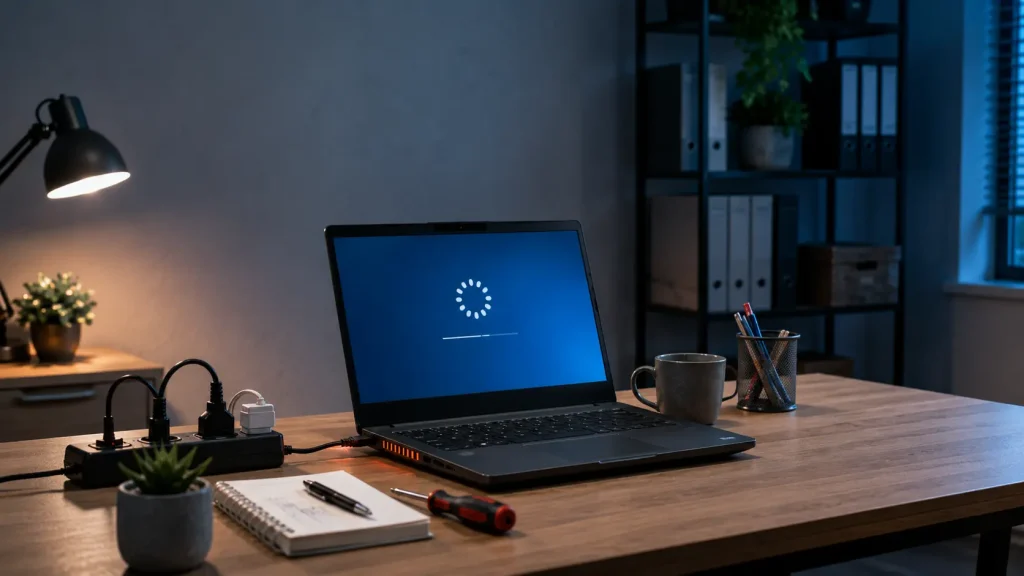
A PC that keeps restarting by itself may be suffering from overheating, unstable power, faulty RAM, an incompatible driver, a Windows error or a failing component. The exact moment when the restart occurs is often the most useful clue.