PCs & Computers
Back Up Multiple PCs to a NAS: A Practical Method for a Small Business
Inventory, scheduling, retention, a separate copy and restore tests: organise usable NAS backups for several small-business computers.

PCs & Computers / Practical guide
THE TERA24 JOURNALA drive missing from File Explorer may still appear in Disk Management
I guide you through a no-write diagnosis designed to preserve the data before any decision.
The Tera24 approach
Observe first, change only in the one unambiguous case
You will distinguish the Windows tools, identify destructive operations, and know when to stop testing before considering copying, cloning or a recovery lab without unrealistic promises.
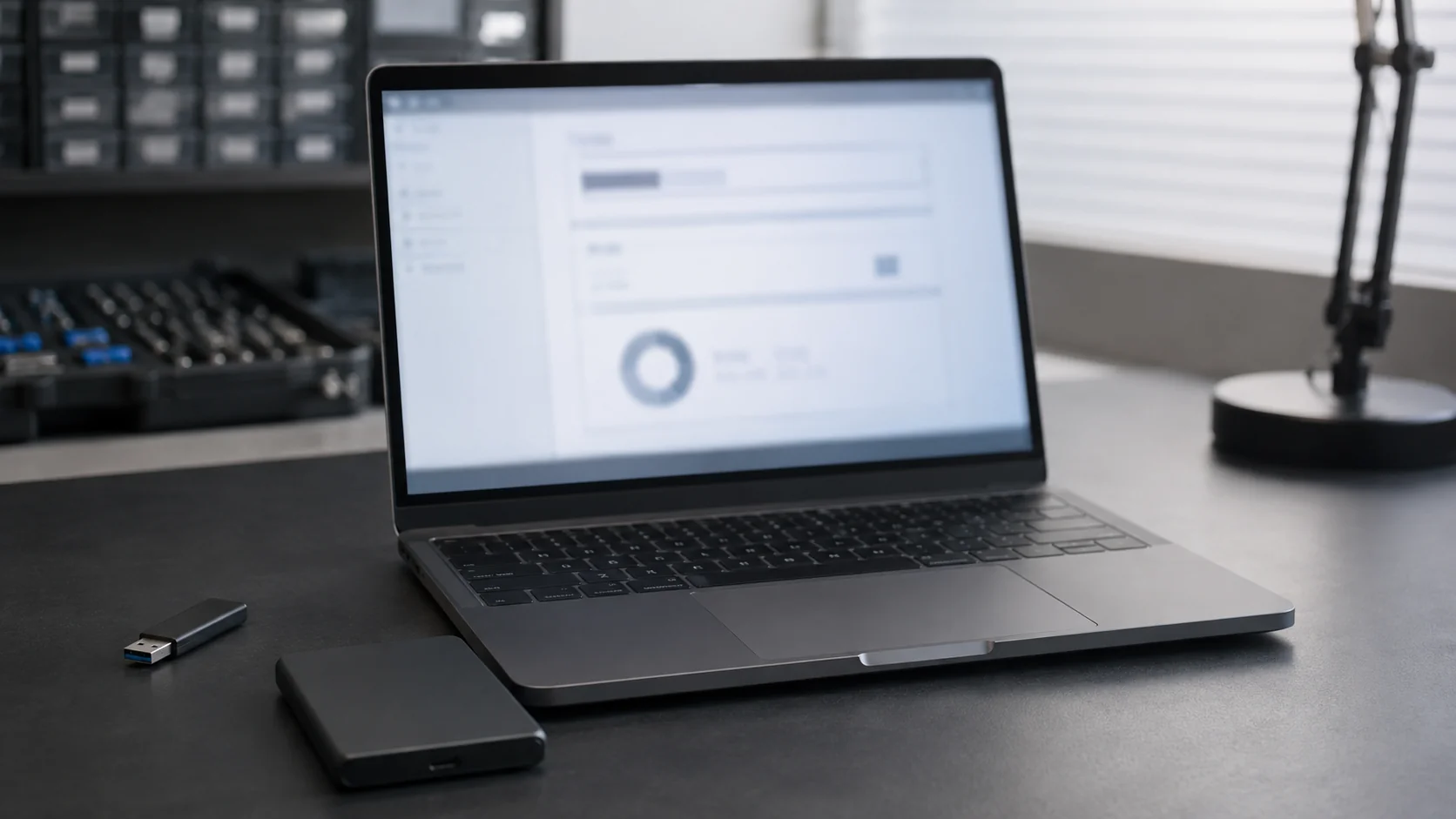
A USB drive that no longer appears in File Explorer is not necessarily invisible to Windows. Microsoft documents that a device may be absent from File Explorer while still appearing in Disk Management. This distinction lets the diagnosis begin without initializing, formatting or repairing anything.
Before any new test, stop if a disk makes unusual clicking, buzzing or scraping noises, disconnects, or shows signs of physical failure. In these cases, do not keep reconnecting the device.
If none of those signs is present, I start with simple checks that do not write to the device: connect it directly to a USB port, try another cable for an external drive, look in Device Manager, and then test the device on another computer. Microsoft includes these among the possible checks.
During these tests, reject any offer to initialize, format or create a volume when the files matter. Seagate advises stopping all writing, formatting and partition changes in a data-loss situation.
The first goal is not to make the drive usable at any cost. It is to establish where it appears without altering its contents.
Record each result: absent from File Explorer, visible or not in Disk Management, present or not in Device Manager, and its behavior on a second computer. This record describes the situation without inventing a cause.
A device missing from File Explorer may still appear in Disk Management, as Microsoft documents. Its absence from the first view therefore does not tell you what the second view will show.
Disk Management also exposes commands that can change the device. It can initialize disks, create or format volumes, and change drive letters. The presence of these commands is not a recommendation to use them.
Device Manager belongs to Microsoft’s list of possible checks. In this guide I use it only as a place to observe the hardware: I do not recommend uninstalling or replacing a driver on the basis of this symptom alone.
Seeing an Initialize or Format command does not make it safe for the data. Close the prompt when the files need to be preserved.
Keeping the three views separate prevents a premature conclusion. It also produces precise observations for later assessment without treating a Windows label as a definitive hardware diagnosis.
Microsoft says that a healthy volume without a drive letter may sometimes be assigned one. I restrict this possibility to a healthy, clearly identified and unambiguous volume. A missing drive letter is not a reason to make any other change.
To read the screen without confusing the terms, I use four levels: the device is the physical object; a partition is an organized area on that device; a volume is what Windows may describe as healthy or RAW; and the drive letter is only the label used to access a healthy volume in File Explorer. Disk Management may also report unallocated space or an uninitialized disk. Adding a letter does not correct those states, and no partition should be changed while the files matter.
A disk shown as uninitialized requires more caution. According to Microsoft, this state can be caused by a missing or invalid signature, corruption, or a hardware problem. The screen alone cannot tell you which of those causes applies.
Some USB media cannot be initialized in Disk Management. That documented limitation is another reason not to turn initialization into a universal answer for an invisible drive.
When Windows shows a RAW volume or unallocated space and files must be recovered, Microsoft says not to format the RAW volume and not to create a volume in the unallocated space. As a precaution, do not initialize, repair the file system or change partitions until the data is protected.
Only a healthy, unambiguously identified volume that merely lacks a letter fits the case where a letter may be considered. RAW, unallocated or uninitialized means no writing when the data matters.
If the display is unclear, I stop at describing it. I do not infer the contents of a partition, the state of the files or the underlying cause from a single label.
Formatting destroys the data on a volume. Microsoft explains that a quick format creates a new file table without completely erasing the device; that does not make it safe. Creating the new table still changes the state that should be preserved.
If Windows offers to format the drive before use, decline. If Disk Management offers to initialize the disk, create a volume or change a partition, do not accept when the files are important. Do not run a file-system repair in this situation either.
The rule matches Seagate’s advice: in a data-loss situation, stop writing, formatting and changing partitions. It also matches Microsoft’s warning not to format a RAW volume or create a volume on unallocated space when files must be recovered.
An operation that may produce an empty usable volume is not data recovery. When the files matter, preserving the device’s state comes before making it reappear in File Explorer.
If the files do not matter, this guide still does not provide a reset procedure. Its scope is deliberately limited to non-destructive diagnosis of a device whose contents need protection.
Testing on another computer helps separate the computer from the device. Microsoft says that a device which also fails on another computer may have a hardware failure. The word ‘may’ matters: this result is an indication, not a remote certainty.
With a mechanical external drive, unusual clicking, buzzing or scraping noises may indicate a mechanical failure according to Seagate. These noises are a reason to stop using the drive immediately. Do not repeat connections in the hope of obtaining one more successful start.
I also stop testing when the device disconnects or shows signs of physical failure. Diagnosis must protect the data rather than extend testing on unstable hardware.
For more guidance on reading these symptoms, see the signs of hard-drive failure.
Unusual noise, disconnections or failure on another computer: stop testing and preserve your observations.
The absence of noise is not enough to establish that the device is healthy. I stick to the available observations and avoid making a remote hardware conclusion.
Copying, cloning and a recovery lab are three conditional decisions, not three automatic steps. Here, ‘copying’ means transferring files that are still accessible; ‘cloning’ means creating a reproduction of the device before working on the data; and ‘recovery lab’ means stopping local handling in favor of external support. These definitions clarify the decision; they do not guarantee any result.
If the device makes unusual noises, disconnects or shows physical-failure signs, testing stops. In that situation I do not present either copying or cloning as guaranteed, and I do not prescribe further local handling.
I reserve copying for a case where the needed files are accessible and the device remains stable, without unusual noise, disconnections or signs of physical failure. If the files are not directly accessible but the observed condition still allows work without those stop signs, cloning first is often preferable to working directly on the device. As soon as a physical sign or instability appears, local testing stops and the recovery-lab option must be assessed. None of these choices can guarantee recovery.
To consider the data recovery in Dordogne option, use this related guide. Seagate states that recovery may remain partial and cannot be guaranteed.
No software, copy, clone or laboratory can guarantee recovery of all data. I prefer to state that limit before any intervention.
Once the files are genuinely protected, you can consult the 3-2-1 backup plan. That is an after-incident measure, not a substitute for the present diagnosis.
Written by
IT technician and founder of Tera24, I provide computer repair, troubleshooting, and optimization services throughout Dordogne, helping individuals and businesses keep their technology running smoothly.
About Tera24 ↗From guide to workshop
Further reading
PCs & Computers
Inventory, scheduling, retention, a separate copy and restore tests: organise usable NAS backups for several small-business computers.
PCs & Computers
RAM, SSD or another cause? Observe the real workload, check compatibility and identify the bottleneck before buying an upgrade.
PCs & Computers
Turn the laptop off and disconnect it without retesting, avoid heat, compressed air and rice, then arrange inspection before power is applied again.